How to make a seamless looping GIF from a video
Choose a complete motion cycle, match the endpoints, and fix visible jumps with three animated examples of loop behavior.
A seamless looping GIF returns from its final frame to its first without a visible jump or an awkward pause. The easiest route is to choose a short passage of video in which the subject, framing, lighting, and direction of movement naturally return to the same state. Trim around that complete cycle, export the GIF, and watch the restart several times at the size where the animation will actually appear. If the source never returns to its opening state, trimming alone cannot manufacture a perfect seam; you need a different clip or a more deliberate edit before conversion.
What makes a GIF loop seamless
A loop is a boundary between two frames: the last displayed frame and the first. Viewers notice that boundary when the subject changes position, the camera angle jumps, a hand appears or disappears, or the background shifts. They also notice timing. An extra-long final frame can make an otherwise continuous animation seem to freeze, while a duplicate frame at both ends can introduce a tiny hitch. Smooth looping therefore requires three checks: the pictures connect, the direction of motion connects, and frame timing remains consistent. These are visual tests, not guarantees that can be inferred from a loop setting alone.
A GIF that repeats automatically is not necessarily seamless. The GIF format stores individual graphic frames and per-frame delays; common looping behavior repeats the sequence after the final frame. It does not interpolate missing pictures between the end and beginning. If a one-way action finishes far from where it started, infinite playback merely repeats the jump. That is why loop design begins with the source video rather than with the export checkbox.
Choose the right loop pattern
| Pattern | Best source video | Main risk |
|---|---|---|
| Natural cycle | A full rotation, repeating mechanism, waving fabric, or another motion that returns to the same phase | A partial cycle or a duplicate first frame at the end |
| Matched cut | Two moments with similar subject position, crop, light, and movement direction | A background or camera shift that becomes obvious on repeat |
| Ping pong | A reversible movement such as a gentle reveal or object sliding between two positions | Motion looks artificial when the action should not reverse |
| Static hold | A tutorial or product state that should remain readable before restarting | A long pause feels like the GIF stopped rather than looped |
For most product clips, a natural cycle is the strongest choice. A turntable completes a full revolution, a rotating package returns to its front view, or a repeating gesture reaches the same resting position. A matched cut can work when no perfect cycle exists, but it demands careful inspection of the surrounding frame. Ping-pong is a separate editing technique: play the chosen frames forward, then backward, while avoiding repeated endpoint frames. It can connect positions neatly, but the reverse action may be implausible for pouring liquid, opening packaging, or a human reaction.
Start with footage that can survive the restart
Watch the original video once without thinking about duration. Look for a complete visual idea that can repeat: a full product rotation, a cursor action that returns to its initial interface state, a light pulsing on and off, or a fabric detail moving through a steady breeze. Mark a possible first frame, then find the next moment with nearly the same composition and motion phase. If the camera pans, the exposure changes, or another person crosses the frame, use a different passage. A good loop may be only two or three seconds long; the boundary matters more than squeezing in every interesting moment from the recording.
The scene should also communicate something at its final display size. A wide screen recording with tiny interface text may look fine on a desktop preview but become unreadable in an email or product card. Crop around the meaningful action before conversion if the source includes empty borders or irrelevant surroundings. Keep the camera stable where possible; every moving background detail gives the viewer another cue that the scene has reset. For product footage, consistent lighting and a stationary frame make the rotation easier to compare and the restart less conspicuous.
Make the loop from a video clip
Select one complete cycle
In the source video, identify a reference state that is easy to recognize, such as the front of a product facing the camera. Start just before that state begins to move and end immediately before it appears again. If you include the matching state twice, the export may dwell on it longer than on neighboring states. The correct endpoint is not always a timestamp rounded to the nearest second; scrub near the boundary and compare adjacent frames.
Trim and crop before converting
Upload the source to the Free Video to GIF Converter and use its clip-selection and crop controls to keep only the useful motion. The current tool also lets you set playback speed, frame rate, and output width. Those controls can help the result feel clear and stay compact, but they do not automatically find a seamless seam. Start with a short section, preview it, and adjust the chosen endpoints until the final view leads naturally into the opening view.
Do not mask a poor cut by making the GIF excessively fast. Higher speed shortens the time available to see the jump, but it can also make product detail or interface actions harder to follow. If an action needs a readable pause, keep it in the clip and make the hold intentional. If the source ends on a different state from the opening, find a reversible or cyclic passage instead of trying to solve a structural mismatch with FPS or compression.
Export and test the completed GIF
Generate the GIF and view it outside the editing preview as well as inside it. Watch at least three restarts without looking away. If the movement is clear but the file is larger than its destination allows, reduce width or frame rate only as far as the motion still reads correctly; the GIF frame rate guide explains the trade-off in more detail. If the loop is otherwise good, optimize the finished file with the Free GIF Compressor rather than sacrificing the seam to reach a size target.
A visible jump and how to fix it
The first example ends with the object on the right and restarts with it on the left. Every frame inside the clip moves smoothly, yet the boundary is conspicuous because the final and initial positions do not match. This is a common result when someone selects the most interesting few seconds from a one-way video and assumes that repeated playback will close the visual gap.
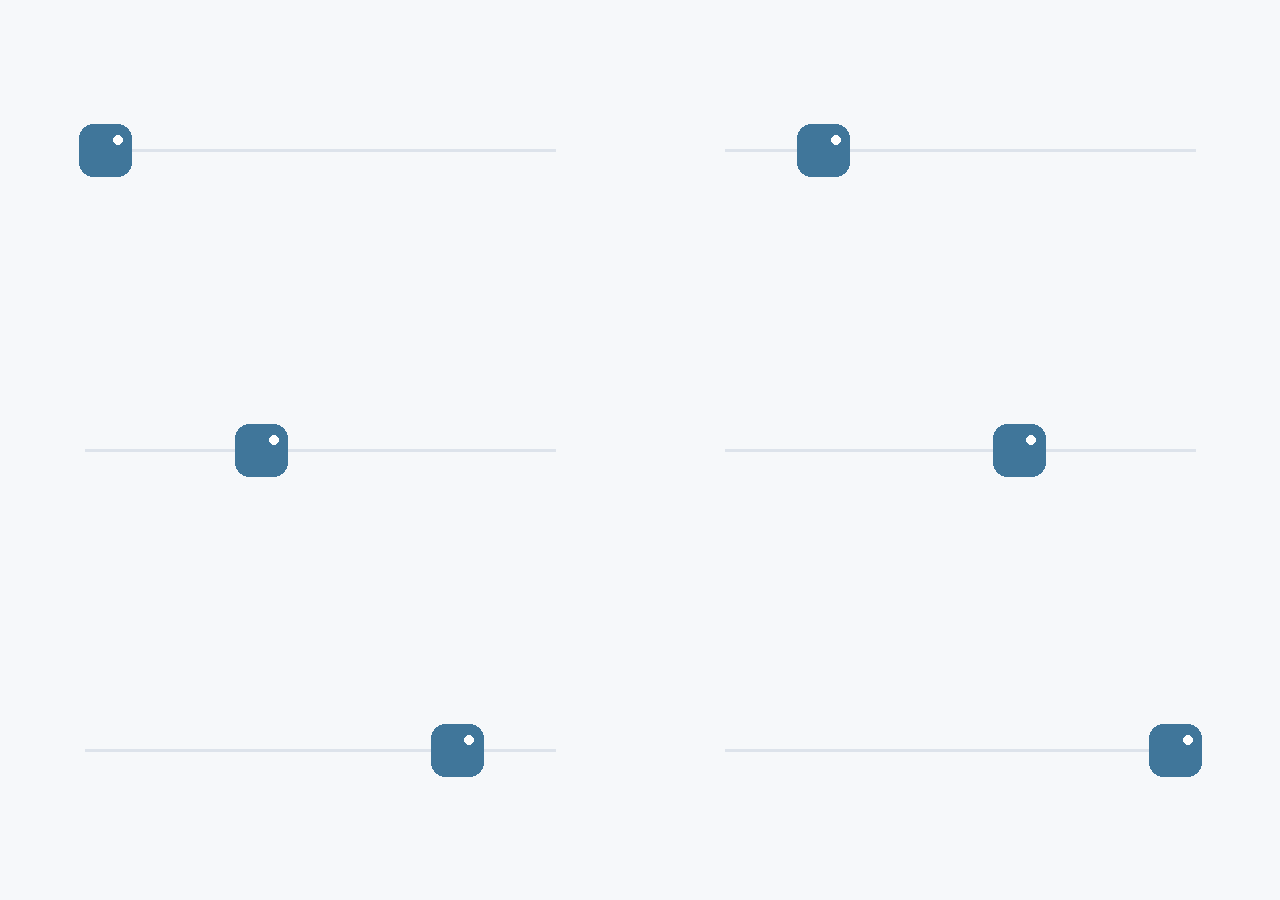
Fix this kind of jump by finding a complete cycle in the source, not by adding duplicate frames to the exported GIF. If the object cannot naturally return to the starting position, choose another clip or plan a reversible sequence in an editor capable of creating one. For an existing GIF whose strong section is surrounded by unwanted footage, Free Trim GIF can remove the excess frames, but trimming will only improve the seam if the retained endpoints actually connect.
Watch the blades in this real wind-turbine clip. The first cut resets before the rotation has completed; the second keeps a full turn so the blades continue across the seam.
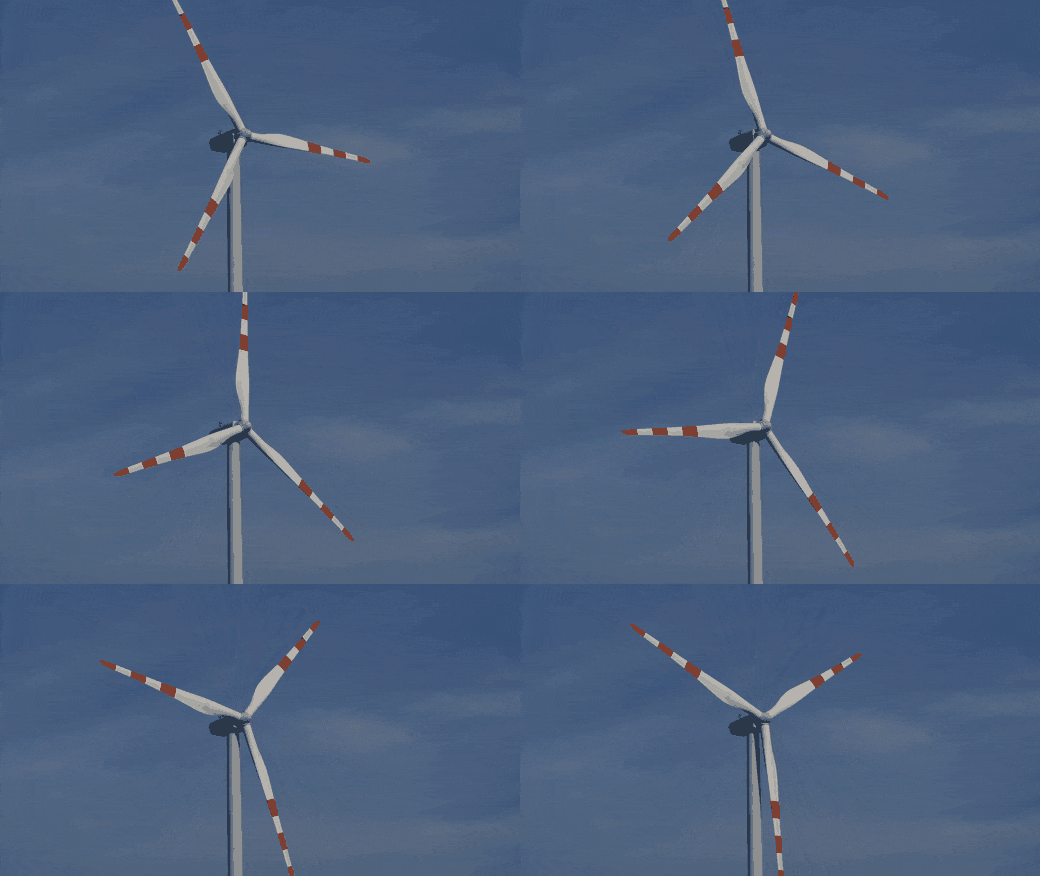
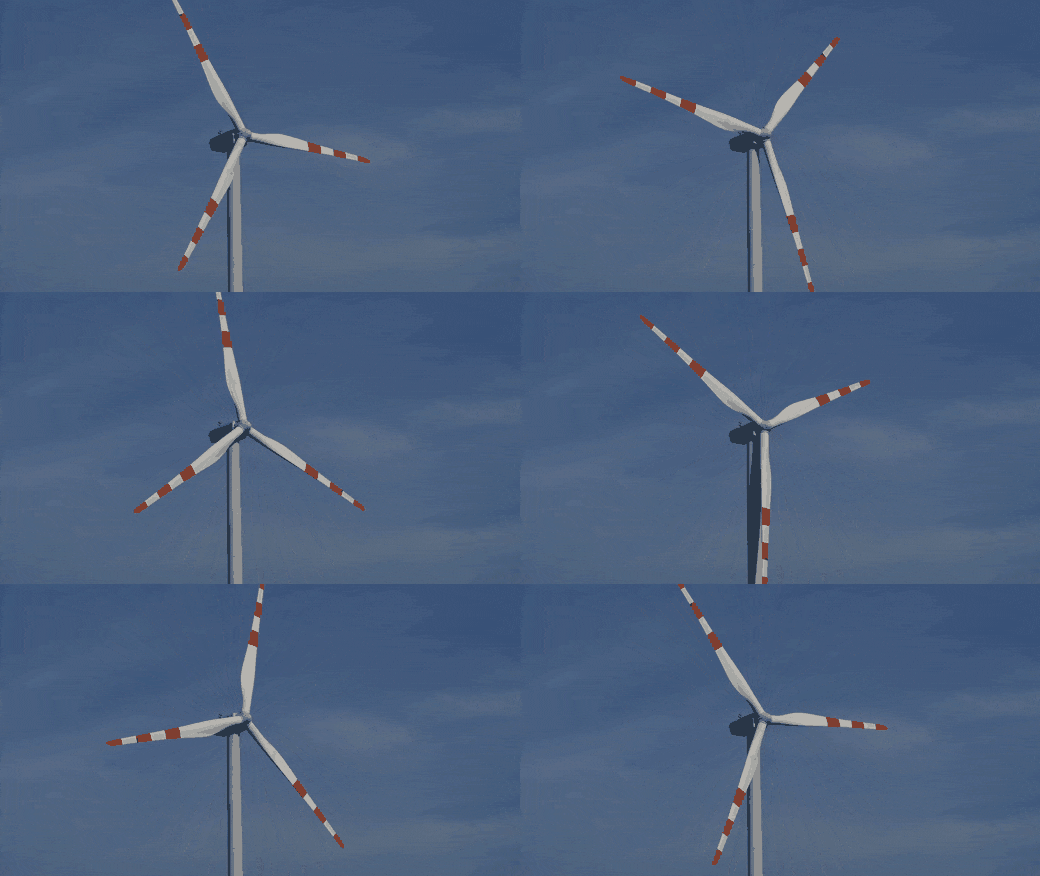
Source: wind turbine footage by Kaboompics on Pexels.
A natural cycle works best for repeating motion
In the second example, the object follows a complete movement cycle and reaches the same motion phase just before the sequence restarts. The viewer sees continued movement rather than a reset. This pattern is particularly useful for product rotations, looping interface indicators, animated icons, repeated machine movement, and short background details. It also tends to feel less engineered than a crossfade, because the motion itself explains why the beginning follows the end.
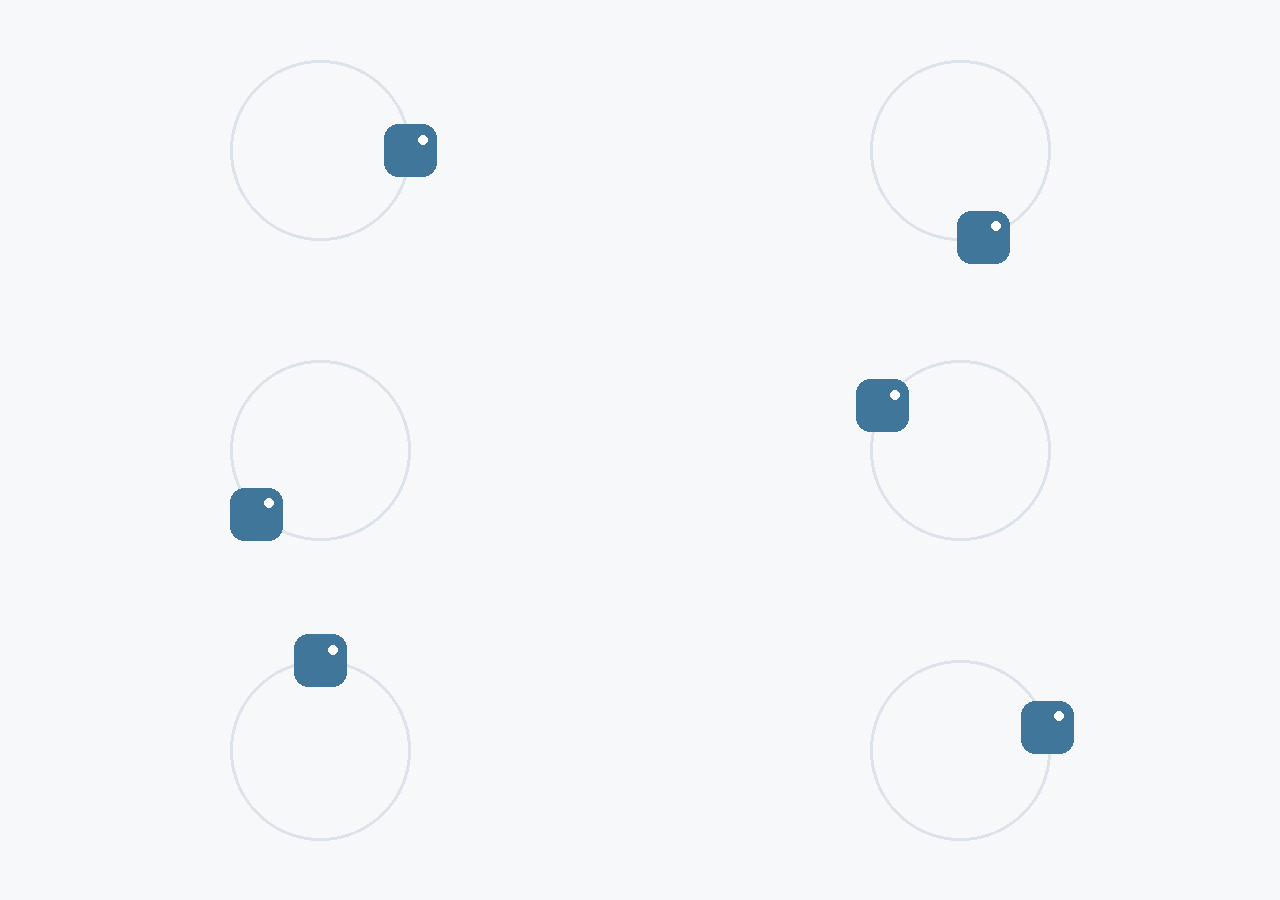
The cycle must be complete enough that speed and direction match on both sides of the boundary. A full turn of a product can fail if the camera exposure changes halfway through or the turntable accelerates at the end. If the recording includes two full cycles, keep the cleaner one instead of exporting both. This usually makes the file lighter while preserving the same meaning.
The same turbine demonstrates a natural cycle: the blades keep turning in one direction, with no reverse playback. Matching their position after a full revolution makes the restart much less noticeable.
Source: wind turbine footage on Pexels.
When a ping pong loop is appropriate
A ping-pong loop plays a movement forward and then backward. The third example moves the object across the frame and returns it by reversing the same visual path. The seam is continuous because the object is back near its starting position when the animation repeats. This can suit a simple product reveal, a UI panel sliding open and closed, a decorative shape, or an object turning between two angles. It is less suitable for irreversible actions: liquid flowing, a parcel being unwrapped, or someone speaking.
A true ping-pong sequence must be prepared in an editor that can reverse and join footage before conversion, or assembled from an intentionally ordered frame sequence. TweenFrame’s Video to GIF Converter does not currently offer a one-click ping-pong setting, so do not expect it to create that pattern from a one-way clip. Once a reversible video sequence exists, the converter can turn the prepared segment into a GIF. Exclude duplicated first and last frames where practical; otherwise the motion may pause for a beat at each turning point.
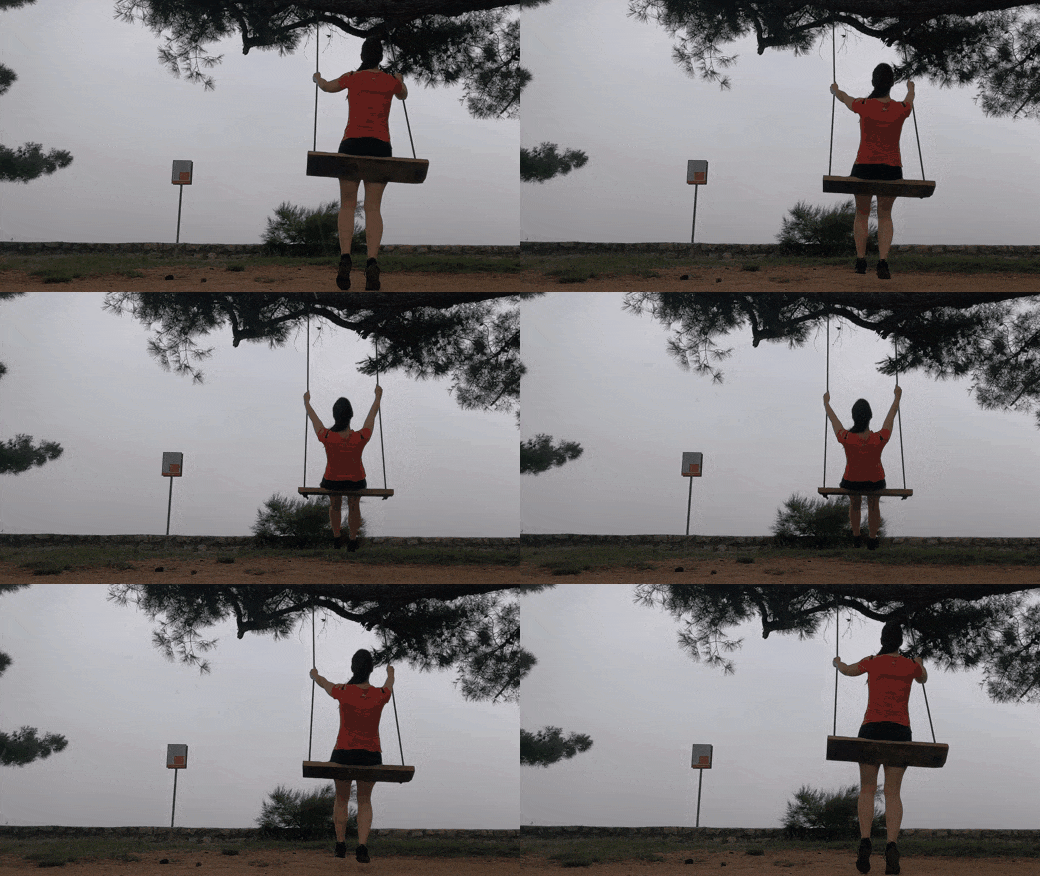
In this swing example, a short outward movement plays forward and then in reverse. The return is made from the same frames, rather than the next part of the recording. A swing makes that reversal plausible because its movement already changes direction; compare the small movements of the rider and background as well as the swing itself.
Source: swing footage by Martina Tomšič on Pexels.
Check the loop seam at its actual placement
Place the GIF in the kind of layout where it will be used, or at least resize the preview to the same displayed width. A tiny mismatch in a large canvas may become negligible in a compact product card, while a jump in a centered product shot can remain very obvious. Test the first frame as a standalone image too: some contexts show it before loading or do not animate. For an email asset, surrounding live text should carry the essential offer or instruction so the message does not depend on motion.
Look for a pause that is not in the source. GIF frames have individual delays, and exporters may hold the opening or closing picture longer than expected. Watch the loop with your eye fixed on the seam, then with your eye on the subject. If a double-held endpoint causes a hitch, trim the redundant frame or adjust the prepared sequence. If the background changes, a tighter crop can sometimes remove the distracting region; if the subject itself changes position, cropping cannot solve it. Recheck after any size or FPS adjustment, because skipped frames can alter how the final step meets the first.
Common loop problems and practical fixes
| What you see | Likely cause | First fix to try |
|---|---|---|
| A sharp snap at every restart | The last and first frames show different subject positions | Select a full motion cycle or a better matched cut |
| A tiny hesitation at the seam | A matching endpoint was included twice or has a longer frame delay | Remove the redundant endpoint and inspect timing |
| The object connects but the background jumps | Camera movement, lighting, or another object changed during the clip | Use steadier footage or crop to the relevant area |
| Motion looks choppy after export | Too few meaningful frames survive the chosen FPS or speed | Test a slightly higher FPS or slower playback |
| The GIF is smooth but too large | The clip, canvas, or frame count is larger than the placement needs | Shorten the cycle, reduce width, then compress |
Where seamless loops work best
A product card benefits from a loop that reveals one repeatable detail without demanding a click. A full product rotation or a small material movement can show shape and texture while remaining readable at thumbnail size. In email, a short animation can demonstrate an offer or product feature, but the first frame still needs to make sense and the file must fit the editor’s upload and performance constraints. On a help page, a looped interface action should include just enough pause for viewers to identify the initial state and result without replay controls.
Not every video should become a loop. A tutorial with several irreversible steps may be clearer as a short video with controls or as several separate GIFs, each showing one repeatable action. A reaction clip can tolerate a visible reset because repetition is part of the humor; an ecommerce product rotation usually cannot. Choose the degree of seam perfection according to the viewer’s task, not as a universal aesthetic rule.
Conclusion
A seamless looping GIF is made by choosing footage whose end can meet its beginning, then verifying that connection after export. Start with a complete natural cycle whenever the source offers one. Use a matched cut only when the subject, background, direction, and frame timing align; use ping-pong only for motion that looks believable in reverse. Trim and crop the video before converting, keep the result short enough for its placement, and watch several restarts at the final display size. Compression is the delivery step, not a repair for a broken seam.
Frequently asked questions
What is a seamless looping GIF?
It is an animated GIF whose last displayed frame leads into its first with no obvious visual jump or unintended timing pause. The animation can repeat infinitely and still have a bad seam if those frames do not connect.
How long should a looping GIF from video be?
Keep the shortest complete action or motion cycle that viewers can understand. A short product rotation or interface detail often needs only a few seconds, but a readable tutorial state may need longer holds. The seam matters more than a fixed number of seconds.
Can I make any video loop seamlessly?
No. A one-way action that never returns to its opening state cannot become naturally seamless through trimming alone. Choose a different passage or prepare a matched cut, reverse sequence, or other edit before conversion.
Does TweenFrame automatically make a perfect loop?
No. Its Video to GIF Converter can select a video segment, crop, change speed, set FPS and output width, and generate an animated GIF. You still choose the endpoints and check the restart yourself.
What is a ping pong GIF?
It is a sequence that plays forward and then backward. It connects positions well for reversible movement, but can look unnatural when the action has a clear one-way cause. Prepare the reverse sequence outside the converter before exporting if you need this pattern.
Why does my GIF pause before looping?
The final frame may have a longer delay, or the same endpoint may be present twice. Inspect frame timing and remove redundant boundary frames where the editor allows it.
Should the first and last frames be identical?
They should show compatible states, but an identical extra frame at the end is not automatically helpful. It can create a momentary hold. Match the motion phase and timing across the boundary instead of simply duplicating the opening picture.
Can compression fix a visible loop jump?
No. Compression can reduce file size while keeping the animation, but it cannot restore a missing motion phase or make mismatched endpoint pictures meet. Repair the clip first, then compress the finished GIF.
What frame rate is best for a looping GIF?
Use enough frames to preserve the motion that matters, and test the seam after export. A simple slow cycle can work at a lower FPS than a fast object movement. There is no universal rate that solves a poor cut.