Countdown timer GIF generator
Create a countdown GIF with your own fonts, colors, and title. Download it for emails, messages, and presentations — free, no sign-up.
Benefits
Create your own countdown GIF.
Make an animated timer with a starting value that suits your message, from a 30 second countdown GIF to a display beginning at several days. Choose the units, layout, fonts, and colors, then add a title and custom labels. Start with a preset or build your own design.
Download a timer you can share.
Save your countdown timer as a GIF for a message, presentation, webpage, or email. Use the animation to introduce a short activity or illustrate an event announcement. The downloaded file plays a fixed sequence, so include the actual date and time separately when communicating a real deadline.
Countdown timer GIF examples
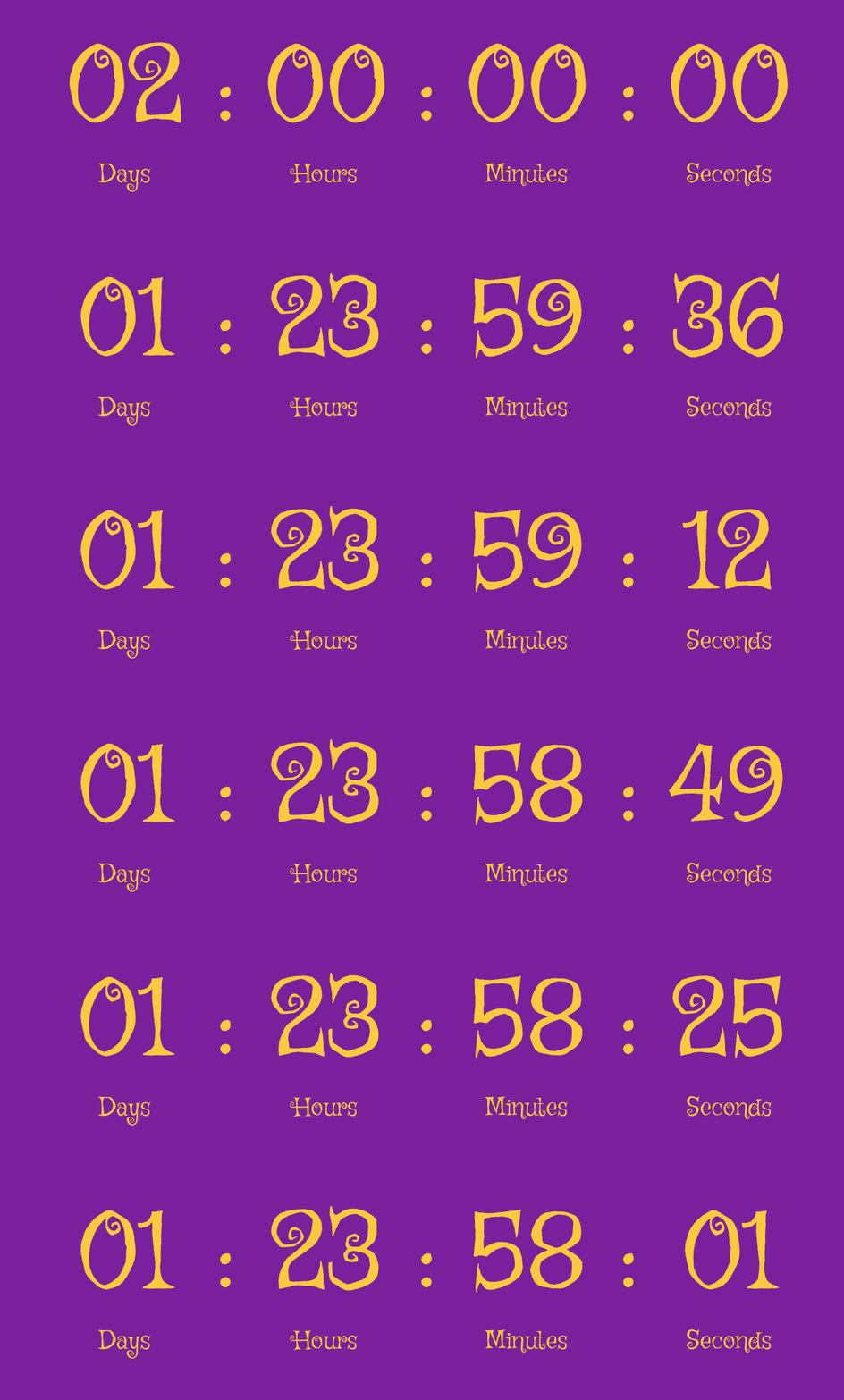
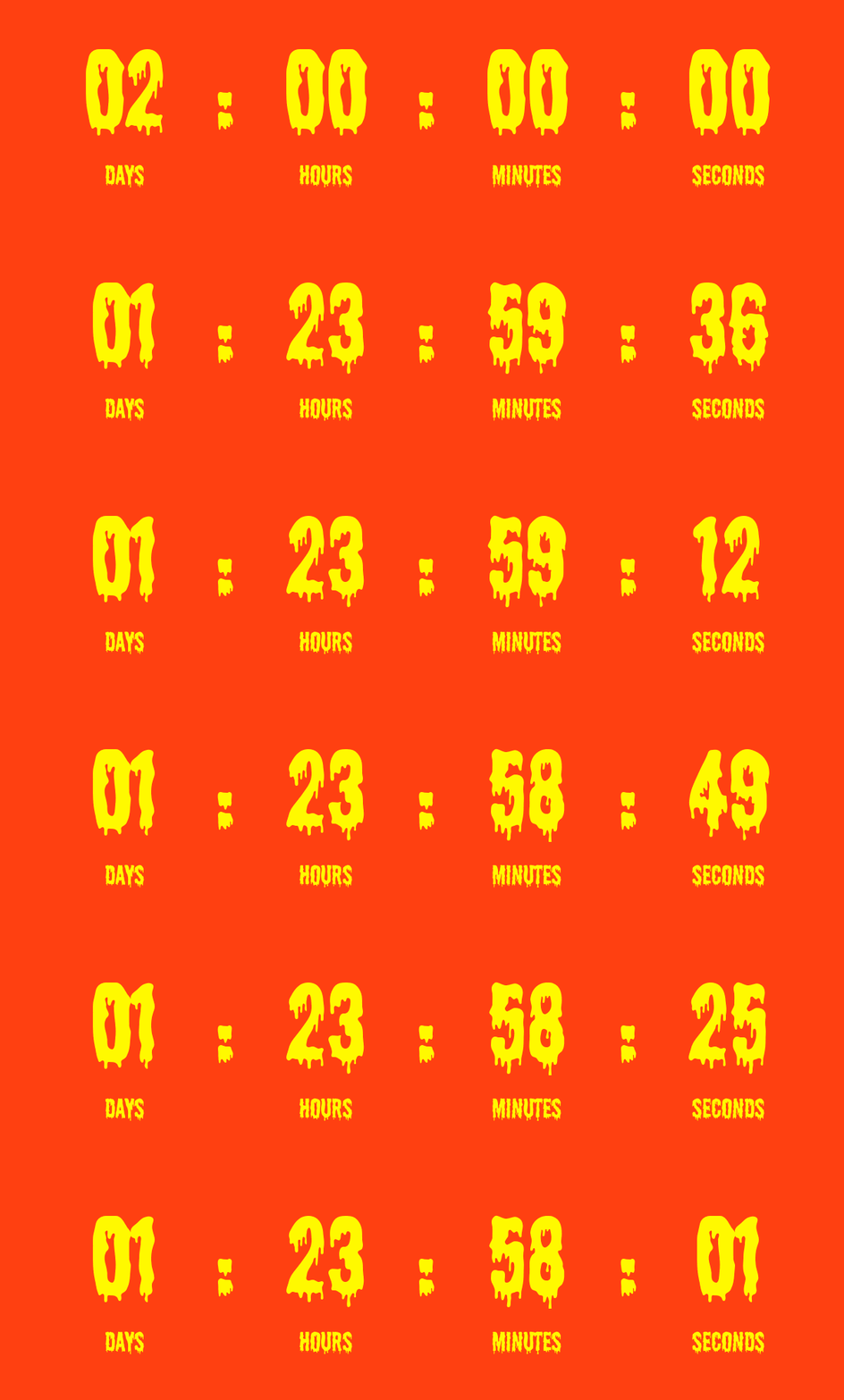
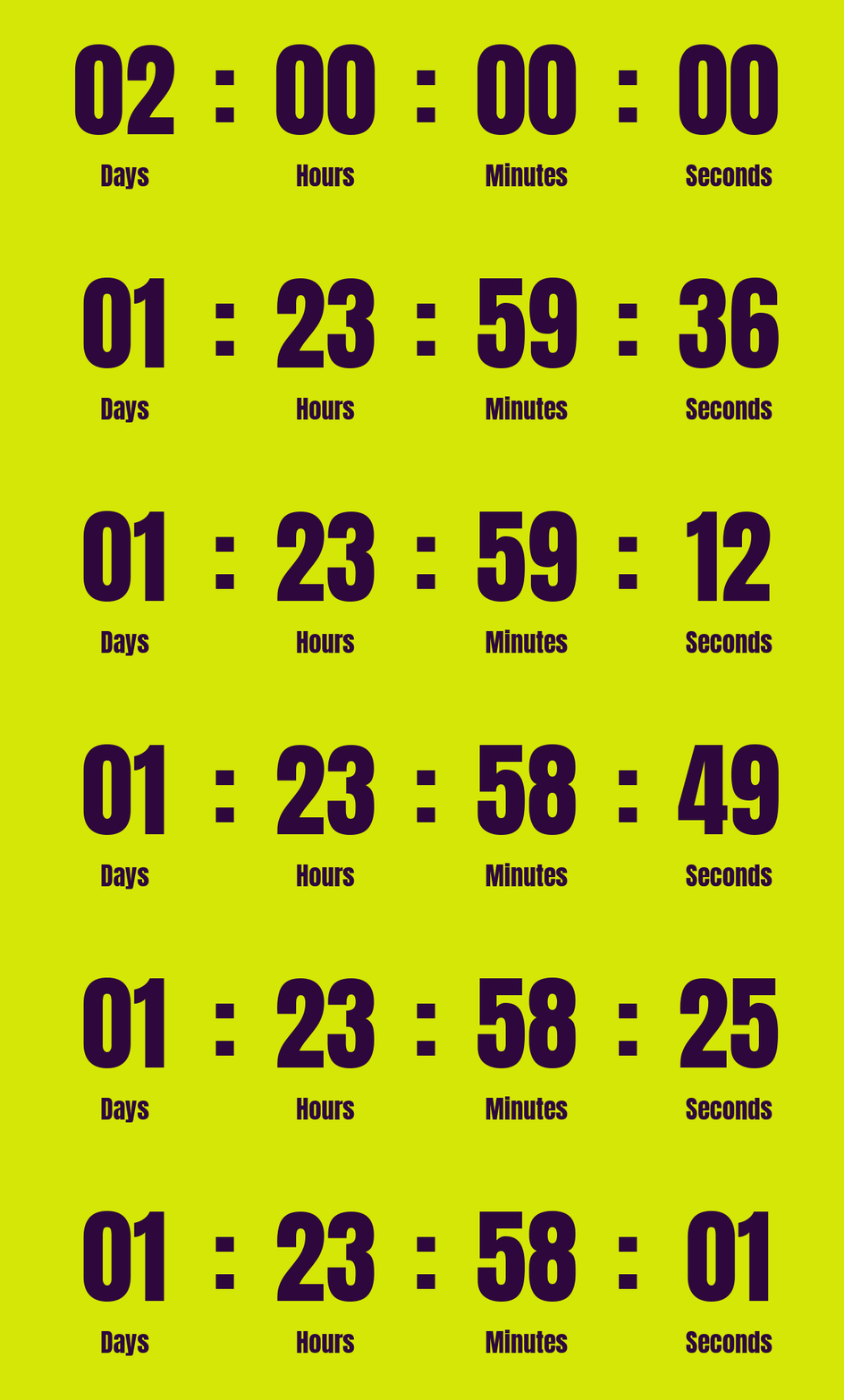
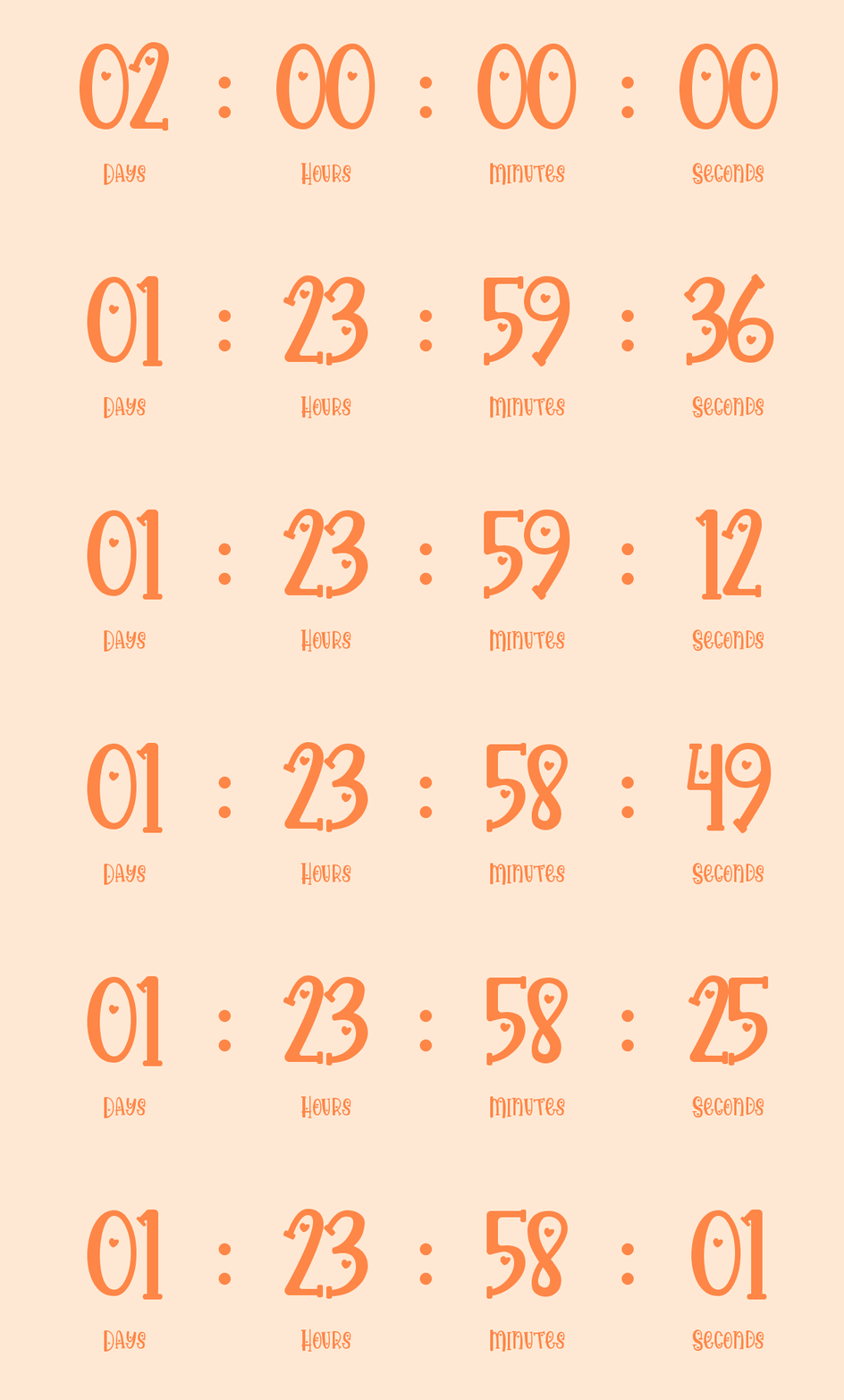
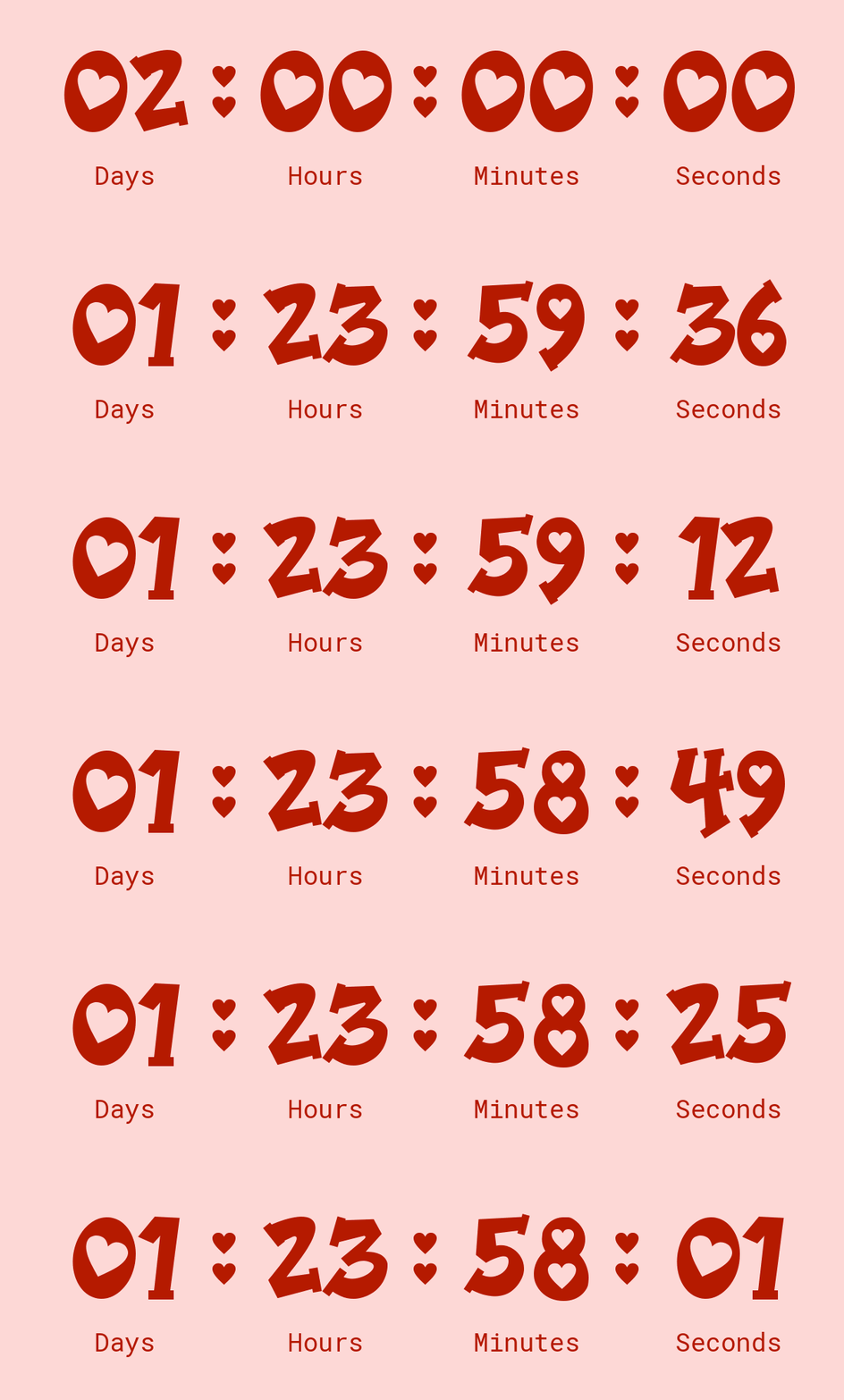
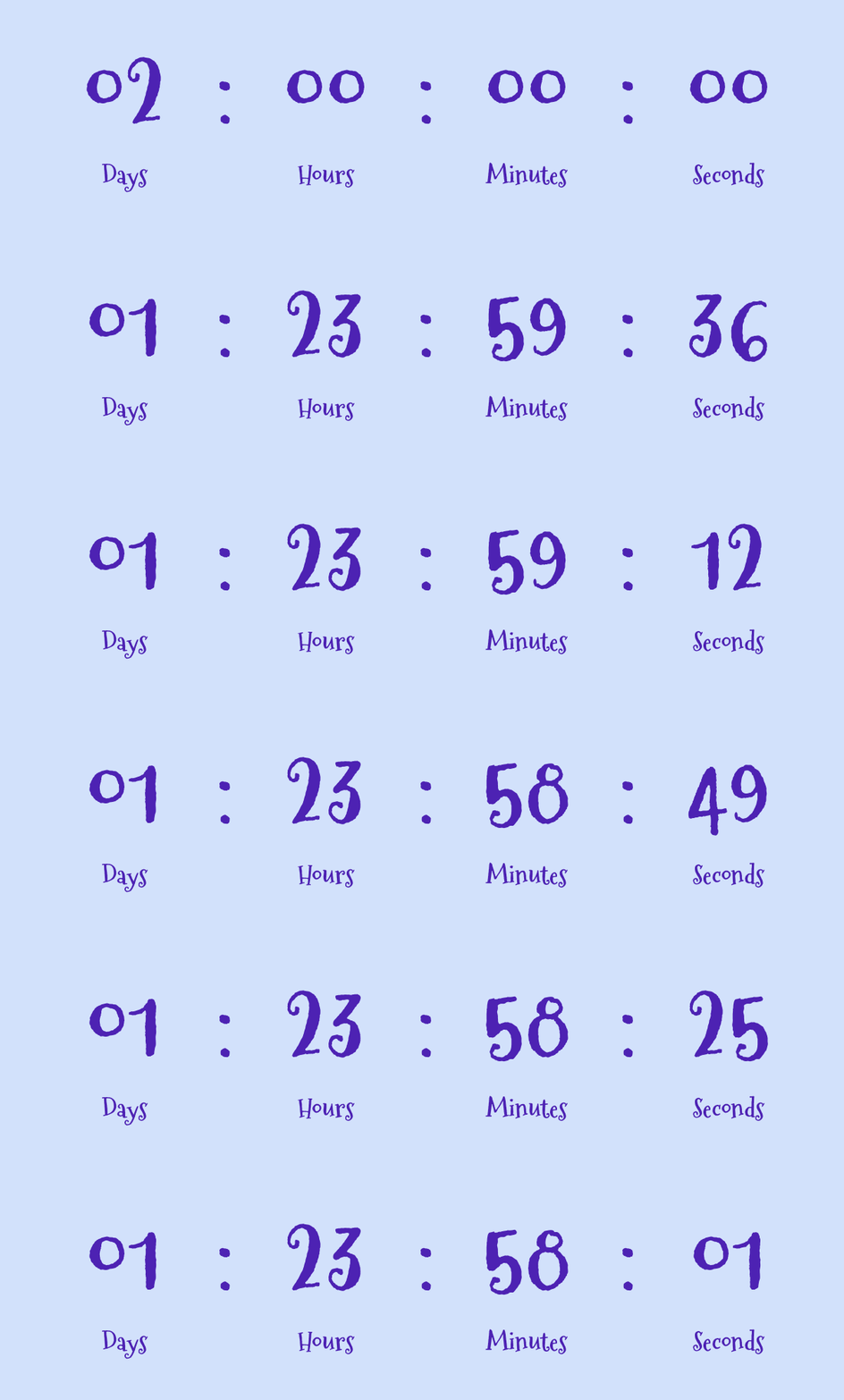
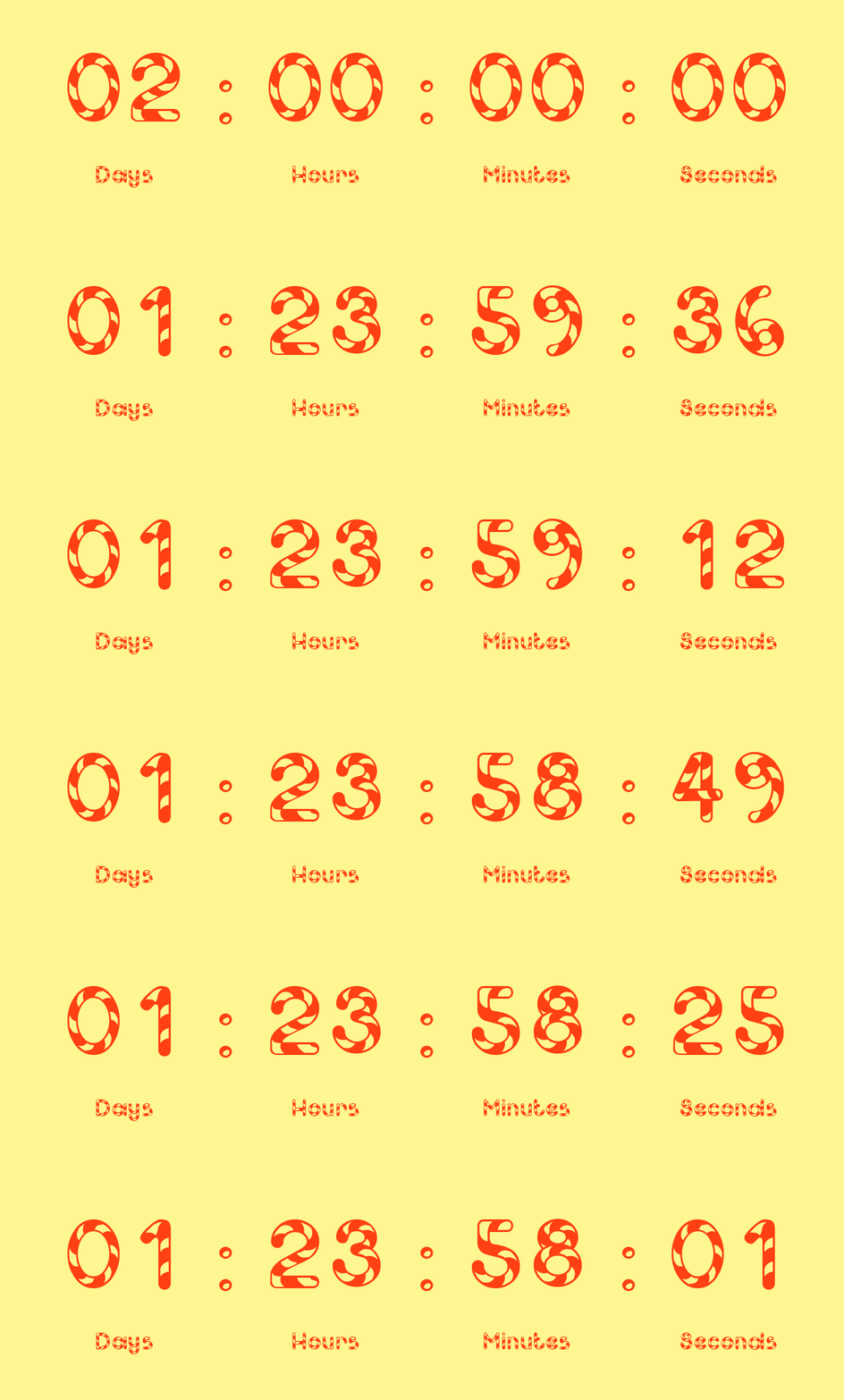
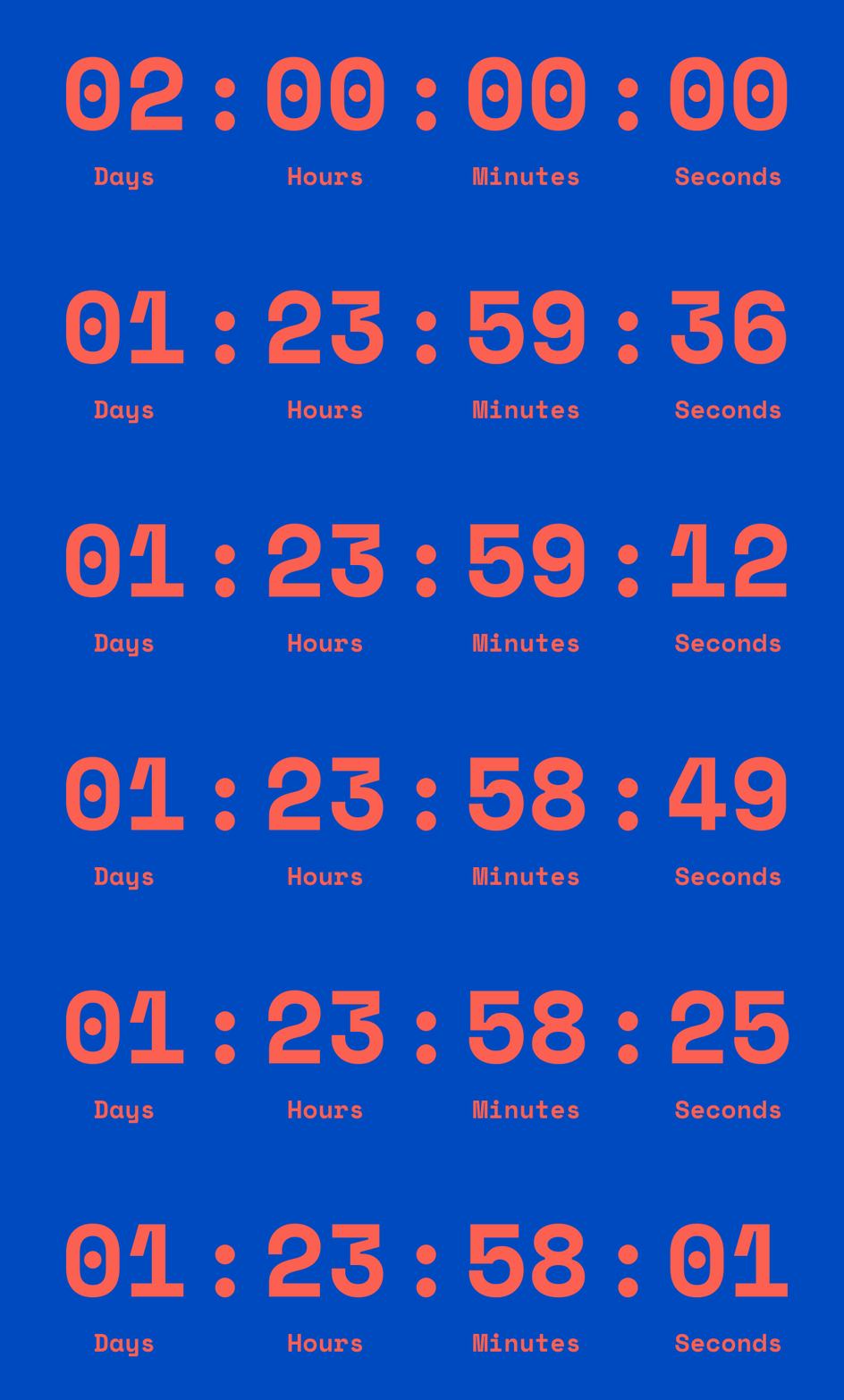
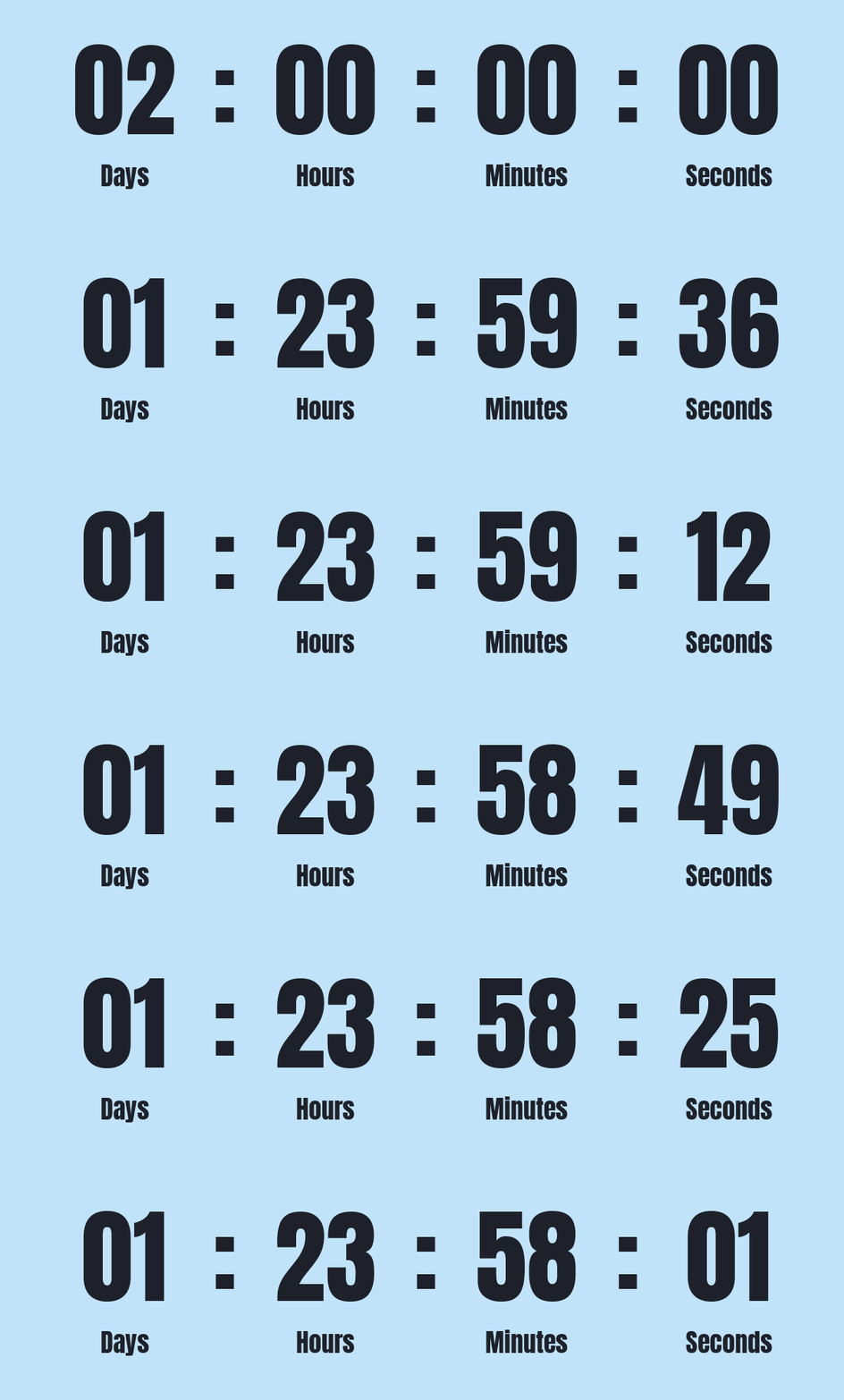
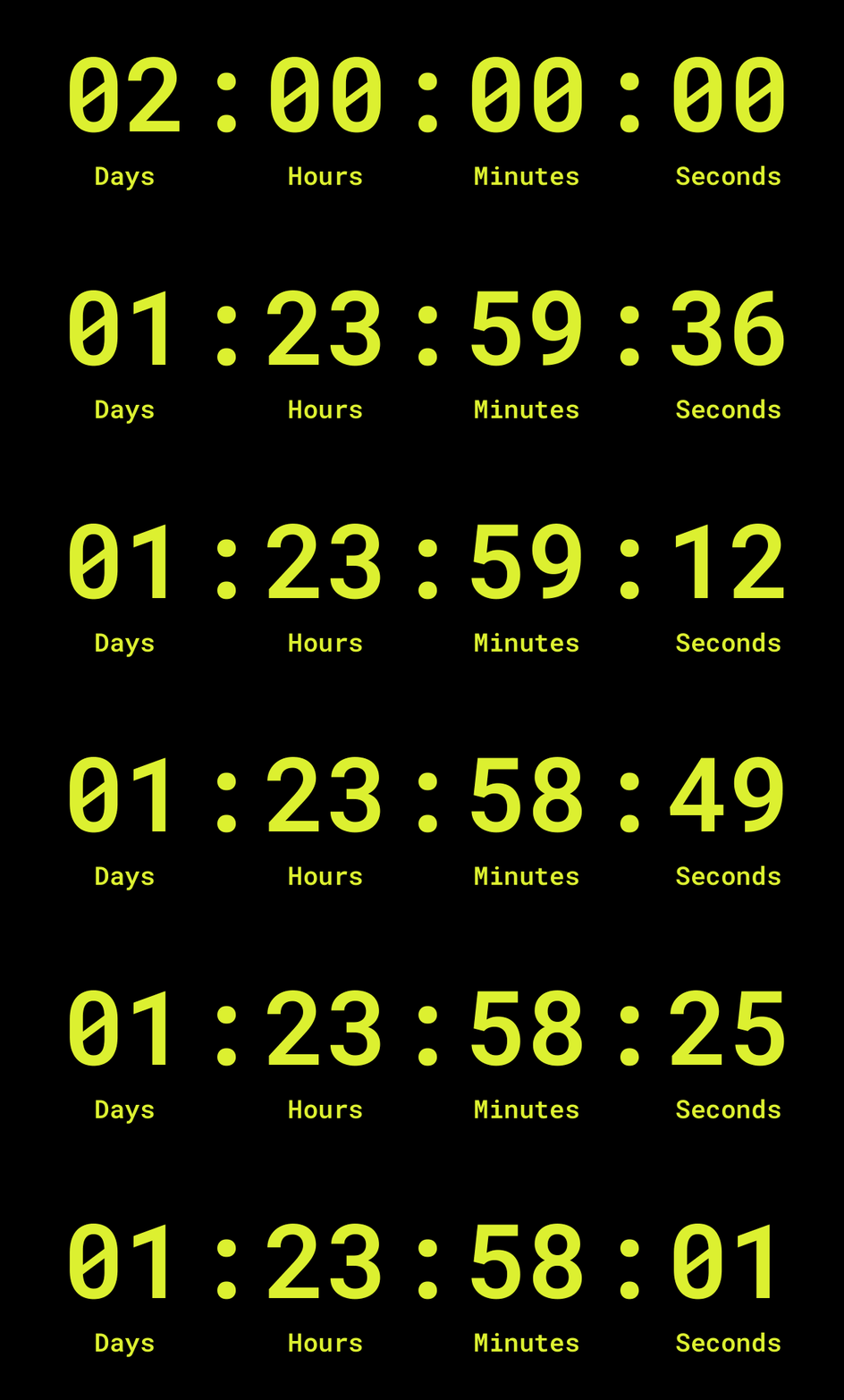
Countdown timers in emails
Seasonal promos
Use a seasonal countdown design in a holiday email, with the campaign dates written separately in the message.
Limited-time offers
Draw attention to an offer with an animated timer. Include the real expiration date and timezone beside the GIF.
Product launches
Create a branded launch announcement with a countdown visual and a clear release date in the accompanying text.
How to make a countdown GIF
Set the starting time
Choose seconds, minutes, hours, or days. For a 1 minute countdown GIF, select Minutes and enter 1.
Customize the design
Choose the layout, units, fonts, and colors. Add a title and edit or hide the unit labels.
Generate and preview
Click Generate, then check the design, playback, and file size of your animated countdown.
Download your GIF
Save the result and insert it as an image. Test playback in the app where you plan to use it.
Countdown GIFs by duration
| Starting value | Settings and ideas | Download example |
|---|---|---|
| 30 second countdown GIF | Seconds: 30. A short “Get ready” animation for a message or presentation. | 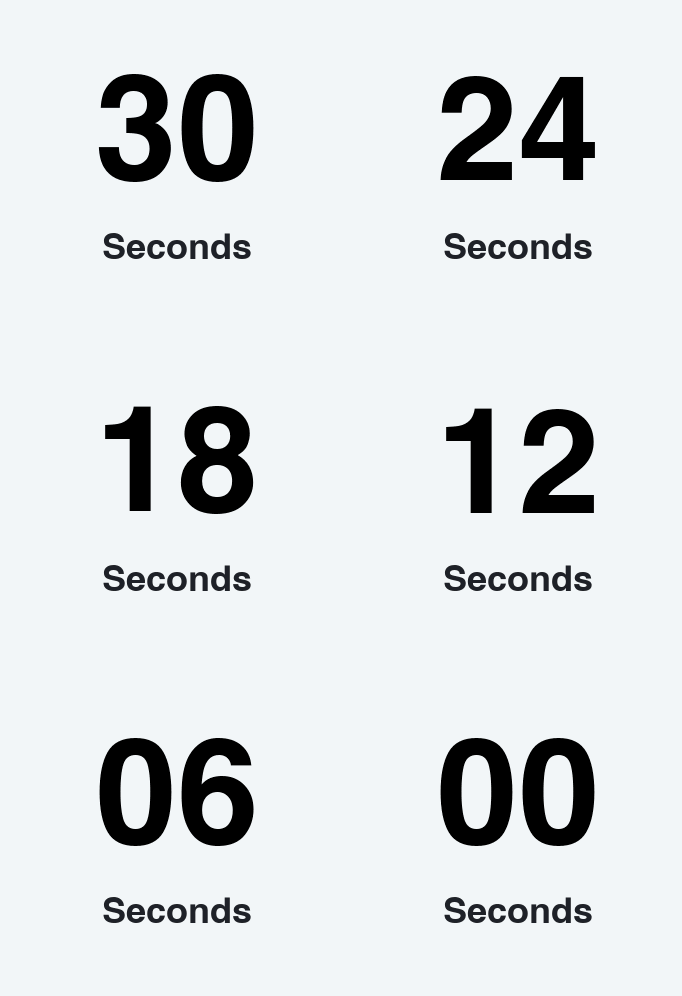 Download GIF Download GIF |
| 1 minute countdown GIF | Minutes: 1. Show a one-minute countdown for a short introduction or activity prompt. | 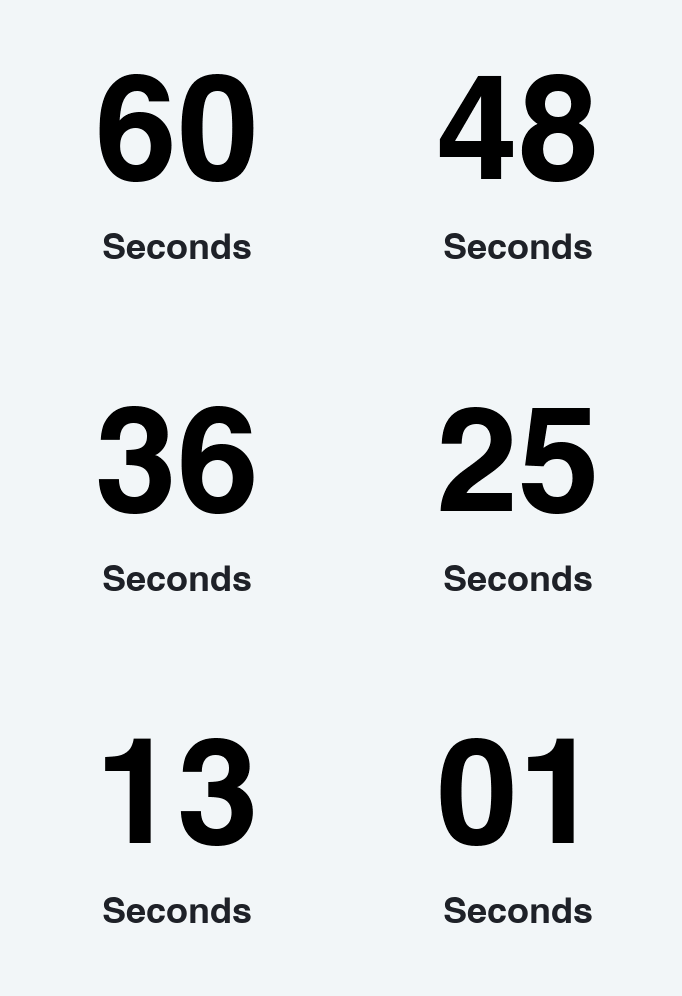 Download GIF Download GIF |
| 3 minute countdown GIF | Minutes: 3. Create a “Starting soon” visual. The GIF shows a short excerpt, not all three minutes. | 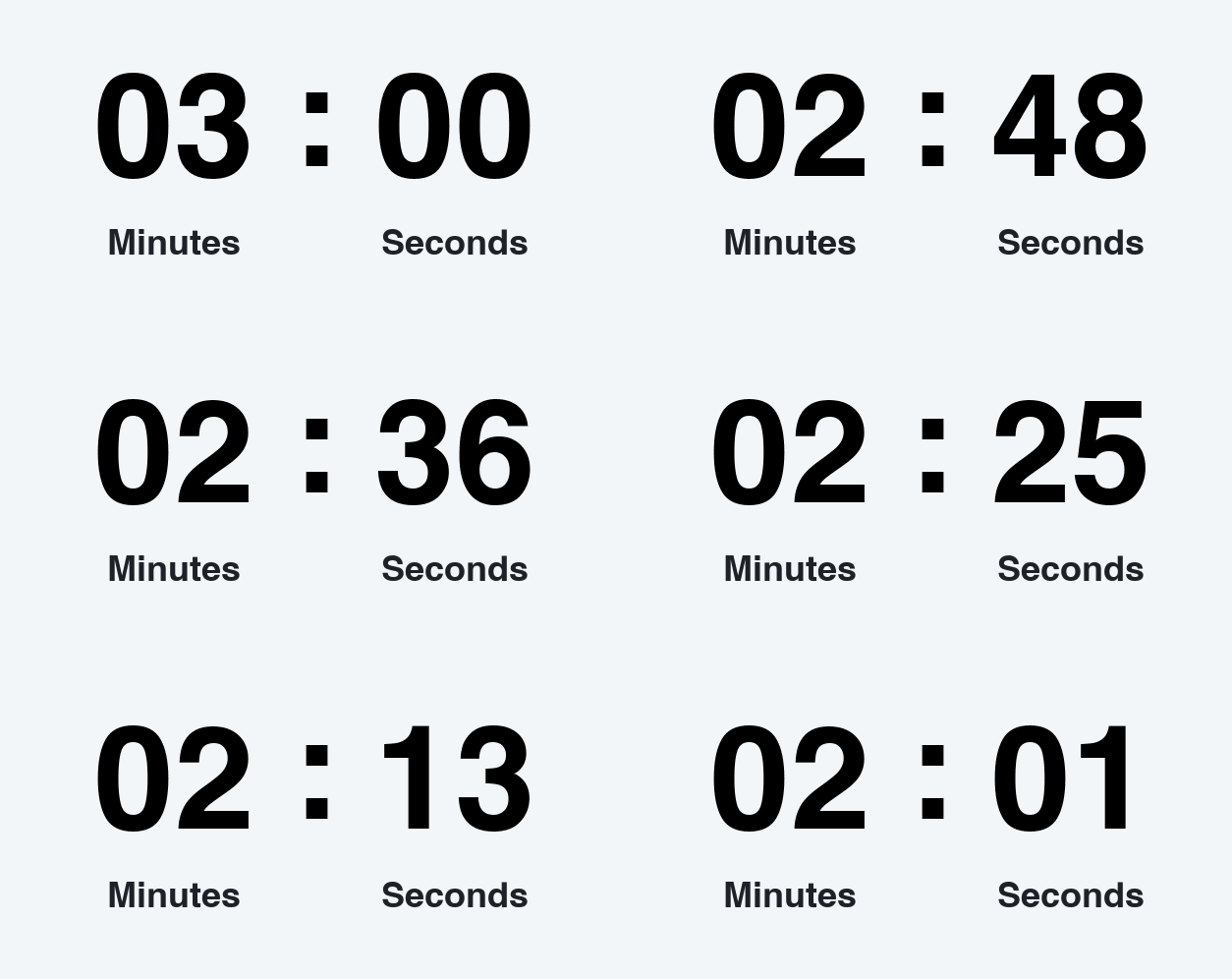 Download GIF Download GIF |
| 10 minute countdown GIF | Minutes: 10. Illustrate a break or session announcement; use a live timer for the full ten-minute interval. | 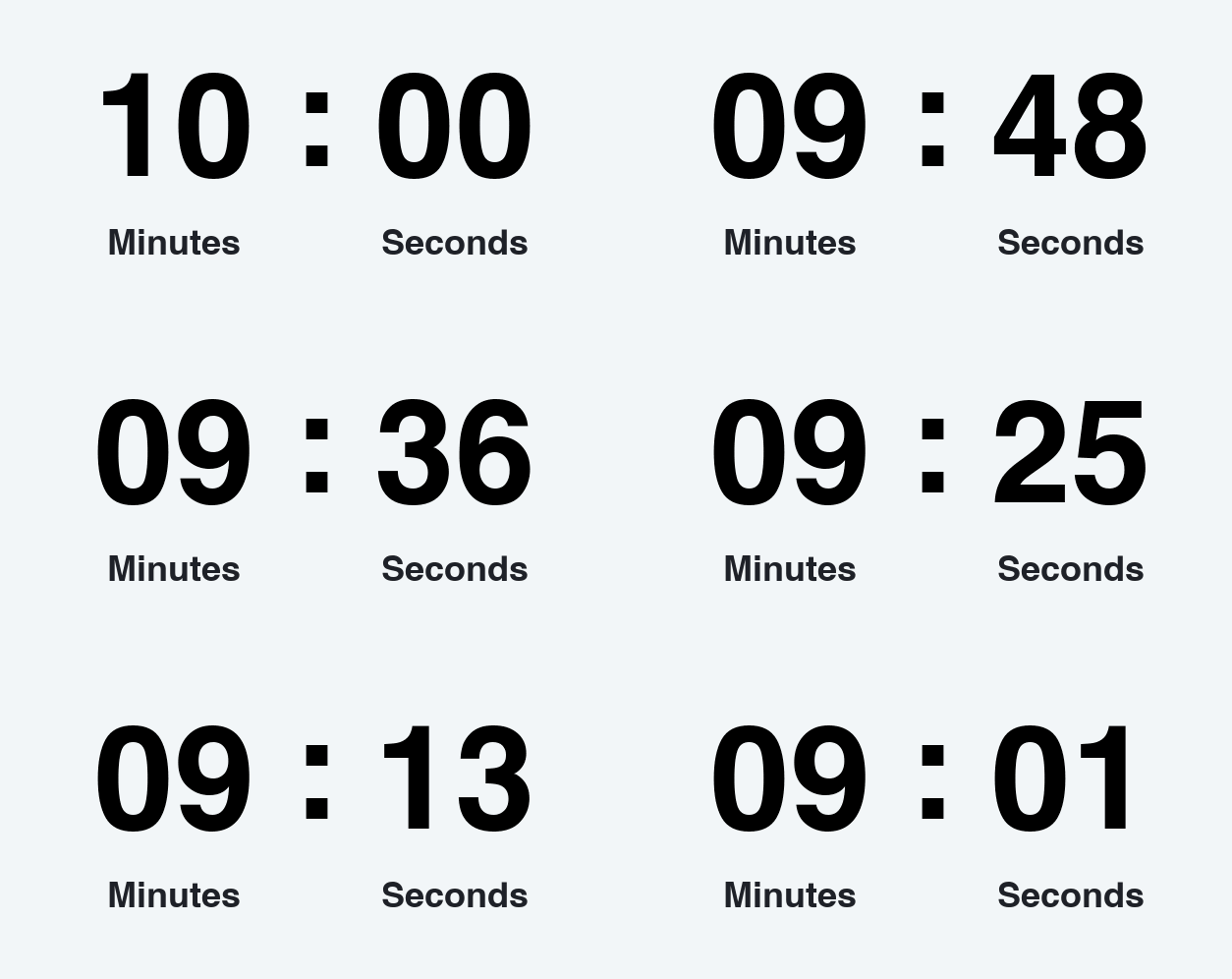 Download GIF Download GIF |
| 30 minute countdown GIF | Minutes: 30. Add a countdown visual to an event reminder and write the actual start time alongside it. | 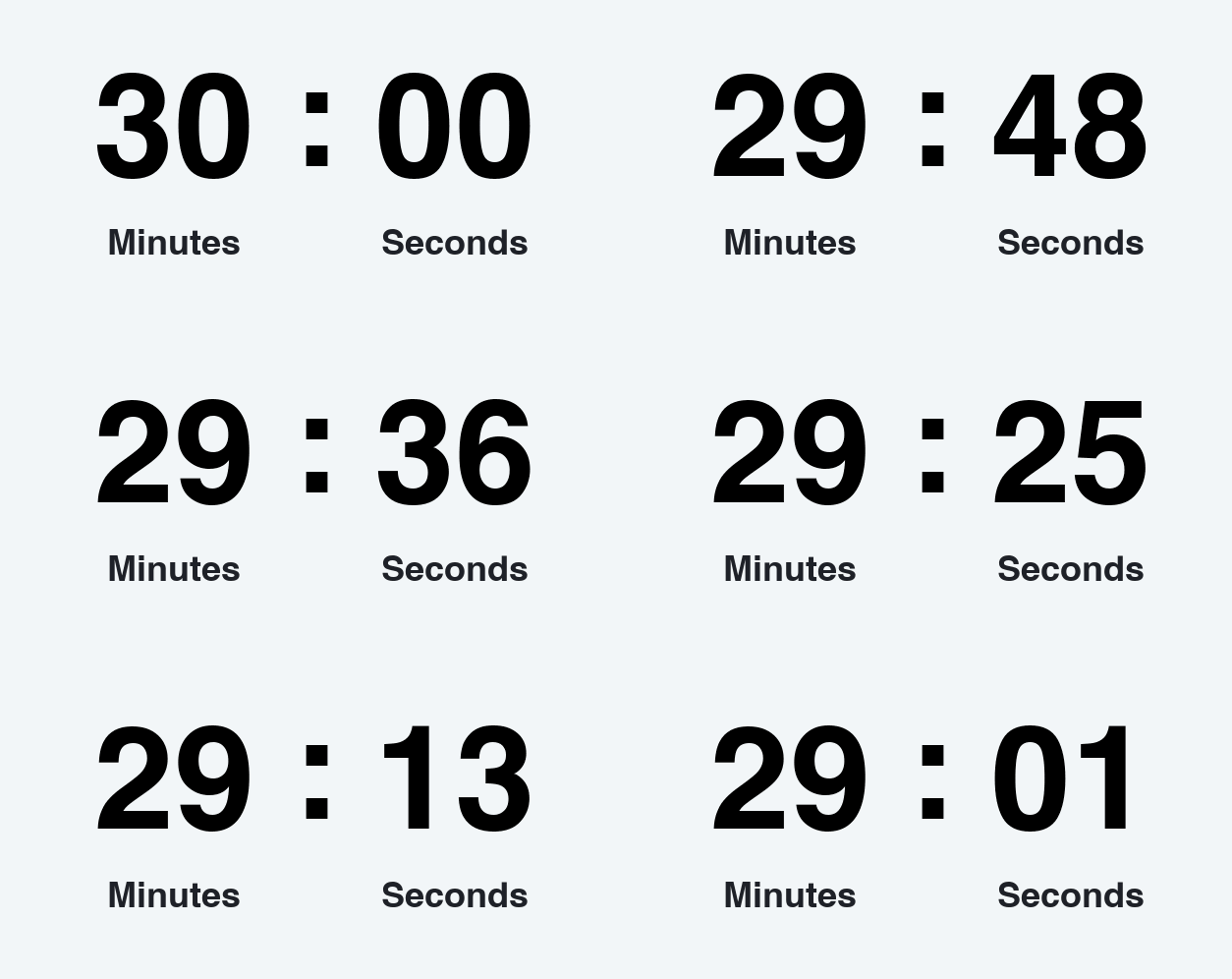 Download GIF Download GIF |
| 1 hour countdown GIF | Hours: 1. Introduce an upcoming session or launch. The file does not run for an hour or update when reopened. | 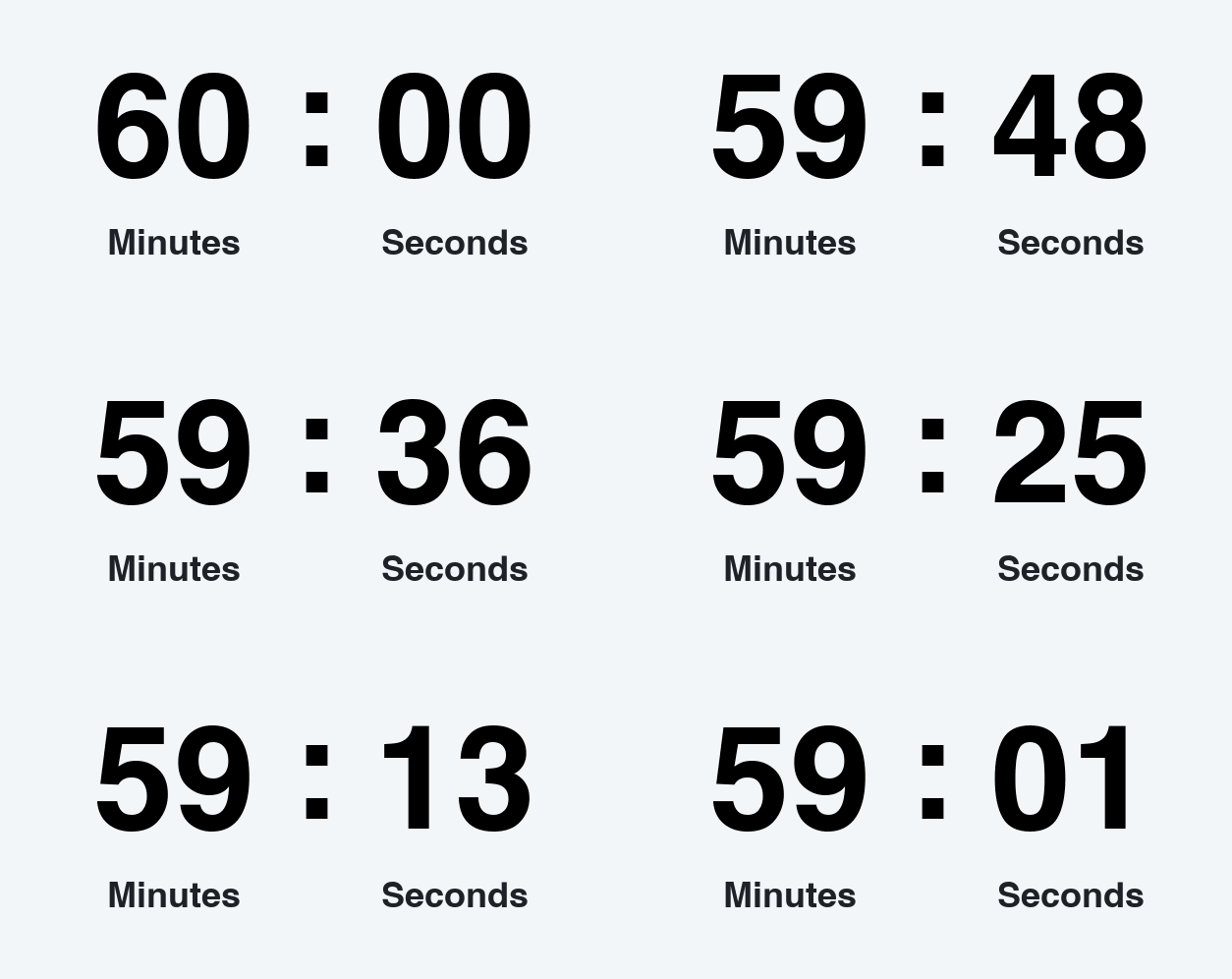 Download GIF Download GIF |
| 3 hour countdown GIF | Hours: 3. Create a same-day announcement with a separate, explicit event time. | 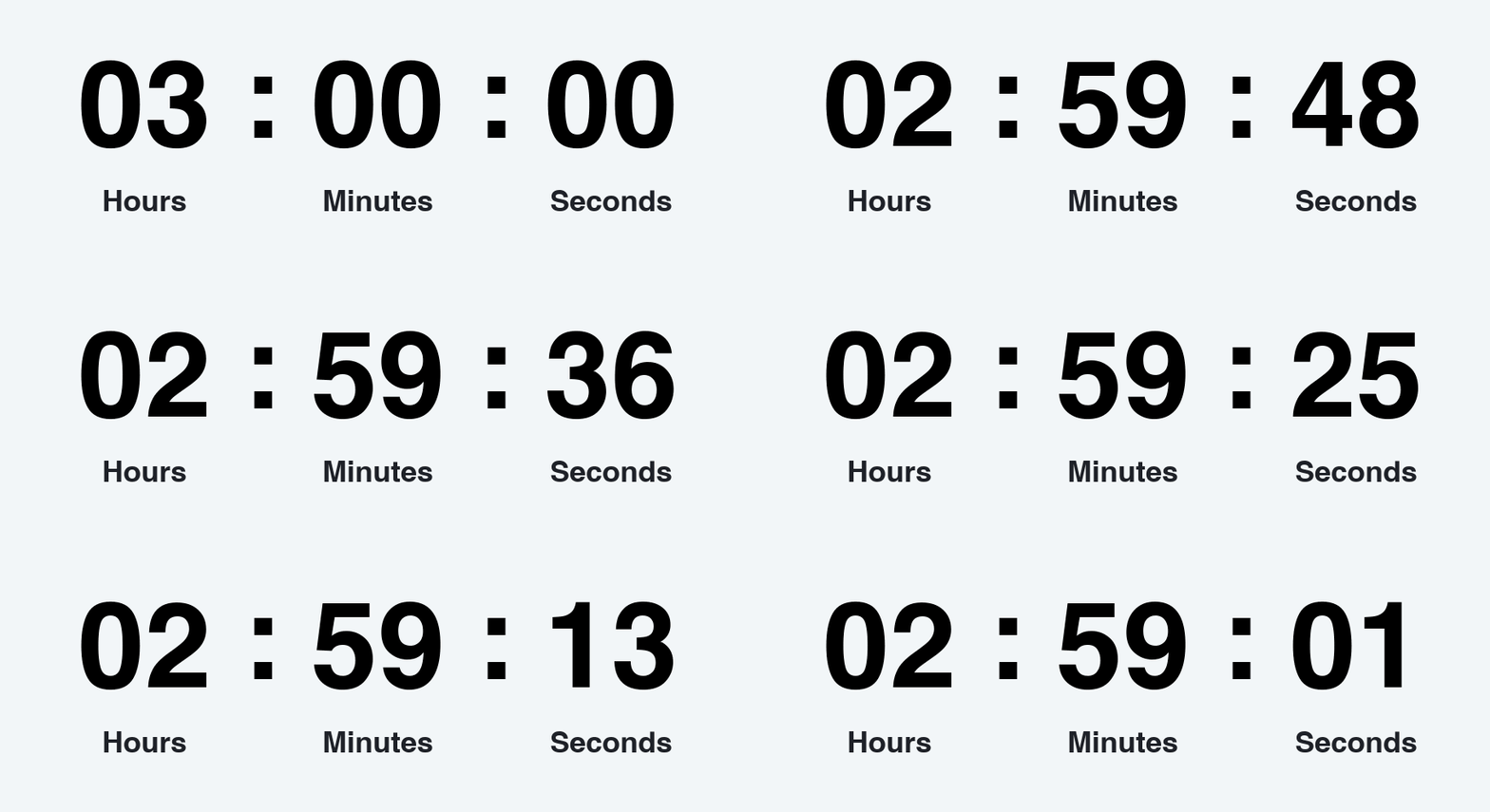 Download GIF Download GIF |
| 12 hour countdown GIF | Hours: 12. Illustrate an “Ends tonight” message; state the deadline and timezone in the accompanying text. | 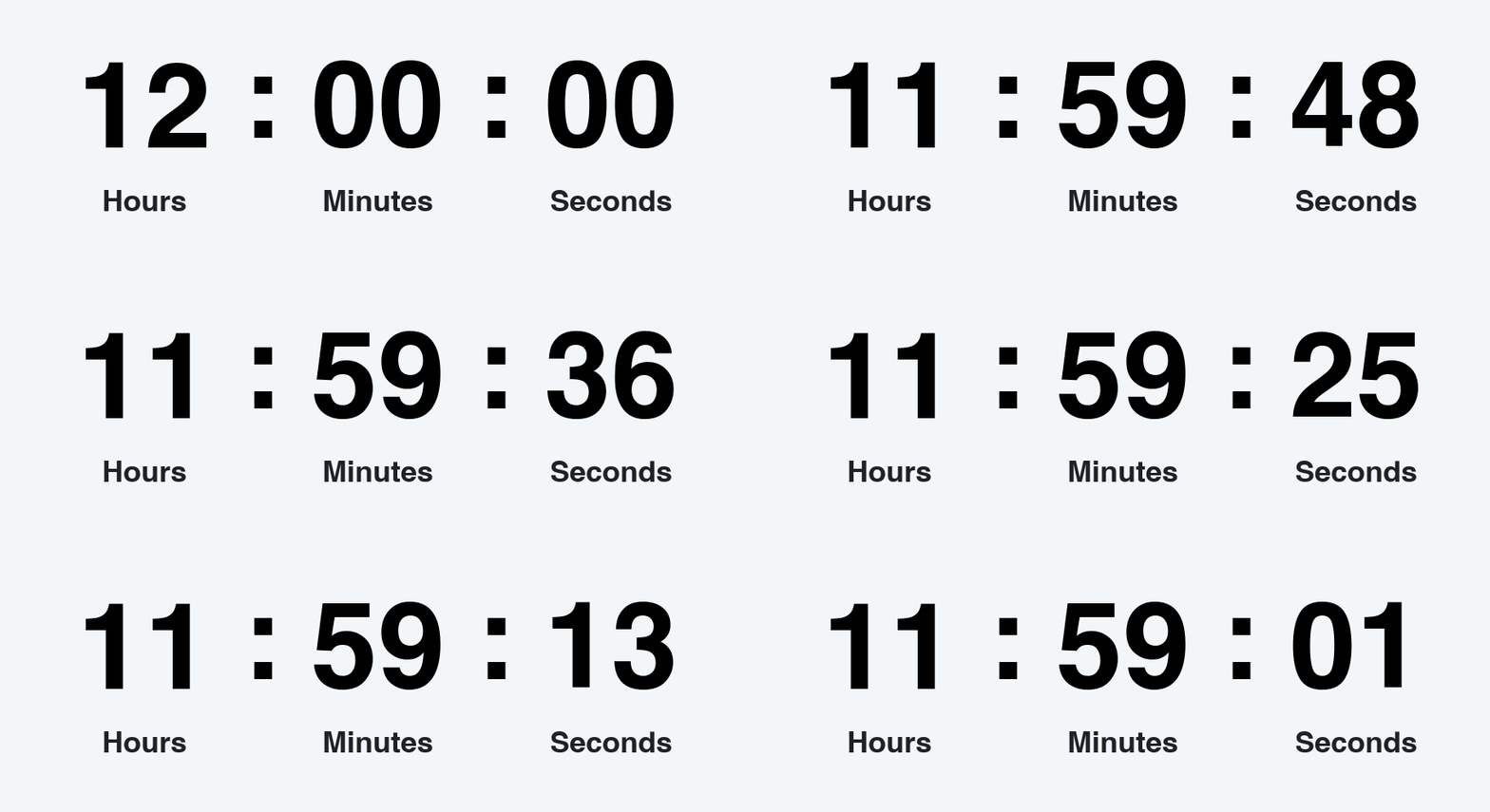 Download GIF Download GIF |
| 24 hour countdown GIF | Hours: 24. Make a “One day to go” visual for an announcement, rather than a live deadline clock. | 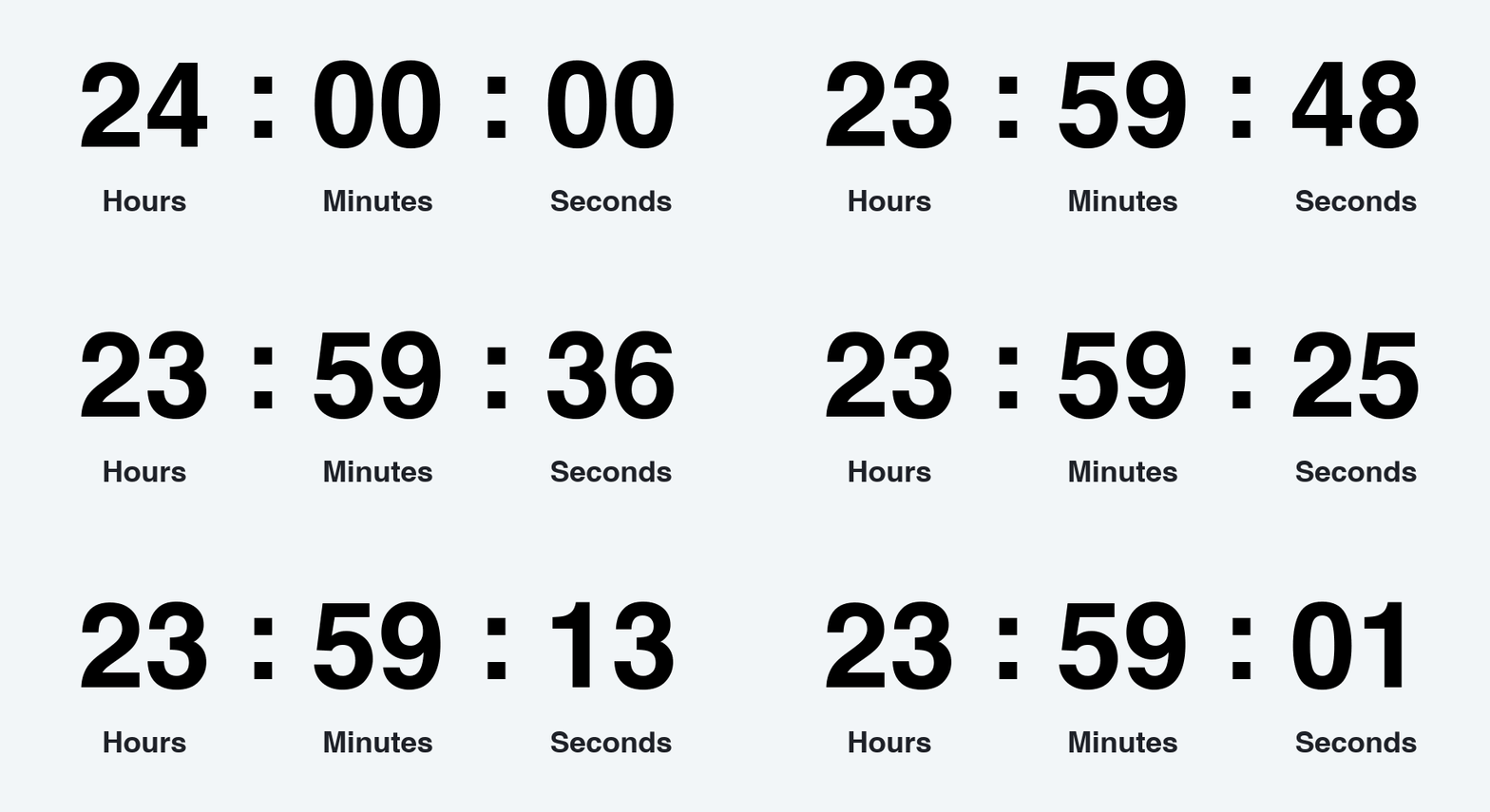 Download GIF Download GIF |
| 48 hour countdown GIF | Hours: 48. Create a “Two days to go” or weekend-event graphic with the event date included separately. | 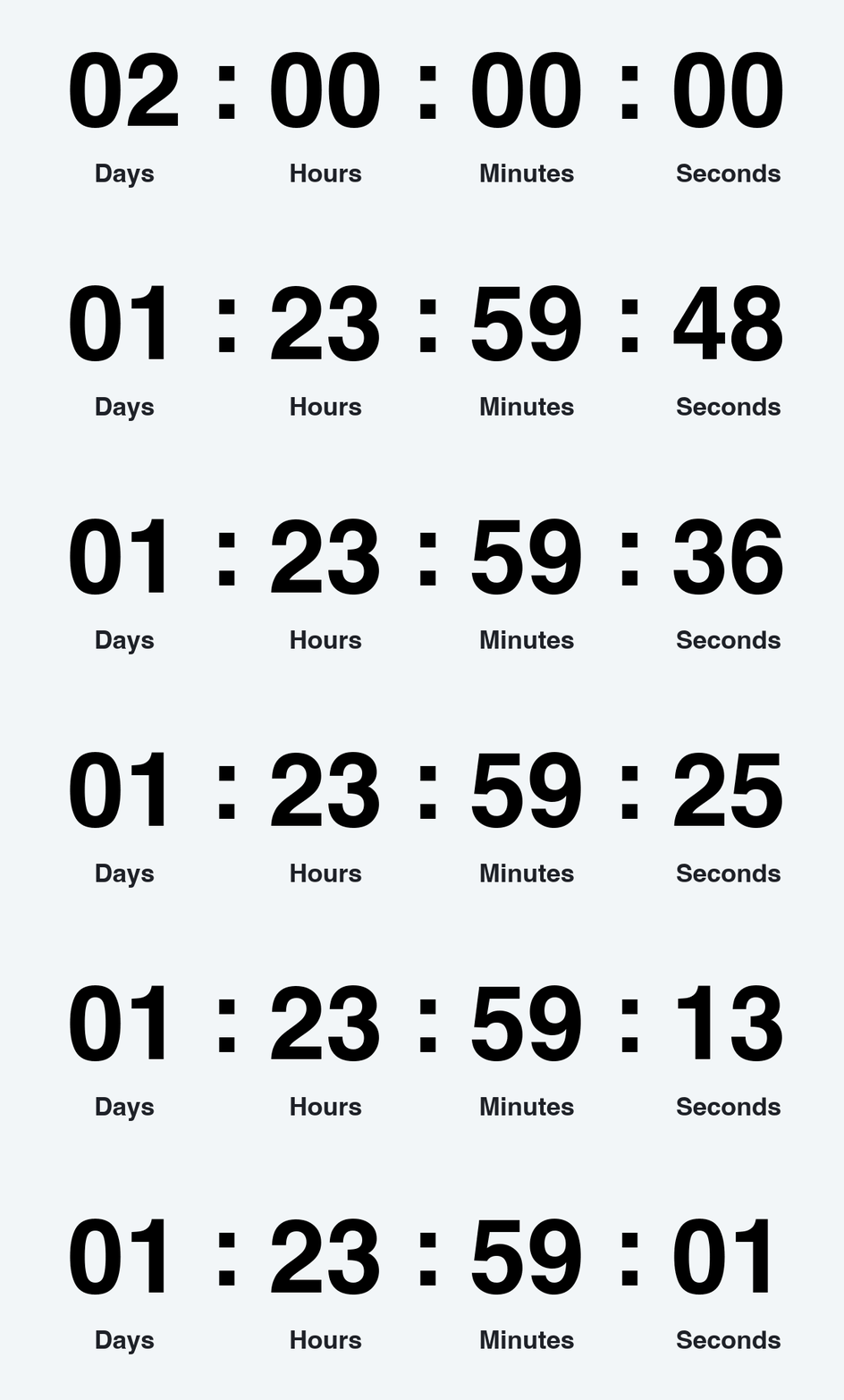 Download GIF Download GIF |
| 7 day countdown GIF | Days: 7. Introduce a launch week or holiday announcement with a short animated preview of the countdown. | 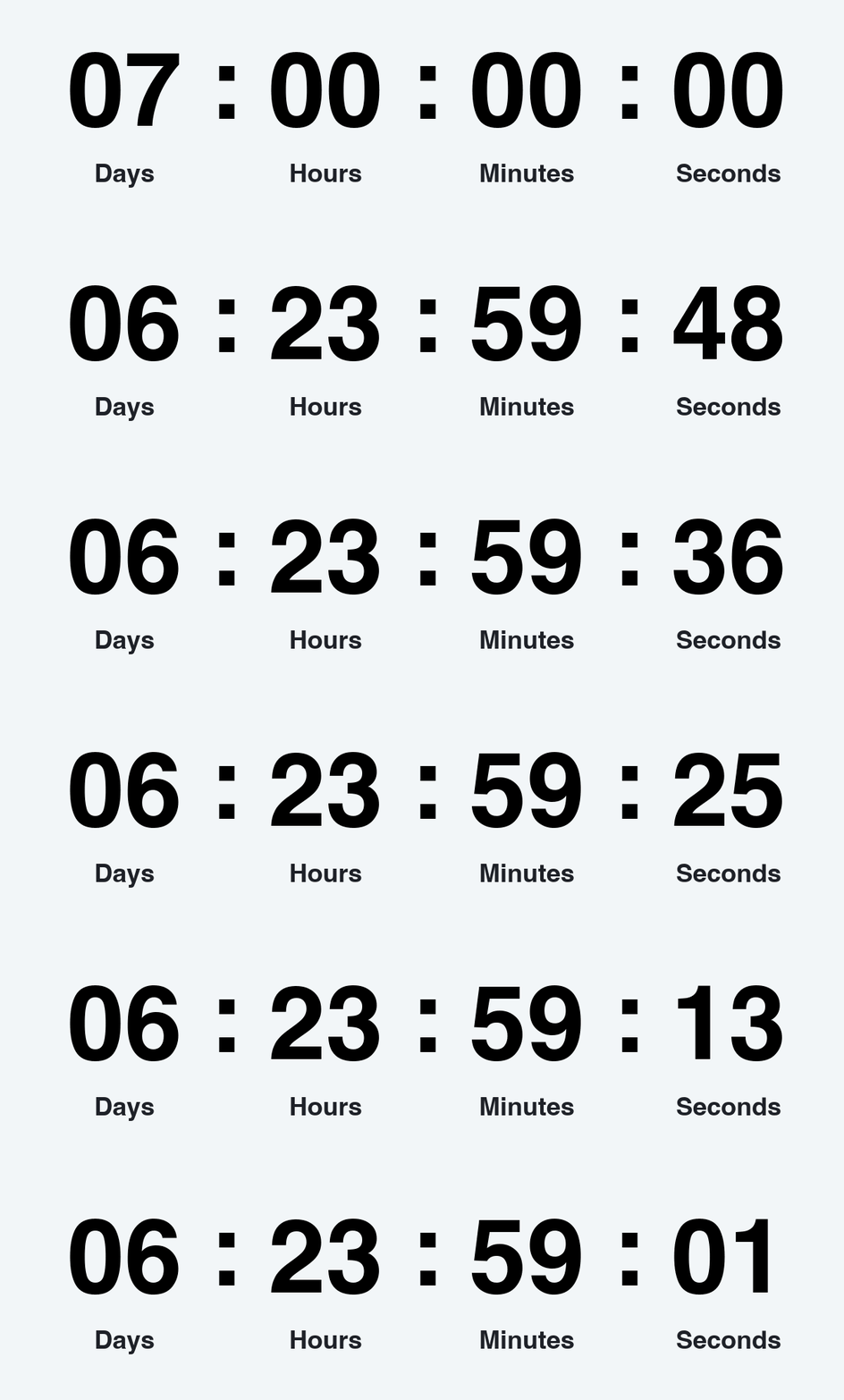 Download GIF Download GIF |
| 30 day countdown GIF | Days: 30. Announce an upcoming milestone. The downloaded GIF does not continue counting down over the month. | 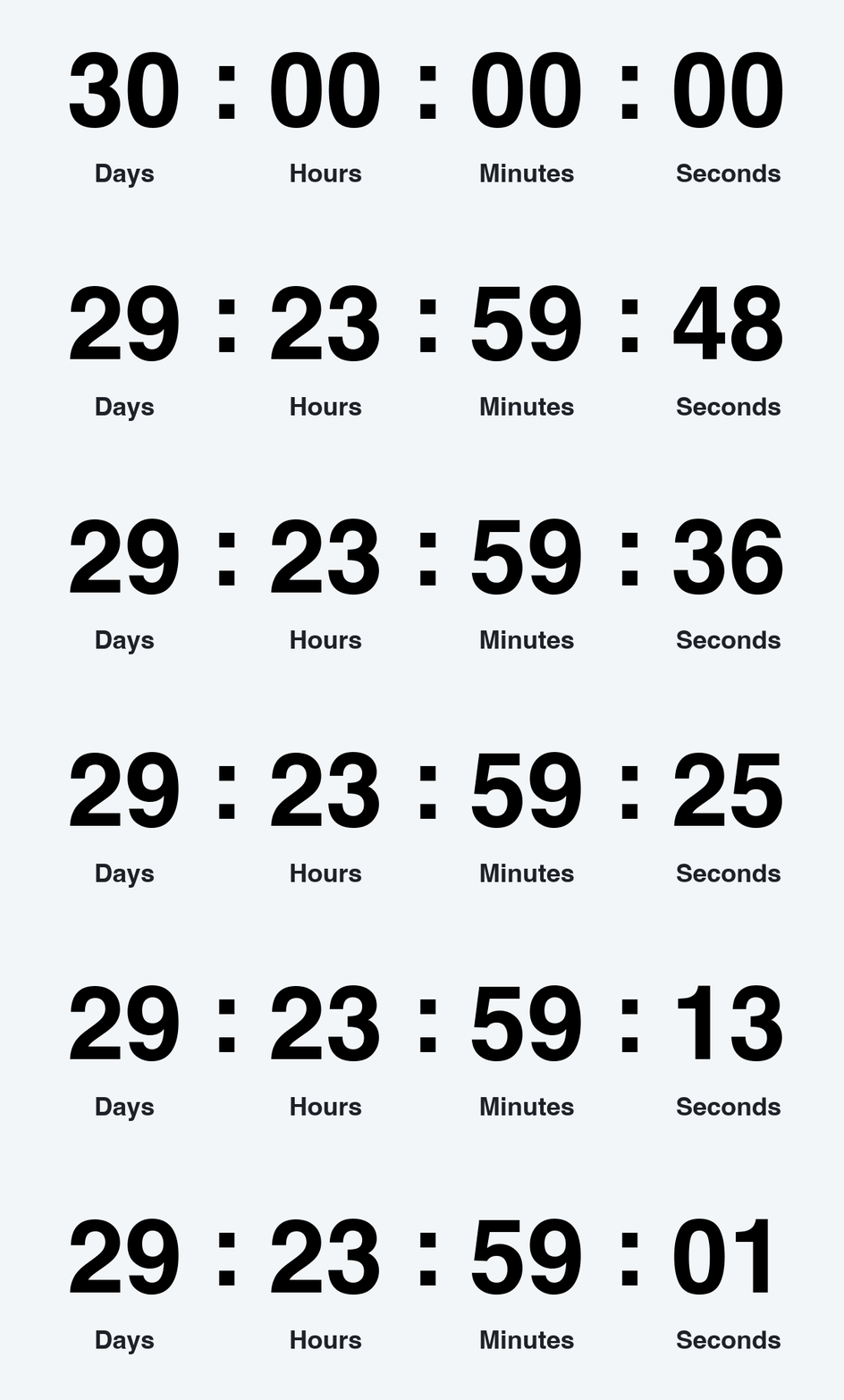 Download GIF Download GIF |
Countdown GIF questions
How do I make a countdown timer GIF?
Set a starting value, choose which units to display, and customize the layout, fonts, and colors. Add a title if you need one, click Generate, then preview and download the animated GIF.
Can I create a 1 minute countdown GIF?
Yes. Choose Minutes and enter 1, then select minutes and seconds or seconds only for the display. Generate the GIF and check its playback in the destination app. The file is an animation, not an interactive timer with an alarm.
How do I make a 30 second countdown GIF?
Choose Seconds and enter 30. Use the seconds-only display for a compact timer, or include minutes and seconds. Add a short title such as “Get ready” and generate your GIF.
Can I make a 3 minute or 10 minute countdown GIF?
You can set the starting value to 3 or 10 minutes. However, the generator creates a short animation of up to 60 seconds, not a file covering the entire interval. For a continuous three- or ten-minute timer that reaches zero in real time, use a live timer instead.
Can I create a 1 hour or 24 hour countdown GIF?
Yes, those values can be used as the starting display. The output is a short animation, not an hour-long or day-long recording. It does not keep track of elapsed time after downloading or update itself when someone opens it later.
Does the GIF count down to a live deadline?
No. A downloaded GIF contains a fixed sequence of frames. Selecting a date calculates the starting value when you generate it; opening the file later does not recalculate the time remaining. For a deadline, include the actual date, time, and timezone in your message or use a live countdown service.
How do I put a countdown GIF in an email?
Download the GIF and insert it as an image in your email editor. Some clients or settings may show only a still frame, so test the message and include essential information as text. Use the GIF compressor if the file exceeds your editor's size limit.
Can I share a countdown GIF on WhatsApp?
You can try sharing the downloaded animation using your app's GIF or media-sharing options. Check the received message because apps can convert files or change playback. It remains a fixed animation, not a clock synchronized for everyone in the conversation.
What can I customize?
Choose from four layouts, five digit animation effects or None, and four unit formats. Set the timer font and colors, add an optional title with its own font and alignment, and edit or hide the labels below the units.
Is the countdown GIF generator free?
Yes. You can generate and download countdown GIFs for free without registration. The output has no added watermark. Presets provide starting designs that you can customize before making your own version.
Why is my countdown GIF large?
The digit animation, layout, and amount of content affect file size. Try None for the digit effect, fewer displayed units, or a shorter title. Check the result's file size and use the GIF compressor if needed.