GIF slideshow maker

Create a photo slideshow with captions and transitions. Choose a carousel or collage layout, preview it, and download for free.

Slideshow preview

Benefits

  • Create a photo slideshow.

    Arrange photos into a story that plays as one looping GIF. Add a caption to each image, choose a transition, and set the pace for your audience. Use the live preview to check that the pictures and text have enough time on screen before downloading your slideshow.

  • Choose a layout for your story.

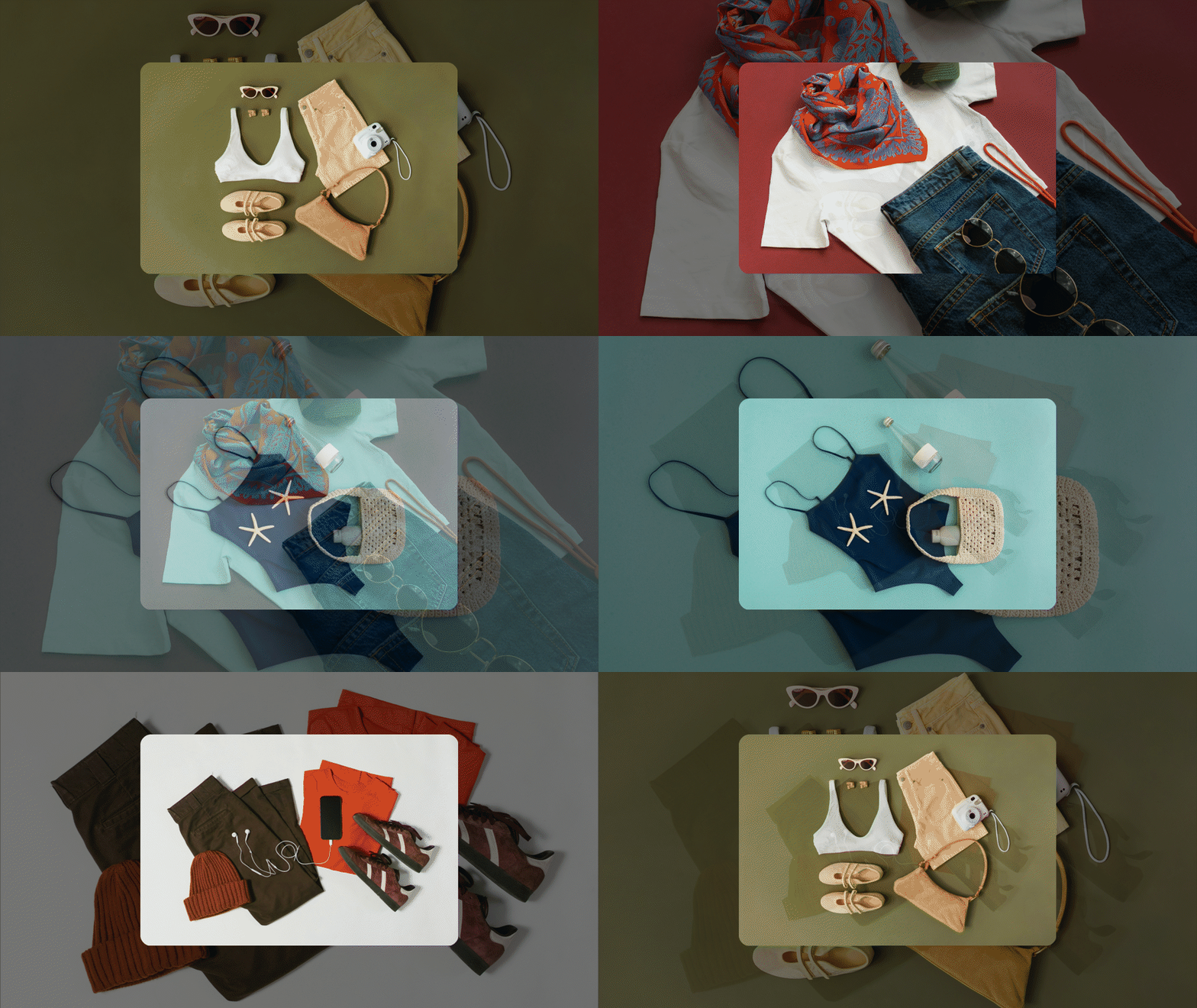
    Go beyond showing one photo at a time. Use Carousel for a moving product row, Trio for a featured image, or Overlay and Perimeter for layered compositions. Compare the layouts with your own photos and adjust the available spacing, framing, and caption settings to suit your design.

Image slideshow examples

Create slideshow GIFs for emails

  • Product showcase

    Display multiple product photos in one slideshow GIF to save space and boost click-through rates.

  • Catalog scroller

    Create a slideshow GIF to showcase seasonal collections or categories in a more engaging email format.

  • Visual storytelling

    Bring your brand to life by animating key highlights in a photo slideshow GIF that creates emotional connection.

How to make a GIF slideshow

  1. Upload your photos

    Add JPG, PNG, or WebP images and drag them into order. Choose photos that work together as a short sequence.

  2. Choose a layout

    Select Slideshow, Carousel, Trio, Overlay, or Perimeter. Adjust the timing and available layout settings while watching the preview.

  3. Add your captions

    Enable captions and enter text for each image. Set the font, colors, and position so the words remain readable.

  4. Download the slideshow

    Open Download, choose GIF and your export settings, then save the file. Check its size before publishing or sending.

Choose the right slideshow layout

PresetVisual structureWhen it works best
SlideshowOne image appears at a timePhoto stories, before-and-after sequences, portfolios, process stages, simple promotions.
CarouselImages appear side by side in a moving rowProduct ranges, visual collections, categories, coordinated designs.
TrioThree images are visible with emphasis on the center imageA featured subject supported by two related images.
OverlayA central image is layered over a background imageEditorial layouts, hero images, brand compositions, packaging or feature reveals.
PerimeterImages move around the edges of a background imageDecorative event or campaign visuals with a stable central anchor.
How to make a slideshow GIF from images

Common questions

  • How do I make a GIF slideshow?

    Upload your photos, arrange them, and choose a layout. Adjust the timing, add captions if needed, then open Download and select GIF to export your slideshow.

  • Which slideshow layouts are available?

    Choose Slideshow, Carousel, Trio, Overlay, or Perimeter. Slideshow shows one image at a time; the other layouts arrange multiple images in a moving or layered composition.

  • How is this different from the image to GIF maker?

    Our image to GIF maker focuses on a simple image sequence with transitions. This slideshow editor also offers captions and layouts such as Carousel and Trio.

  • Can I add a caption to each photo?

    Yes. Enable captions, enter the text for each image, and customize the font, size, colors, and position. Keep captions short enough to read before the image changes.

  • Which images can I upload?

    Upload up to 10 JPG, PNG, or WebP images, with a maximum of 5 MB per file. Choose a short selection that works together rather than filling every available slot.

  • Is the slideshow maker free?

    Yes. You can create and download a slideshow without registering or paying for the tool. Downloads do not include a watermark.

  • Can I use a video in the slideshow?

    This editor starts from still images. To turn a video clip into an animation, use our video to GIF converter.

  • Can I use the slideshow in an email?

    Yes, where the email client supports animated GIFs. Keep the sequence short and make the first frame useful on its own. Check the file size against your email platform’s limits before sending.

  • Why is the downloaded slideshow large?

    The number of images, image detail, transitions, and export dimensions all affect size. Reduce the sequence or output dimensions, or use our GIF compressor on the exported file.

  • Can I add music?

    This editor does not provide a music track, and GIF files cannot contain audio. Use it for a visual slideshow with images and captions.

Slideshow ideas

  • Product collections.

    Present a selection of products in a moving carousel instead of a long static gallery. Use a consistent photo style and a clear order to make the collection easy to browse.

  • Photo stories.

    Sequence photos from a trip, event, or project and add short captions for context. Set a comfortable pace so viewers can understand each scene before the slideshow moves on.

  • Email headers.

    Build a short animated header from campaign photos. Keep captions brief and check the downloaded file size so the slideshow fits your email layout without making the message unnecessarily heavy.

  • Portfolio highlights.

    Use a Trio or slideshow layout to introduce a small selection of your work. Pair each image with a short project name and let the visuals do most of the explaining.

  • Feature walkthroughs.

    Show product features across a sequence of screenshots or photos. Add a caption describing each feature and leave enough time for viewers to read it while following the corresponding image.

  • Event previews.

    Introduce speakers, venues, or activities with a captioned photo slideshow. Keep names and dates readable, and choose a steady pace so the preview works as an introduction on your event page.

  • Project comparisons.

    Show stages of a redesign or renovation with captions identifying each phase. Use a simple slideshow layout and matching image proportions to make the changes easy to compare as it loops.

  • Seasonal lookbooks.

    Combine related outfits or products into a moving visual collection. Try a carousel for a continuous row or an overlay layout to give each featured image a surrounding photographic background.

  • Announcement banners.

    Pair a few campaign images with short messages for an animated website banner. Keep the sequence focused on one announcement and check that the text is readable at its intended display size.

Slideshow features

  • Slideshow layout.

    Display one photo at a time in a repeating sequence. Use this straightforward layout when each image needs the viewer’s full attention.

  • Carousel layout.

    Move images across the frame in a row. Adjust the available count and motion settings to show a collection at a comfortable pace.

  • Trio layout.

    Present three images together with emphasis on the center photo. Compare the available variants to find the framing that suits your selection.

  • Overlay layout.

    Place a featured photo over a background image. Use the available layout and opacity settings to balance the foreground against its surroundings.

  • Perimeter layout.

    Animate images around a central background composition. Try this layout for a collection that benefits from several pictures sharing the same frame.

  • Image ordering.

    Upload JPG, PNG, or WebP files and drag the image cards into order. Remove individual photos as you refine the sequence.

  • Timing control.

    Adjust the delay to change the slideshow’s pace. Give detailed photos and captions more time on screen before the next image appears.

  • Transitions and motion.

    Choose transition effects in Slideshow mode or adjust the available motion controls in other layouts. Preview the changes with your own images.

  • Image captions.

    Add a separate caption to each photo. Use a product name, project stage, or short description to help viewers understand the image.

  • Caption placement.

    Position captions above, below, or inside the composition. Choose the placement and alignment that keep the words clear without covering important details.

  • Caption styling.

    Adjust the caption font, size, and colors. Where available, customize the background opacity and corners to make text readable over your photos.

  • Framing and spacing.

    Choose the available aspect ratio, corner, border, and spacing settings for your layout. Review the result before exporting the slideshow.

  • Live preview.

    Watch the slideshow as you change its settings. Check the image order, motion, and caption readability before creating the final download.

  • Fullscreen workspace.

    Expand the editor to see your slideshow at a larger size. Use the extra space to inspect the layout and text placement.

  • Download options.

    Export your slideshow from the Download menu. Choose the format and available quality settings for the website, presentation, or message you have planned.

  • Free slideshow maker.

    Create and download your photo slideshow for free. Try different layouts with the same images to compare how they present your story.

  • No signup required.

    Start editing on the page without creating an account. Upload your photos and customize the slideshow without installing additional software or browser extensions.

  • No watermark.

    Download the slideshow without added service branding. Your own images and captions remain the focus of the finished animation wherever you share it.