How to make a slideshow GIF from images
A practical guide to turning photos and graphics into a clear animated slideshow with the right layout, pacing, captions, and file size.
How do you make a slideshow GIF?
Choose a short set of related JPG, PNG, or WebP images and upload them to the Free GIF Slideshow Maker. Choose from nine presets: Slideshow, Overlay, Carousel, Trio, Perimeter, Diptych, Flip Grid, Burst, and Spotlight. Adjust the controls shown for your composition, preview the complete loop, then open Download to choose the export settings. For a direct image sequence, start with Image to GIF Maker, which opens with Transition set to None and Delay set to 0.5 seconds.
A slideshow GIF turns several still images into one silent animation that plays automatically and usually repeats. It can tell a short photo story, present portfolio work, compare stages of a process, show event highlights, introduce a product range, or place several promotional images inside one compact asset. The goal is not simply to make every photo move; it is to create an order and pace that viewers can understand without playback controls.
The best image slideshow GIFs are selective. They use a clear opening image, a small number of meaningful slides, consistent framing, and enough delay for each image or caption to be understood. Because the result is one GIF file, it has no soundtrack, slide navigation, or interactive controls. If the story needs narration, music, long viewing time, or manual navigation, a video or web slideshow may be a better format.
Slideshow GIF, frame animation, or video slideshow?
| Format | What it does | Best suited to |
|---|---|---|
| Slideshow GIF | Uses presentation-style layouts and automatic motion to show several images in one looping file | Photo stories, portfolios, product collections, email banners, event highlights |
| Frame-by-frame GIF | Treats each source image as an animation frame in a direct sequence | Illustrations, diagrams, sprites, stop motion, ordered screenshots |
| Video slideshow | Combines images on a video timeline and can include sound, narration, and playback controls | Long stories, music, detailed transitions, presentations, social video |
| Interactive web slideshow | Lets the viewer navigate slides and can connect different slides to different actions | Galleries, product browsing, training content, selectable comparisons |
Use a presentation-style GIF when layouts such as Carousel, Trio, Overlay, or Perimeter add value. When every image should simply become a frame without slideshow effects, follow the guide to making a GIF from images or use the Free Image to GIF Maker. That workflow is better for direct image sequences, while the slideshow tool is designed for photo and product presentations.
What the TweenFrame slideshow tool supports
The GIF Slideshow Maker accepts up to ten JPG, PNG, or WebP images, with a 5 MB limit per image. Its nine presets cover single-photo scenes, moving rows, featured trios, layered images, pairs, grids, expanding photos, and zooming collections. Captions are available in Slideshow, Overlay, and Perimeter. Set the export width in Download rather than treating the preview canvas as a fixed output size. The tool does not add a watermark.
The generator works with still images rather than video. It should not be treated as a video editor, music slideshow creator, or manual timeline with separate timing for every uploaded image. Plan the source sequence and shared pacing before generation. If the starting material is MP4 or WebM, use a video-to-GIF workflow instead of assuming the slideshow maker will accept it.
Choose the right slideshow layout
| Preset | Visual structure | When it works best |
|---|---|---|
| Slideshow | One image appears at a time | Photo stories, before-and-after sequences, portfolios, process stages, simple promotions |
| Carousel | Images appear side by side in a moving row | Product ranges, visual collections, categories, coordinated designs |
| Trio | Three images are visible with emphasis on the center image | A featured subject supported by two related images |
| Overlay | A central image is layered over a background image | Editorial layouts, hero images, brand compositions, packaging or feature reveals |
| Perimeter | Images move around the edges of a background image | Decorative event or campaign visuals with a stable central anchor |
| Diptych | Two photos share the canvas and change in turn | Product and detail pairs, editorial comparisons, lookbooks |
| Flip Grid | One grid card changes at a time | Collections, color variants, coordinated product sets |
| Burst | Photos grow from the center | Launch announcements, energetic product reveals |
| Spotlight | One grid photo enlarges, holds, and returns | Giving each item in a collection a closer look |
Begin with the story rather than the effect. Slideshow gives every image the complete frame and is usually the easiest to follow. Carousel shows continuity across a group. Trio creates a small comparison or hierarchy. Overlay combines foreground and background roles. Perimeter creates the most decorative motion and needs a clear central anchor. If the chosen layout makes important content too small at the final size, use a simpler preset.
Turn four photos into a story
Choose photos that answer different questions, rather than four nearly identical favorites. For a workshop recap, a useful order is the place, the activity, a revealing detail, and the finished work. This is a suggested shot list for your own images.
| Slide | Photo to choose | Short caption |
|---|---|---|
| 1 | A wide view that establishes the workshop | “Inside the studio” |
| 2 | Someone working with the materials | “Learning the technique” |
| 3 | A close-up of hands or a useful detail | “One detail at a time” |
| 4 | The completed piece | “The finished work” |
In GIF Slideshow Maker, choose Slideshow, set a consistent Aspect, and use a quiet Transition such as Dissolve. Turn on Captions and replace each slide's placeholder with its own line. Keep the font and size consistent; the changing photo and caption already establish the sequence.
Start with a shared Delay of about two seconds. Read each caption while looking at its photo. If one slide needs substantially longer, simplify its caption rather than making every other slide wait. Preview the return from the finished work to the opening view too: it should feel like the story beginning again.
For stop-motion, keep the camera and subject aligned and use the image-sequence workflow. For a product range, follow the product shot-selection guide: a shopper needs useful views, not necessarily a beginning-to-end story.
Four ways to use the new presets
Diptych: pair a product with its detail
Try four photos: the whole bag, its fastening, the bag being worn, and its interior. Choose Diptych, start with Balance at 50%, and use Flip horizontal. Each side changes in turn, so the viewer can compare a full view with a supporting detail. Keep the gap small enough for the pair to read as one composition, and check the photos after changing Balance: a narrower half crops more of its source image.
Flip Grid: introduce a coordinated collection
Use four related product photos in a 2 × 2 grid. One card changes per cycle while the others remain visible. Start with Flip horizontal, Delay 1 second, and Motion 0.5 seconds. Try 3 × 2 or 3 × 3 when you have more images, but check that each product stays recognizable at the final display width. The Transition picker also lets you compare a flip with Dissolve or a direct change using None.
Burst: give a launch more energy
Use three or four bold photos with a clear subject near the center. In One by one flow, tune Delay and Motion separately so each reveal has time to register. For continuous expansion, choose Overlapping and start with Pace at 2 seconds. Start size controls how small each incoming photo begins; Overlap controls the timing overlap. Review the loop before shortening Pace, especially when the images contain text.
Spotlight: move from overview to detail
Use a 2 × 2 grid for four product views or portfolio pieces. Each photo enlarges to fill the canvas, pauses, then returns to its grid position. Dim reduces the prominence of the surrounding photos during the zoom. Adjust Motion for the outward and return movement and Delay for the enlarged view. Check faces, details, and rounded corners at both sizes; a source crop that works as a small tile still needs to work when enlarged.
Prepare images before creating the GIF
Choose one subject and one purpose
Define the slideshow in one sentence: a weekend trip in six photos, five portfolio pieces from one project, three stages of a renovation, a collection of related products, or four event highlights. This sentence becomes the selection rule. Remove attractive images that do not support the same story, because each extra slide lengthens the loop and delays the return to the most important content.
Use a consistent aspect ratio
A slideshow feels stable when its images share a deliberate frame shape. The source files do not need identical pixel dimensions, but wide, square, and tall compositions can crop or scale unpredictably when forced into one output. Decide whether the final GIF should be landscape, square, or portrait, then choose images that can survive that composition. Keep faces, products, text, and other focal points away from vulnerable edges.
Normalize orientation, color, and visual weight
Rotate images correctly and check that no slide is unexpectedly darker, brighter, or more tightly cropped than the others unless the contrast is intentional. A sequence can include different scenes, but abrupt changes in exposure, background, or subject scale may feel like an error. A consistent editing style helps the viewer follow the story rather than notice technical differences between source files.
Plan the opening and ending
The first image should identify the subject even if animation does not play. The final image should either complete the story or lead naturally back to the beginning. A title card can work when it remains brief and readable, but the opening photo itself is often stronger because it delivers useful visual information immediately. Avoid an empty final slide or duplicate frame that creates an unintended pause.
Step-by-step: create a slideshow GIF online
1. Select the image sequence
Gather the JPG, PNG, or WebP images for one story and remove duplicates. The generator accepts up to ten images under 5 MB each. A slideshow does not need to use the maximum. Four to seven strong images often communicate more clearly than ten loosely related slides, although the right number depends on the subject and how quickly viewers need to understand it.
2. Upload the files
Upload the selected images and confirm that the intended sequence is represented. Prepare the order before generation so the story has a beginning, development, and ending. For chronological subjects, use the actual sequence. For a portfolio or promotion, lead with the strongest visual, add supporting variety, and close with another memorable image.
3. Select a preset
Choose Slideshow for full-frame photos, Carousel for a moving row, or Trio for a featured center image. Use Overlay or Perimeter for layered compositions. Diptych creates a pair; Flip Grid changes one tile at a time; Burst expands successive photos; Spotlight brings each grid photo forward for inspection. Judge the result at the expected display width, especially when several images share the canvas.
4. Configure the layout-specific controls
Start with Aspect wherever it is available. Carousel and Trio derive their composition from the source images instead. The following controls shape each preset:
| Preset | Composition controls to try |
|---|---|
| Slideshow | Transition and Round; optional captions |
| Overlay | Overlap in percent, Opacity, Transition, and Round; optional captions |
| Carousel | Count from 2 to 5.5 in steps of 0.5, Direction, Gap, and Round |
| Trio | Emphasis from 1 to 5.5 in steps of 0.5, Direction, Gap, and Round |
| Perimeter | Opacity and Transition: None or Smooth; optional captions |
| Diptych | Balance in percent, Transition, Gap, and Round |
| Flip Grid | Grid: 2 × 2, 3 × 2, or 3 × 3; Transition, Gap, and Round |
| Burst | Flow and Start size; Overlapping also exposes Overlap and Pace |
| Spotlight | Grid: 2 × 2, 3 × 2, or 3 × 3; Dim, Gap, and Round |
A fractional Carousel Count leaves partial cards at the edges. In Trio, higher Emphasis makes the center card more prominent; half-step values also crop the edge cards. The center remains larger than its neighbors even at the lowest setting. Neither preset has a border control.
Slideshow, Overlay, Diptych, and Flip Grid share a transition picker: None is first, and Flip horizontal and Flip vertical are at the end. Carousel, Trio, and Perimeter instead offer None or Smooth for their own preset movement. Round controls rounded corners; it is not a background or border setting.
5. Set the slideshow delay
Use Delay for the pause between changes and Motion for the duration of the animated movement. Delay is a slider from 0.1 to 20 seconds in 0.1-second steps. Motion runs from 0.25 to 2 seconds and starts at 0.5 seconds; it is hidden when the selected transition has no motion.
Slideshow opens with Wipe left and Delay 1.5 seconds. Choosing Diptych or Flip Grid starts with Flip horizontal and Delay 1 second. Choosing Burst starts with Delay 1 second in its One by one flow. Overlay starts with Dissolve. These are starting points: captioned images and detailed scenes usually need more viewing time.
Burst's Overlapping flow uses Pace instead of Delay and Motion. Pace ranges from 0.5 to 3.5 seconds and starts at 2 seconds. Increase it to slow the expansion; adjust Overlap to change how much successive photos overlap in time. Switching flow does not turn Pace into the other mode's Motion setting.
6. Add captions where the preset supports them
Caption controls appear only in Slideshow, Overlay, and Perimeter. The other six presets do not have caption controls. In supported modes, edit the caption for each image and choose top, inside, or bottom placement, alignment, font, size, text color, background color, and background opacity where applicable. Keep every caption concise and consistent across the animation. Do not place essential instructions only inside a small animated image; repeat important information in surrounding text.
7. Generate and inspect the complete loop
Generate the GIF, download it, and inspect it at the exact size where it will appear. Check the first frame, sequence, crop, timing, corner treatment, visual stability, return to the beginning, file size, and color. When using Slideshow, inspect the chosen transition; when using a caption-enabled mode, verify every caption at final size. Test the actual upload workflow because an email editor, website, messaging service, or content platform may resize or process the file.
How to choose the slideshow delay
Slideshow timing should follow the amount of information in each image. A simple product photo or portrait can be recognized quickly. A group photo, screenshot, infographic, or captioned slide needs longer. Since the tool presents a shared delay control, build a sequence with reasonably similar reading demands. If one image needs much longer than all the others, simplify it, split its information, or consider a different format.
| Slide content | Timing approach | What to verify |
|---|---|---|
| Simple photos with one clear subject | Use a steady moderate delay | The subject is recognized before the image changes |
| Captioned images | Set the delay around comfortable reading time | The full caption can be read once without waiting for another loop |
| Before-and-after comparison | Keep both states visible long enough for inspection | The viewer remembers the first state when the second appears |
| Portfolio work | Allow details to register without making the full loop tedious | Every selected piece earns its place in the sequence |
| Event highlights | Use a lively but readable rhythm | People, locations, and key moments remain identifiable |
| Process or tutorial stages | Prioritize comprehension over visual speed | The order and change between stages are unmistakable |
When the slideshow feels slow, shorten the sequence before reducing every delay. When it feels rushed, reduce the information per image or choose fewer slides. Smooth pacing comes from consistent information density, not from forcing unrelated images into one identical rhythm. In Carousel, Trio, and Perimeter, Transition: Smooth enables movement between positions; Motion controls its duration. Extra moving frames can increase the finished GIF size.
Captions that remain readable
In Slideshow, Overlay, and Perimeter modes, use captions for context that cannot be understood from the images alone: a project name, location, collection title, stage label, or short promotional message. Select a font and size that remain legible after the GIF is scaled down. Text color and background color should create reliable contrast across every image in the selected preset, not just the opening view. Carousel and Trio do not expose caption controls, so pair those layouts with surrounding live text or prepare any necessary words inside the source images.
Avoid long sentences, small disclaimers, dense prices, or rapidly changing copy. A GIF stores captions as pixels, so the text cannot reflow responsively or behave like normal webpage and email text. Keep detailed explanations, links, dates, and accessibility information outside the animation whenever possible.
Common slideshow GIF use cases
| Use case | Recommended structure | Primary goal |
|---|---|---|
| Photo story | Chronological Slideshow with a clear opening and ending | Summarize a trip, event, transformation, or personal story |
| Portfolio preview | Slideshow or Trio using work from one project or discipline | Show range without requiring a long page |
| Product collection | Carousel or Trio with consistent product photography | Introduce several related items in one compact asset |
| Before and after | Two or more Slideshow states with stable framing | Make a visible change easy to compare |
| Event promotion | Overlay, Perimeter, or Slideshow using speakers, venue, and highlights | Create anticipation and communicate the event identity |
| Process explanation | Ordered Slideshow with short stage captions | Show progression without a long video |
| Email banner | Short sequence with a useful first frame and restrained caption | Draw attention to one campaign message |
| Social or community post | Compact Carousel or Slideshow with recognizable images | Share several highlights as one portable animation |
Photo stories
A photo story works best as a short chronological sequence with a clear opening, a meaningful progression, and an ending that feels intentional before the loop restarts. Use Slideshow when every image deserves the full canvas, and remove near-duplicate shots that slow the story without adding context. This format suits trips, celebrations, transformations, event recaps, and personal milestones. Keep the delay long enough for viewers to recognize people and places, and make the first image understandable even if the animation has not started.

Portfolio previews
A slideshow GIF can present several examples from one project, discipline, or visual style without requiring a visitor to open a full portfolio immediately. Slideshow keeps attention on one work at a time, while Trio can reveal relationships among three compatible pieces. Use consistent crops and avoid combining projects with conflicting color, scale, or orientation unless the contrast is deliberate. The GIF should function as an invitation to explore the complete portfolio, so place it near a descriptive introduction or link rather than trying to include every explanation inside the animation.

Product collections
For a small product range, use Carousel to create a moving row or Trio to establish a compact visual hierarchy. Consistent product scale, lighting, backgrounds, and source proportions make the collection easier to compare as it moves. This approach works for seasonal releases, coordinated accessories, color variants, and related items that share one campaign message. Carousel and Trio do not provide caption controls, so keep product names, prices, and purchase links in surrounding live text. Use a simpler Slideshow when each item needs the full frame.
Before-and-after comparisons
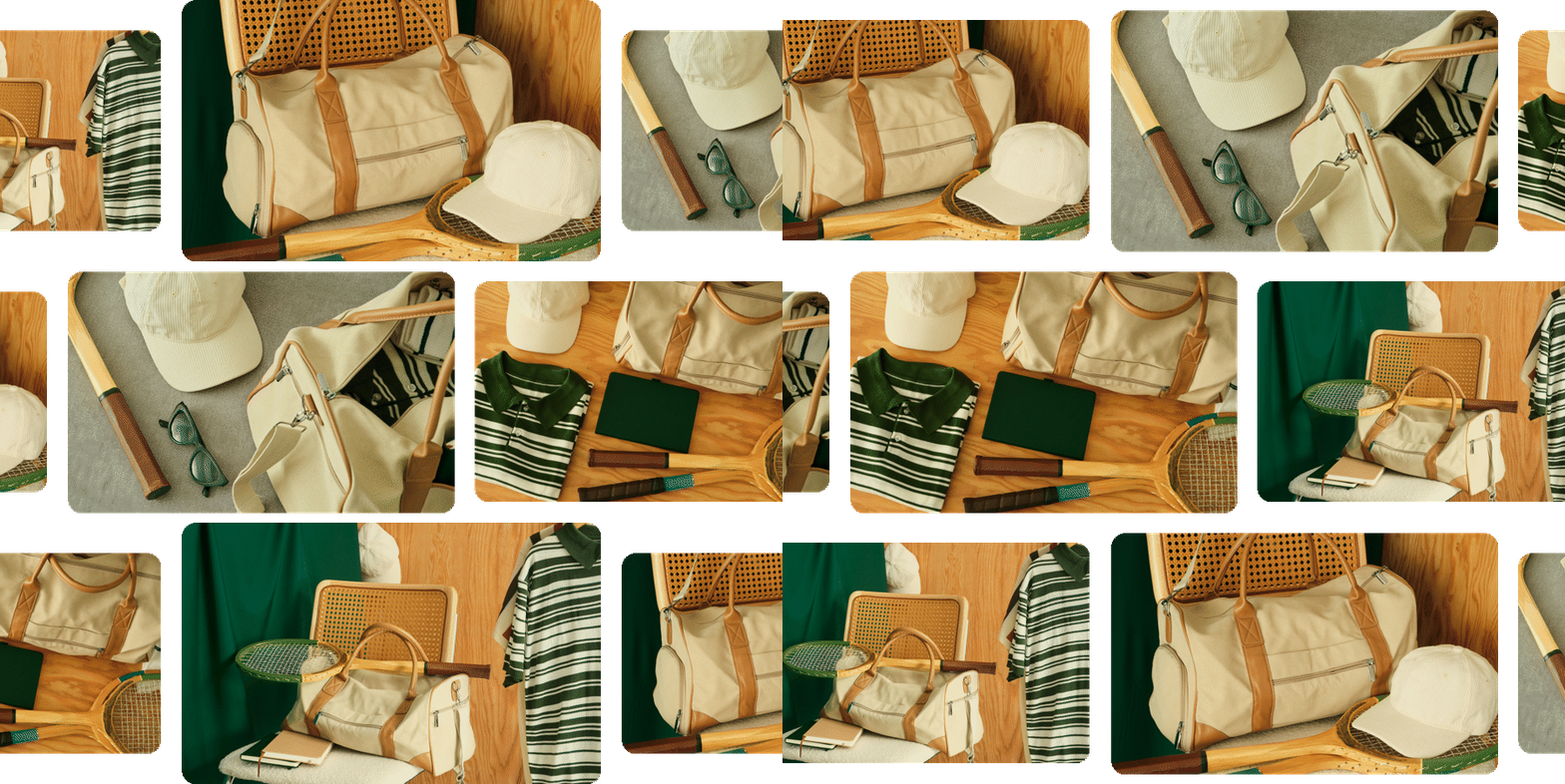
A before-and-after slideshow makes change easy to understand when framing, viewpoint, scale, and lighting remain stable across the sequence. Use Slideshow for a direct one-at-a-time comparison, and keep the transition restrained so the visual difference remains the focus. Two images may be sufficient, but additional stages can help explain a renovation, restoration, design revision, editing workflow, or fitness progression. If labels are necessary, Slideshow supports per-image captions; keep them short and position them consistently so they clarify the states without covering the evidence.
For a comparison of exactly two photos, use the Before and After GIF Maker to reveal one image over the other with a moving divider or transition. Keep the slideshow approach when intermediate stages matter, such as Before, In progress, and Finished. The before and after GIF guide includes animated examples and ideas for choosing a reveal that suits the change.

Event promotion
An event slideshow can combine speakers, venue details, previous highlights, agenda themes, or sponsor visuals into one animated promotional asset. Slideshow offers the clearest sequence, Overlay can establish foreground and background hierarchy, and Perimeter can create more decorative movement around a central event image. All three modes support captions, making it possible to label speakers or short themes, but dates, registration details, and accessibility information should also remain in live text. Build anticipation without making the loop so busy that the event identity becomes difficult to recognize.

Process explanations
Use a Slideshow sequence to show the ordered stages of a process when a full tutorial video would be excessive. Each image should represent one meaningful step, such as preparation, assembly, refinement, and the completed result. Stable framing helps viewers notice what changes between stages, while short per-image captions can identify the action without turning each frame into a text-heavy instruction card. Choose a delay that accommodates the most detailed step. For complex procedures, safety information, or branching instructions, use the GIF only as an overview and provide a complete written guide nearby.

Email banners
A slideshow GIF can make an email banner feel active while keeping several related campaign visuals inside one compact area. Use a short sequence, a strong first frame, and one clear message that aligns with the nearby call to action. Slideshow is usually the safest layout when banner space is limited, while Overlay can add hierarchy when a foreground visual must remain prominent. Test the finished file in the actual email editor, check mobile scaling and file-size limits, and ensure the opening frame still works when an inbox delays animation or displays only a static preview.
Social and community posts
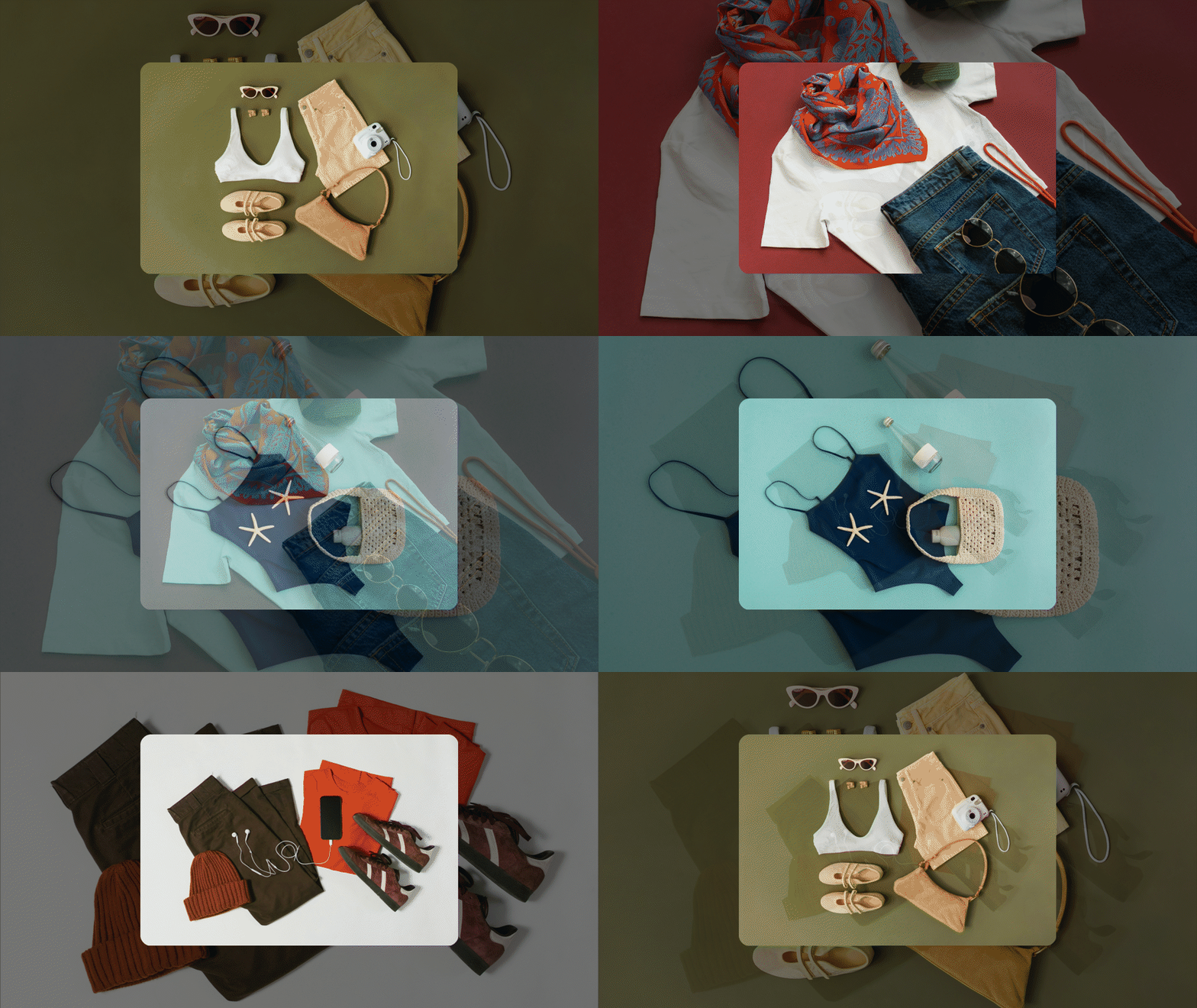
A compact Slideshow or Carousel can combine several recognizable highlights into one shareable GIF for a social update, community post, launch announcement, or project recap. Keep the sequence short because platforms may resize or recompress animated files, making small details and text harder to read. Use the first frame as a self-contained introduction and preserve one visual theme throughout the loop. Before publishing, confirm that the destination accepts animated GIFs and does not convert the upload into a static image. Place essential context in the post copy so the message survives either behavior.
How image choice affects GIF quality and size
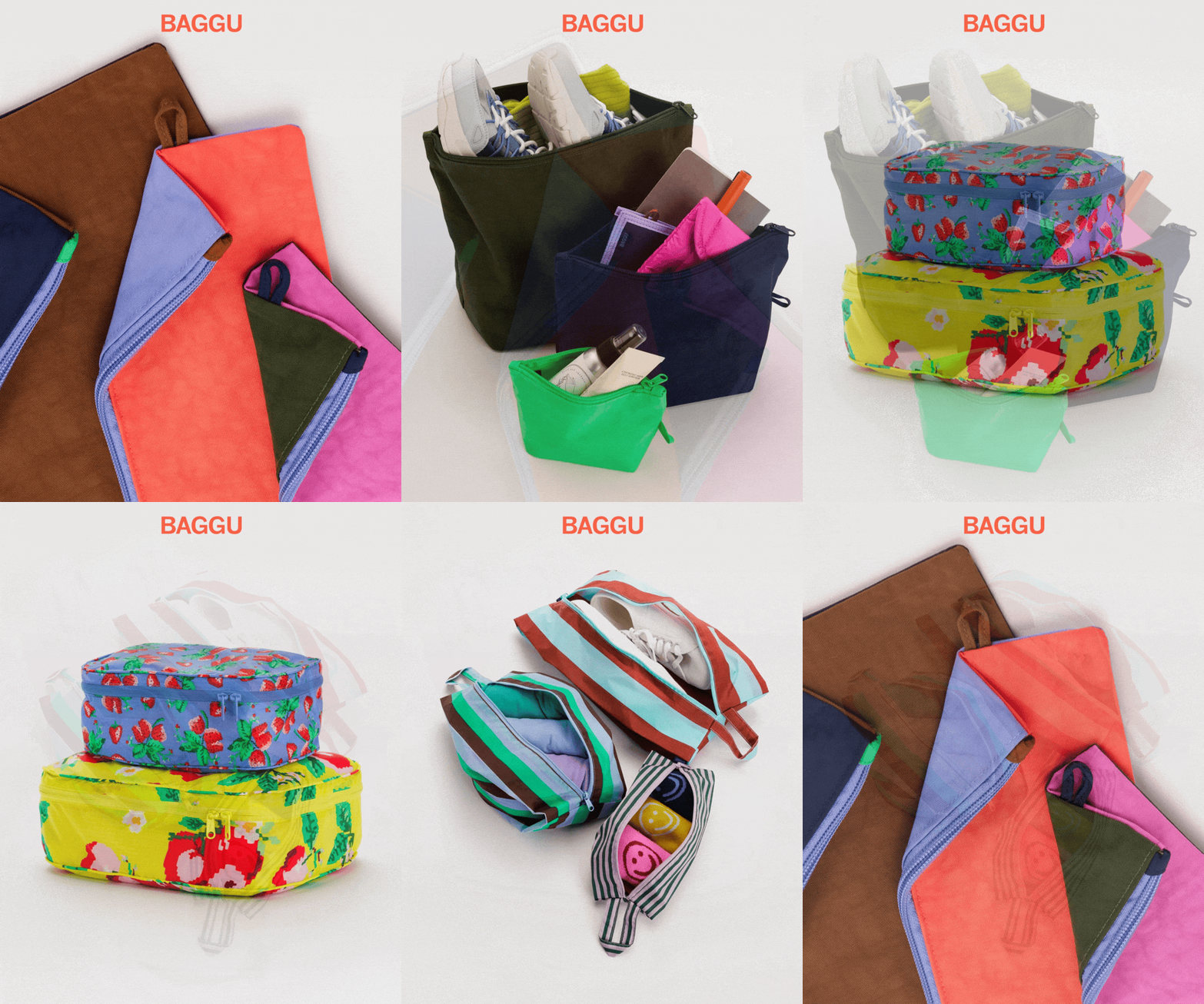
GIF is an indexed-color animation format. The MDN image format guide explains that animated GIF uses 8-bit indexed color, so photographic gradients and large color ranges may show palette reduction or dithering. Simple graphics, controlled backgrounds, and images with stable colors are generally easier to represent cleanly than a slideshow that changes every pixel between complex photographs.
File size depends on the number of images, canvas dimensions, color complexity, layout motion, delay, and how much of the frame changes over time. No single photo count or aspect ratio guarantees a particular result. Build the shortest complete story, export at practical dimensions for the destination, and inspect color and text before applying aggressive optimization.
If the finished slideshow exceeds a defined upload limit, use the target-size mode in the Free GIF Compressor after the sequence, preset, timing, and all layout-specific settings are final. These may include aspect ratio, transition, Round, Gap, Opacity, Motion, Pace, or captions depending on the chosen mode. Compression should be the last delivery step, because optimizing a slideshow and then rebuilding its composition creates unnecessary repeated processing.
Accessibility and first-frame planning
Describe the slideshow's purpose in alt text, such as a sequence showing the stages of a renovation or a carousel presenting five products from a summer collection. Do not attempt to reproduce every visual detail in one enormous alt attribute. Provide essential names, explanations, dates, product details, or instructions as normal surrounding text so they remain available without animation.
Automatically moving content can distract some viewers. The W3C guidance on pausing, stopping, or hiding moving content is relevant when animation starts automatically, continues, and appears alongside other content. A standalone GIF normally provides no pause control, so keep the loop concise and purposeful, avoid rapid flashing, and use a static alternative or controllable presentation when the motion is long or essential.
The first frame deserves separate attention because some contexts may display it before the animation loads or use it as a static preview. It should identify the subject, retain readable text, and make sense without waiting for the next slide. Do not hide the only campaign message, product name, or process label deep in the loop.
Final GIF review checklist
| Check | Pass condition |
|---|---|
| Purpose | The slideshow can be described in one sentence and every image supports it |
| Opening | The first frame identifies the subject without requiring motion |
| Sequence | The order is chronological, comparative, or intentionally editorial |
| Aspect ratio | Important subjects remain inside the selected frame across all images |
| Preset | The layout supports the story and does not make content too small |
| Pacing | Each image and caption can be understood before the next change |
| Caption | Text is short, high contrast, and readable at the final display size |
| Loop | The ending returns to the beginning without an accidental blank or duplicate pause |
| Quality | Important colors, faces, artwork, products, and text remain credible |
| Delivery | The real destination accepts the size and displays the animation correctly |
| Accessibility | Essential information exists outside the GIF and motion avoids harmful flashing |
Common slideshow GIF problems
| Problem | Likely cause | What to try |
|---|---|---|
| Images appear cropped unpredictably | Source files have conflicting aspect ratios or focal points | Prepare a shared composition and keep key subjects away from vulnerable edges |
| Slideshow feels too fast | Delay is too short or images contain too much information | Increase the delay, simplify captions, or remove complex slides |
| Slideshow feels too slow | The sequence contains redundant or weak images | Remove low-value slides before making every transition faster |
| Caption disappears into photos | Contrast is inconsistent across the sequence | Adjust text and background colors, position, and size for every image |
| GIF has rough gradients or color banding | Photographic color exceeds the GIF palette | Use simpler imagery, controlled backgrounds, or video when color fidelity is central |
| Layout looks too busy | The preset shows too many competing elements at final size | Choose Slideshow or another simpler preset |
| Loop restarts awkwardly | The final and first images have no intentional relationship | Choose a closing image that completes the story and leads back to the opening |
| File is too large | Too many complex images, large dimensions, or extensive motion | Shorten the sequence, export at final dimensions, then compress the completed GIF |
| Viewers cannot control the slideshow | GIF has no interactive navigation or pause interface | Use an interactive gallery or video player when controls are necessary |
Create a product-focused carousel
For ecommerce work, the animated product carousel GIF guide explains how to select product shots, keep aspect ratios and product scale consistent, choose Carousel or another suitable preset, and build a sequence that supports one merchandising message. The general slideshow workflow remains useful, but product carousels need extra attention to variants, material details, collection hierarchy, and the difference between an animated GIF and an interactive store carousel.
Conclusion
A strong slideshow GIF turns a small group of still images into one clear visual sequence. Select only images that serve the same story, prepare them for one aspect ratio, choose the simplest preset that supports the message, and set the delay around recognition and reading. Use captions sparingly, make the opening frame useful on its own, and inspect the complete loop at its final display size.
TweenFrame's Slideshow, Carousel, Trio, Overlay, and Perimeter presets provide different ways to organize the relationship between images. The correct choice depends on whether the viewer should focus on one image at a time, see a moving collection, compare a small group, follow foreground and background hierarchy, or watch motion around a central anchor. The slideshow succeeds when the layout makes the story easier to understand.
Frequently asked questions
What is a slideshow GIF?
A slideshow GIF is one animated image file that presents several still images in an automatic sequence or designed layout. It is silent, normally loops, and does not include manual slide navigation.
How many images can I upload?
The current TweenFrame generator accepts up to ten images, with each file under 5 MB. Using fewer images can create a shorter, clearer, and easier-to-optimize slideshow.
Which image formats are supported?
The GIF Slideshow Maker supports JPG, PNG, and WebP source images. It works with images only rather than MP4, WebM, or other video files.
Which slideshow preset should I choose?
Use Slideshow for full-frame photos, Carousel for a moving row, Trio for a featured center image, Overlay or Perimeter for layered compositions, Diptych for a pair, Flip Grid for changing tiles, Burst for expanding reveals, and Spotlight for individual zooms.
Which presets support captions?
Slideshow, Overlay, and Perimeter support per-image captions with position, alignment, font, size, text color, background color, and opacity controls where applicable. Carousel, Trio, Diptych, Flip Grid, Burst, and Spotlight do not provide captions. In every mode, keep essential information in surrounding live text as well.
Does the tool add a watermark?
No. The generated slideshow GIF is downloaded without TweenFrame branding, and the tool does not require sign-up.
How long should each slideshow image remain visible?
Use enough delay for an unfamiliar viewer to recognize the image and read any caption once. Complex or captioned images need more time than simple photographs with one clear subject.
Why does my slideshow GIF look grainy?
GIF uses a limited indexed-color palette, so complex photos and gradients may show dithering or banding. Simplify the imagery, reduce unnecessary background detail, or use video when rich color is essential.
How can I reduce the slideshow GIF size?
Remove redundant images, use practical final dimensions, choose a focused preset and sequence, and finalize the caption and delay first. Compress the completed GIF only after the visual structure is correct.
Can a slideshow GIF include music?
No. GIF does not carry an audio track, and the TweenFrame slideshow generator works with still images. Use a video slideshow when music, narration, or synchronized sound is required.
Can viewers click through the slides?
No. A slideshow GIF is one automatic image file without slide controls. Use an interactive webpage gallery or carousel when viewers need navigation or separate links.
When should I use the Image to GIF Maker instead?
Use it when each source image should become a direct animation frame without presentation-style layouts. Image to GIF starts with None and Delay 0.5 seconds. Use Slideshow Maker for its nine composition presets and supported caption controls.