How to create an animated product carousel GIF
A practical guide to planning product images, choosing a carousel layout, setting the pace, and preparing a useful ecommerce GIF.
How do you create a product carousel GIF?
Prepare a short group of product images with consistent framing and proportions, upload them to the Free GIF Slideshow Maker, and choose Carousel. Set Count, Direction, Gap, and Round, then choose Transition: None or Smooth and adjust the timing. The strongest carousel presents one clear product story rather than trying to fit an entire catalog into one animation.
An animated product carousel GIF is a single image file that automatically cycles or moves through several product visuals. It can show multiple products, several views of one item, a group of color options, or a compact collection preview. Unlike an interactive website carousel, the GIF does not contain clickable slides, navigation arrows, filters, or separate links for individual products. Treat it as a visual preview that leads the reader toward one surrounding call to action.
This distinction matters when planning the sequence. Every frame contributes to one shared message, and the viewer cannot pause on a particular product by clicking a control inside the GIF. The opening view therefore needs to explain the subject immediately, the middle views should add useful variety, and the ending should leave a stable product impression before the loop begins again.
Product carousel GIF or interactive carousel?
| Format | Best use | Important limitation |
|---|---|---|
| Animated product carousel GIF | Email, promotional graphics, compact collection previews, product-page supporting media | A single automatic animation with no slide-level controls or links |
| Interactive web carousel | Browsing products or categories where users need navigation and separate destinations | Requires webpage code and interaction; it is not contained in a GIF file |
| Static product grid | Fast comparison of names, prices, variants, or several products at once | Uses more layout space but lets viewers inspect every item simultaneously |
| Short product video | Detailed movement, narration, demonstrations, or rich photographic color | Needs video playback support and is less convenient as a simple image asset |
Choose the GIF when automatic motion and compact placement are more valuable than individual product controls. Choose an interactive carousel when the shopper must select slides, compare items at their own pace, or follow a separate link from each card. A static grid is often clearer for prices and specifications, while video is better for sound, continuous motion, or a long demonstration.
Plan one product story before choosing images
Start by deciding what the carousel must communicate in one loop. A single-product carousel can move from the hero view to alternate angles, a material close-up, a use-in-context image, and a final brand or offer frame. A collection carousel can introduce the range, move through a small number of representative products, and return to the collection identity. A variant carousel can keep the product position fixed while color or pattern changes.
Avoid mixing unrelated goals. A carousel that simultaneously introduces a collection, explains a feature, compares prices, announces a discount, and tells a lifestyle story is difficult to understand before it restarts. Select the strongest visual objective and let the surrounding headline, body copy, product card, or email button carry information that does not need to appear inside the animation.
| Carousel goal | Useful sequence | What the viewer should understand |
|---|---|---|
| Show one product from several angles | Hero view → side or rear view → close-up → lifestyle image → hero view | The product's form, material, important detail, and real-world context |
| Present a small collection | Collection opener → representative items → collection closer | The range has a coherent style and offers several choices |
| Compare visual variants | Base product → color or pattern options → preferred or featured option | The same item is available in clearly different finishes |
| Highlight product features | Whole product → feature detail → feature in use → final product view | A visible feature creates a practical benefit |
| Announce a new drop | Launch message → strongest products → final release reminder | A new collection is available or arriving soon |
Choose the photos by the shopper’s question
For one bag, four useful photos could show its overall shape, its interior, a fastening or material detail, and the bag being worn. Each view should answer something the hero image cannot. This is a shot-selection example, not a claim about the products pictured elsewhere in this guide.
| Shopper’s question | Useful view | Keep visible |
|---|---|---|
| What does it look like? | Whole bag, front or three-quarter view | The complete silhouette |
| What fits inside? | Open interior with familiar objects | Compartments and their contents |
| How is it made? | Fastening, seam, or material close-up | The detail at a readable size |
| How big does it feel? | Bag carried or worn | Enough of the person to establish scale |
Choose Carousel when the views should remain visible side by side. Check the Count at the actual display width: showing more cards also makes each product smaller. If the interior or fastening becomes too small to inspect, switch to Slideshow so each photo gets the full frame. See the slideshow layout guide.
For color variants, use a different plan: hold the angle, crop, lighting, and product scale steady while the color changes. Mixing an interior close-up between two color options makes comparison harder. Keep variant names, current prices, and purchase links in the surrounding page or email; the GIF cannot provide a separate clickable destination for each card.
Prepare product images for a stable carousel
Use a consistent aspect ratio
Product images can have different pixel dimensions while still sharing the same width-to-height relationship. Consistent aspect ratios reduce visible jumps when images appear beside one another or replace one another. The Shopify Help Center guidance on product media also recommends a consistent aspect ratio when product images need to display at the same size.
Choose the intended carousel shape before preparing the files. A square composition is often practical for product cards and compact social placements, a landscape composition gives products more horizontal room, and a portrait composition can suit apparel or mobile-first creative. The Carousel preset does not expose the aspect ratio selector used by Slideshow, Overlay, and Perimeter, so prepare the source images with consistent proportions and framing before uploading.
Keep the product position and scale deliberate
For variant comparisons or multiple views of one item, keep the product at a similar apparent scale and anchor it to a stable visual position. If one frame shows a small object surrounded by empty space and the next fills the canvas with a close-up, the sequence may feel like a layout error rather than a planned reveal. Use close-ups intentionally and place them after the viewer has already seen the complete product.
When photographing several angles, stabilize the background, lighting, camera height, and product placement. The Shopify product photography guide recommends shooting multiple angles and notes that rotating the product while keeping the framing stable can create a consistent set with less corrective editing afterward.
Simplify backgrounds and color changes
Clean backgrounds make the product easier to follow and usually produce a calmer loop. Full photographic scenes can still work when context is important, but large gradients, textured backgrounds, shadows, and continuously changing photographic detail are harder to represent in the GIF palette than flat or controlled areas. If lifestyle images are part of the story, use them as deliberate contrast rather than alternating between unrelated scenes on every slide.
Choose the right TweenFrame preset
The GIF Slideshow Maker offers nine presets: Slideshow, Overlay, Carousel, Trio, Perimeter, Diptych, Flip Grid, Burst, and Spotlight. For a conventional moving product row, begin with Carousel. The other presets suit different relationships between images: a pair, a collection, a featured item, or a full-frame reveal.
| Preset | How it presents images | Product use case |
|---|---|---|
| Carousel | Images appear side by side in a moving row | A product range, category preview, color variants, or coordinated items |
| Trio | Three images remain visible with the center image emphasized | A small collection or a featured product between supporting options |
| Overlay | A centered image appears over a background image | A hero product, packaging reveal, or layered editorial composition |
| Slideshow | Images appear one by one | Several angles, before-and-after views, or a simple product story |
| Perimeter | Images animate around the edges of a background image | A campaign visual where one central area remains the anchor |
| Diptych | Two photos share the canvas and change in turn | A product beside its detail or a paired styling comparison |
| Flip Grid | One card changes at a time in a grid | Coordinated collections and color variants |
| Burst | Photos expand from the center | A lively launch or campaign reveal |
| Spotlight | Each grid photo enlarges and returns | Inspecting individual products within a collection |
Do not select the most animated preset merely because it looks impressive in isolation. Match the layout to the product relationship. Carousel communicates range and continuity, Trio communicates a small coordinated group, Overlay creates hierarchy, Slideshow gives each image the complete stage, and Perimeter is more decorative. Preview the result at its real display size before deciding whether the product remains recognizable.
Step-by-step workflow
1. Select a focused image set
Choose only the images needed to tell the selected product story. The current tool accepts up to ten images, each under 5 MB, in JPG, PNG, or WebP format. Ten is a technical maximum rather than a creative target. A shorter sequence is easier to understand, repeats sooner, and usually creates a more manageable output.
2. Upload the images in the intended narrative order
Decide the order before generation: strongest opening, supporting views, important detail, and a clear closing image. If the source images have ambiguous filenames, rename or organize them before upload so the sequence is easy to verify. Check that every selected file belongs to the same campaign, product family, or visual comparison.
3. Choose Carousel or another suitable preset
Use Carousel for a moving product row, or Trio when a featured item should dominate its neighbors. Diptych suits whole-product and detail pairs; Flip Grid keeps a collection visible while one card changes; Spotlight gives each image a full-size view before returning it to the grid. Burst is useful for a more energetic reveal. For layered images, try Overlay or Perimeter; use Slideshow when every photo should get the full canvas.
4. Set the layout and visual treatment
In Carousel, use the Count slider to choose from 2 to 5.5 visible cards in steps of 0.5. A fractional value leaves partial cards at the edges, suggesting more of the collection beyond the frame. Adjust Gap and Round, then choose Direction. The background between cards is transparent, and there are no border-width or border-color controls. Carousel has no Aspect selector, so prepare consistent source proportions and check the resulting overall shape.
5. Adjust the delay
Delay sets the pause between carousel movements. Adjust its slider from 0.1 to 20 seconds in 0.1-second steps; there are no Fast, Normal, or Slow buttons. Give viewers enough time to recognize each product without making the loop feel static. When Transition is Smooth, Motion separately controls how long the movement takes. Inspect several loops before shortening either setting.
6. Choose None or Smooth
Under Transition, choose Smooth for animated movement or None for direct changes between positions. Smooth reveals a Motion slider, starting at 0.5 seconds. Longer movement and higher export FPS can introduce more changing frames, so compare the result and file size at the intended display dimensions. This preset uses its own movement rather than the effect picker used by Slideshow, Overlay, Diptych, and Flip Grid.
7. Generate, download, and inspect the GIF
Generate the carousel and inspect the complete loop at actual size. Confirm that the opening view works as a static first impression, product crops remain intentional throughout the animation, spacing and rounded corners remain consistent, and the return to the beginning does not create an accidental flash or awkward empty state. Test the downloaded file in the intended email editor, content management system, or webpage rather than relying only on the generator preview.
How fast should a product carousel GIF move?
There is no universal delay that fits every product carousel. The appropriate pace depends on image density, product familiarity, the number of visible columns, and the total number of visuals. The practical test is recognition: each view should remain long enough for a new viewer to identify the product and understand why that view was included. When several products share the same simple composition, the carousel can move briskly. When a frame contains a material detail, styling idea, or unfamiliar feature, allow more viewing time.
| Content type | Pacing approach | Review question |
|---|---|---|
| Simple pack shots | Use a steady, relatively brisk rhythm | Can viewers distinguish every product without pausing the animation? |
| Several angles of one product | Keep the cadence consistent and let close-ups remain visible longer if needed | Does each angle add information rather than repeat the hero view? |
| Lifestyle and detail mix | Give complex scenes more reading time than simple product-only images | Is the context understandable before the next image arrives? |
| Detail-led carousel | Allow enough time to inspect materials, features, or small visual differences | Can the relevant detail be understood without chasing the loop? |
| Collection teaser | Move quickly enough to create anticipation, then end on a clear collection identity | Does the sequence feel like one launch rather than unrelated products? |
If the carousel feels slow, first remove a weak or redundant image rather than making every view extremely brief. If it feels rushed, reduce the number of products, show fewer columns, or simplify text already included in the source images. Pacing should improve comprehension; speed is not a substitute for a clear selection.
Offers and product information
A carousel GIF is strongest when imagery carries most of the message. The Carousel preset does not provide the caption controls available in Slideshow, Overlay, and Perimeter modes, so place the collection name, category, benefit, or campaign message in nearby live text whenever possible. Keep prices, variant names, legal conditions, and detailed specifications outside the GIF because they may change and because live text remains selectable, responsive, translatable, and more useful to assistive technologies.
If an offer must appear inside the carousel, add it to the prepared source image before uploading. Make the wording large, high contrast, and brief, then inspect every position in the moving row to ensure neighboring cards do not obscure it. Design the text for the final display width rather than for a large desktop preview, and repeat essential offer details in surrounding live text.
Where product carousel GIFs work best
| Placement | Good carousel role | What to verify |
|---|---|---|
| Promotional email | Show a compact collection or several views above one clear button | File-size limit, first-frame clarity, mobile width, and email-client behavior |
| Product page | Support the main gallery with a quick variant, angle, or feature preview | The animation adds information and does not replace necessary static details |
| Collection page or campaign landing page | Introduce a coordinated range without expanding the page vertically | The GIF does not compete with interactive product navigation |
| Social post or community update | Create a short visual teaser that can be shared as one file | The service accepts the file and displays animation as expected |
| Support or sales message | Show available finishes, packaging options, or a simple comparison | The recipient can identify the relevant option without separate slide controls |
Always test the real destination. A platform may resize, recompress, or replace an animated asset with a static preview. The surrounding headline and call to action should still make sense if only the first frame is visible. Keep the important product or collection identity in that opening state.
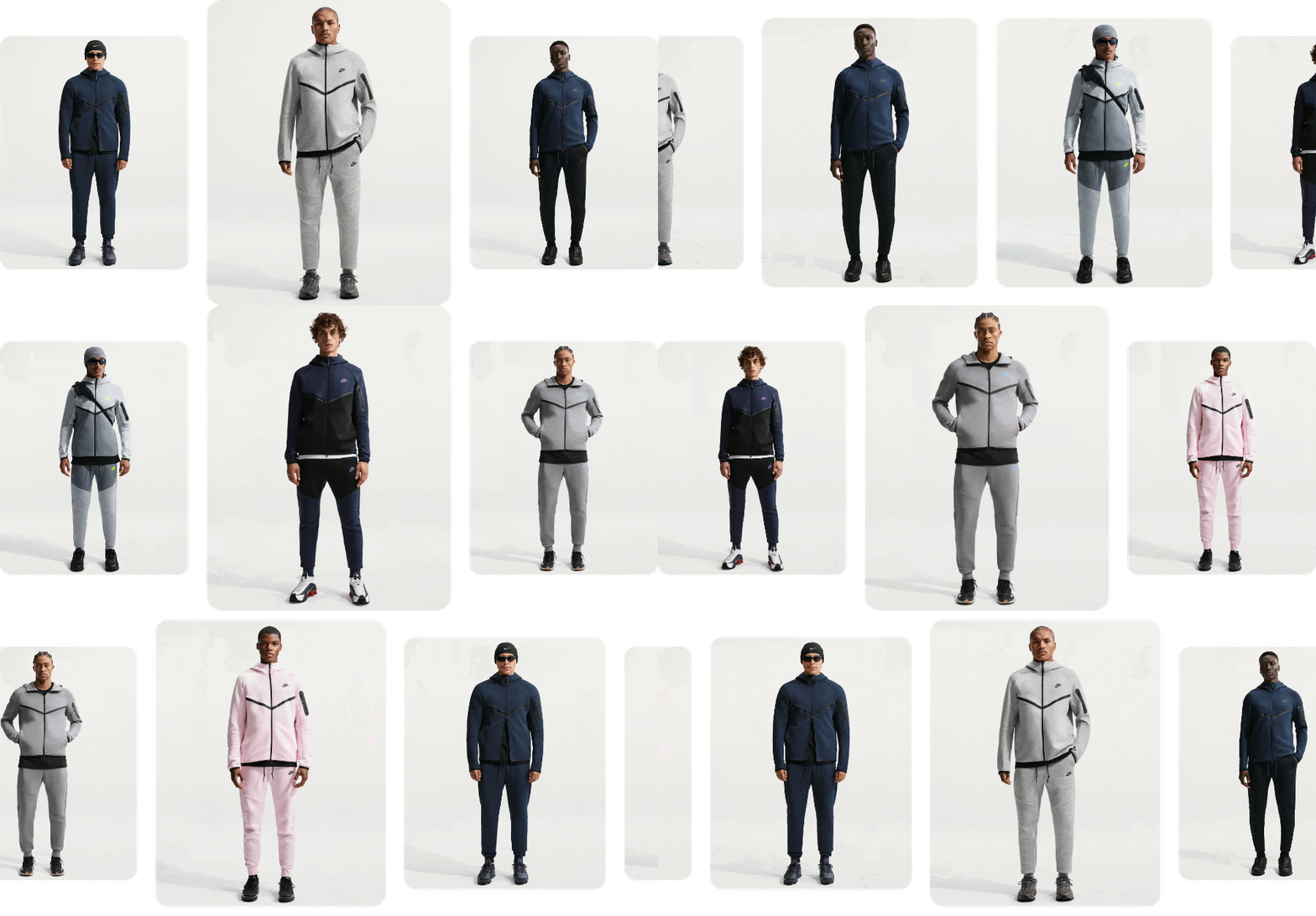
Promotional emails
A product carousel GIF works well in a promotional email when the campaign needs to show a small collection, several color options, or multiple views without turning the message into a long product grid. Lead with the strongest product arrangement because some inboxes may initially show only the first frame. Keep the animation close to one primary call to action, and check the actual file-size limit, mobile width, and rendering behavior in the email platform before sending.
Product pages
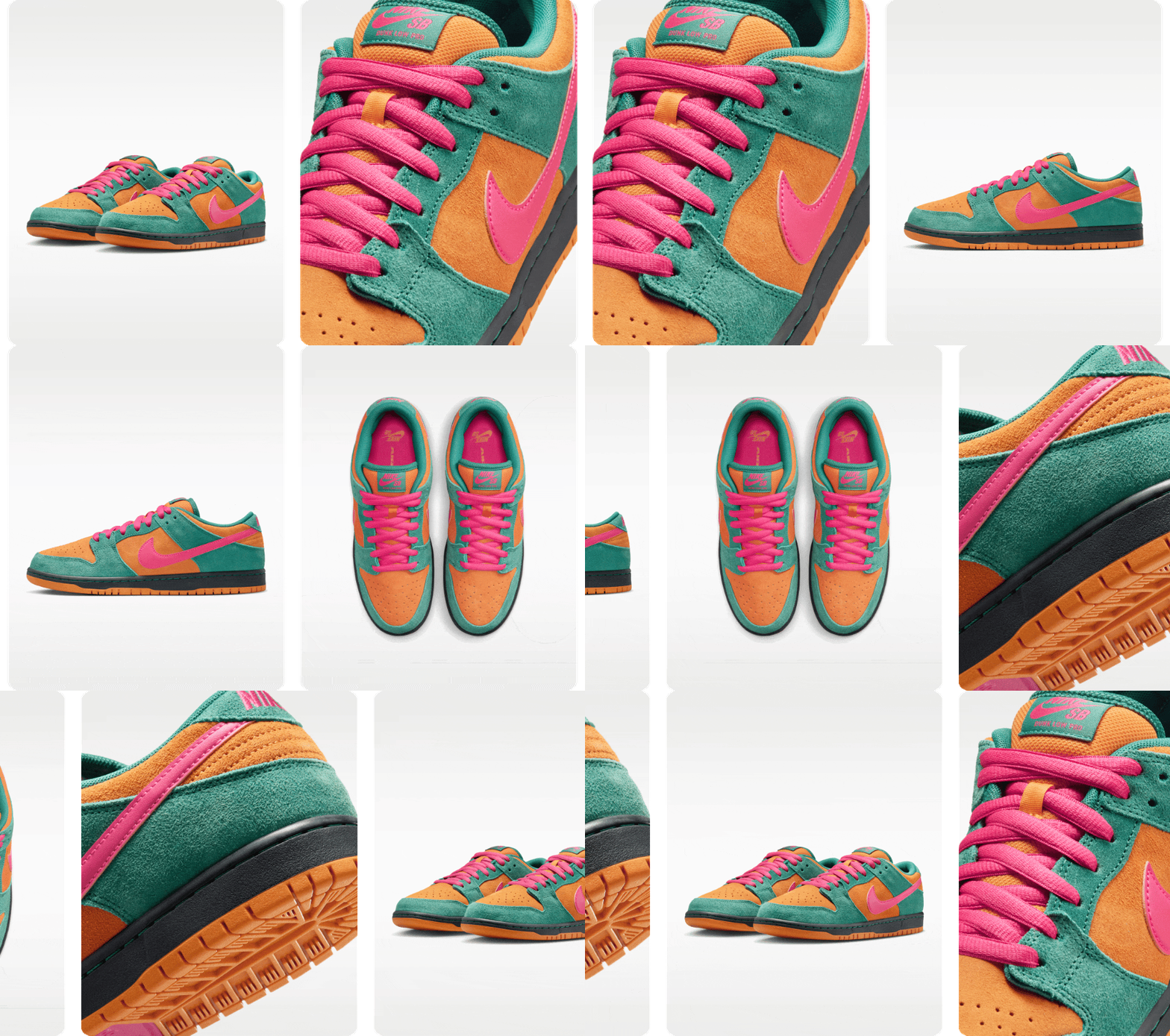
On a product page, use the carousel as supporting media rather than a replacement for the main gallery. It can quickly introduce alternate angles, finishes, packaging options, or material details while static images remain available for closer inspection. The most useful sequence begins with a recognizable hero view and adds information with every movement. Place the GIF near the relevant description or purchase action so the animation supports the shopping decision instead of competing with navigation.
Collection pages and campaign landing pages
A moving product row can introduce a coordinated collection without adding several full-width content blocks to the page. Use consistent photography, product scale, and backgrounds so viewers understand that the items belong together. This placement works especially well for seasonal ranges, color stories, bundles, and new arrivals. Keep the surrounding headline and button specific to the whole collection, because individual cards inside the GIF cannot contain separate clickable destinations.

Social posts and community updates
A carousel GIF can turn several related product visuals into one portable teaser for a social post, community announcement, or launch update. Use a short sequence with immediately recognizable products and avoid relying on small embedded text that may become unreadable after platform resizing. Test whether the destination preserves animation and whether it recompresses the file. If the platform displays only a static preview, the opening arrangement should still communicate the collection or launch clearly.

Support and sales messages
In a support conversation or sales message, a compact carousel can compare finishes, packaging choices, accessories, or a small set of recommended products without sending several separate attachments. Arrange the images in the same order in which the options are discussed in the surrounding message. Keep differences visually obvious and limit the set to choices relevant to that recipient. Since the GIF has no slide controls, the accompanying text should identify each option clearly enough for the viewer to respond without pausing the animation.
Control file size without weakening the carousel
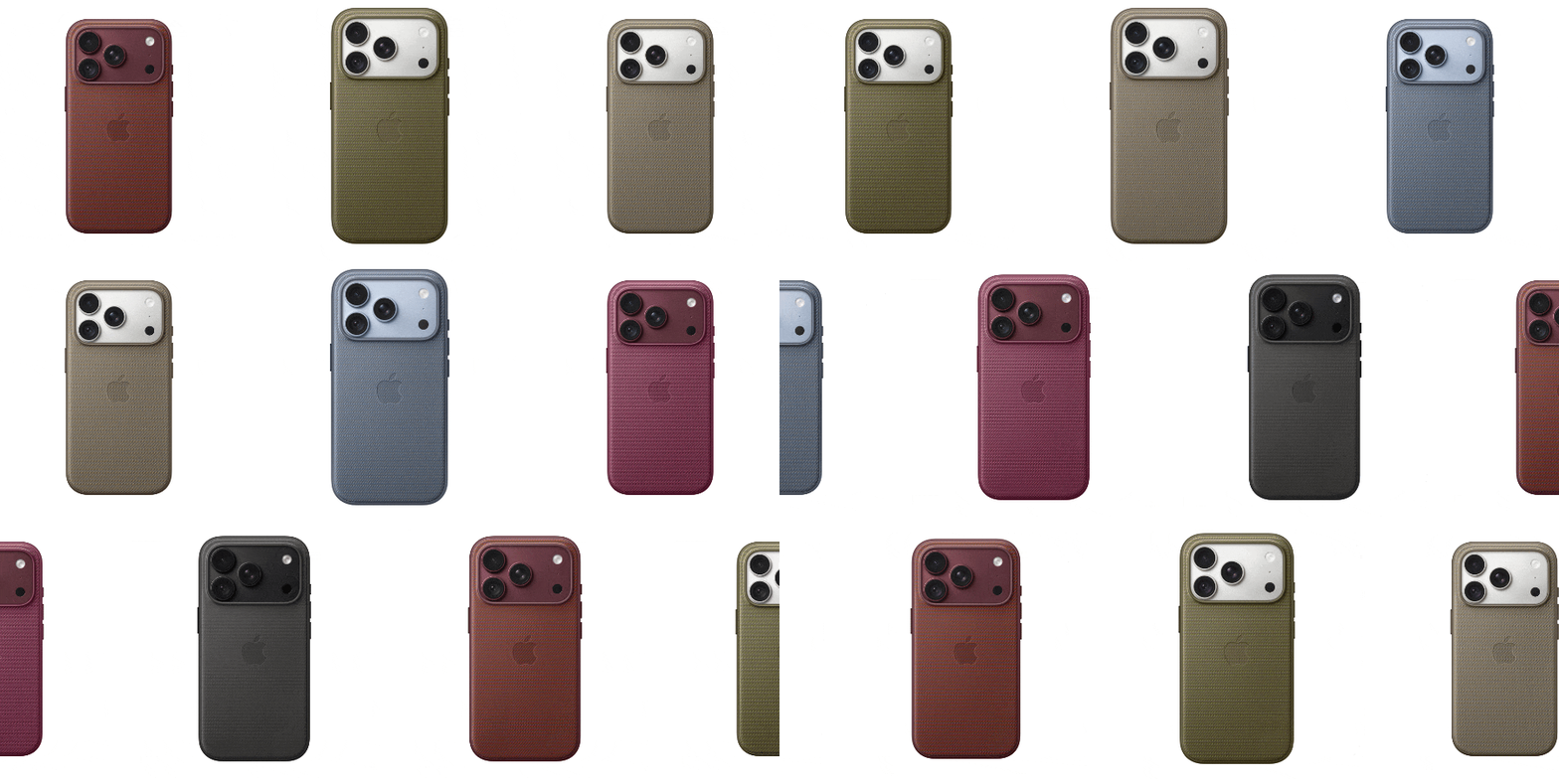
A product carousel can become large because it combines several photographic images and motion in one file. Start with content decisions: remove redundant products, use a compact image set, prepare consistent source proportions, and avoid unnecessarily large source dimensions. Controlled backgrounds and consistent compositions also reduce visual noise and help the result feel more coherent.
Compress only after the image set, source crops, column count, delay, Gap, Round, and Transition/Motion settings are final. If the downloaded GIF exceeds a specific destination limit, use the target-size mode in the Free GIF Compressor. The compressor attempts to reach the selected size while balancing visible quality and animation smoothness, but the achievable result depends on the source. The GIF compression guide explains the trade-offs without promising that every photographic carousel can reach every target unchanged.
Final GIF review checklist
Review the carousel with motion and message separated. First confirm that product shapes, colors, materials, and important details remain credible after GIF conversion. Then confirm that the sequence is understandable in one loop. Finally, check whether the surrounding page or email explains the same essential information in text. Alt text should describe the purpose of the animated image rather than list every pixel or repeat an entire product catalog.
Continuous animation can be distracting for some users. The W3C guidance on pausing, stopping, or hiding moving content explains why motion that starts automatically and continues can require user control in applicable interfaces. A GIF itself normally has no pause button, so keep it purposeful, avoid rapid flashing, and do not rely on motion alone to communicate essential information.
| Check | Pass condition |
|---|---|
| Opening frame | The product or collection is identifiable even before motion begins |
| Image consistency | Aspect ratio, scale, lighting, and framing feel deliberate across the sequence |
| Sequence | Every image adds useful information and the order forms one story |
| Product information | Text remains readable at final size and does not cover important product details |
| Loop | The ending returns to the opening without a confusing blank or duplicate state |
| Color and detail | Important materials, variants, and labels remain distinguishable |
| Delivery | The actual file uploads, loads, and animates correctly in its destination |
| Accessibility | Essential information also appears in surrounding text and the animation avoids harmful flashing |
Common product carousel problems
| Problem | Likely cause | What to change |
|---|---|---|
| Products jump in size | Source images use inconsistent framing or aspect ratios | Prepare a common composition and keep product scale deliberate |
| Carousel feels chaotic | Too many unrelated images or backgrounds are competing | Reduce the set and use one product story or collection |
| Products move too quickly | Delay is too short for recognition or detail viewing | Increase the delay or remove low-value images |
| GIF looks soft or dithered | Photographic gradients and many colors exceed what GIF represents efficiently | Simplify the imagery, reduce unnecessary background detail, or consider video |
| Text is hard to read | Product information is long, small, or placed over busy imagery | Shorten it, adjust size and position, and use a suitable background color |
| Loop has an awkward reset | The final and opening states do not relate | End on the hero product or a collection frame that leads naturally back |
| File is too large | Too many images, large dimensions, complex photos, or extended animation | Shorten the sequence, use final dimensions, then compress the completed GIF |
| Viewers expect to click products | The GIF resembles an interactive store carousel | Pair it with a clear button or link and do not imitate navigation controls |
A broader slideshow workflow
If the project is not specifically an ecommerce carousel, the guide to making a slideshow GIF from images covers photo stories, portfolios, before-and-after sequences, event highlights, and all nine presets, including Diptych, Flip Grid, Burst, and Spotlight. Keeping the two workflows separate helps the product carousel remain focused on merchandising decisions rather than general slideshow use cases.
Conclusion
A useful animated product carousel GIF is a compact merchandising story, not an automatic catalog. Begin with one objective, select a small group of consistent product images, choose the preset that matches their relationship, and set the pace around recognition rather than speed. Choose the column count and spacing for the final display width, keep essential copy in surrounding live text, and test the opening view, loop, file size, color, and destination behavior before publishing.
The Carousel preset is the natural starting point for a moving row of products, while the other eight presets offer pairs, grids, full-frame scenes, layered compositions, and individual reveals. The best result is the one that makes the products easier to understand and invites the viewer toward the surrounding call to action without pretending that the GIF itself is interactive.
Frequently asked questions
What is an animated product carousel GIF?
It is one animated image file that presents several product visuals in a repeating sequence or moving layout. It can show products, variants, angles, or details, but it does not contain interactive slide controls or separate links inside each image.
How many product images should I use?
Use only the images required for one product story. TweenFrame currently accepts up to ten images under 5 MB each, but a shorter sequence is often easier to understand, faster to repeat, and simpler to optimize.
Which preset works best for products?
Start with Carousel for a moving row or Trio for a featured product. Diptych pairs a product with its detail; Flip Grid presents a collection; Spotlight enlarges each item in turn; Burst adds an expanding reveal. Slideshow, Overlay, and Perimeter offer full-frame or layered alternatives.
Does the Carousel preset support captions?
No. Caption controls are available in Slideshow, Overlay, and Perimeter modes, but not in Carousel or Trio. For a product carousel, place the message in surrounding live text or add brief text to a prepared source image before uploading.
Can every product link to a different page?
No. The generated carousel is a single GIF image, not an interactive web component. Place one clear link or button around or near the GIF, or use a coded website carousel when each product needs its own destination.
What image formats does the tool support?
The current generator accepts JPG, PNG, and WebP images. It supports up to ten images, with each source file under 5 MB.
Why do my products jump between slides?
The source images probably use inconsistent aspect ratios, product scale, framing, or camera position. Prepare a common composition and use deliberate close-ups only after the whole product has been established.
How do I make the product carousel GIF smaller?
Remove redundant images, prepare consistent source proportions and practical dimensions, simplify complex backgrounds, and finalize the timing first. Compress the completed asset only after its visual structure is correct.
Can I use the carousel GIF in email?
Yes, provided the email editor accepts the file and the output fits its size limit. Test the first frame, mobile display width, loading behavior, and animation in the real campaign workflow.
When should I use video instead?
Choose video for long demonstrations, sound, detailed continuous movement, or photographic color that becomes visibly degraded in GIF. Use a carousel GIF for a short, silent, automatically repeating visual preview.