Animated text generator
Turn your words into animated text. Choose an effect, customize the style, and download a GIF, WebP, or MP4 — free, no sign-up.
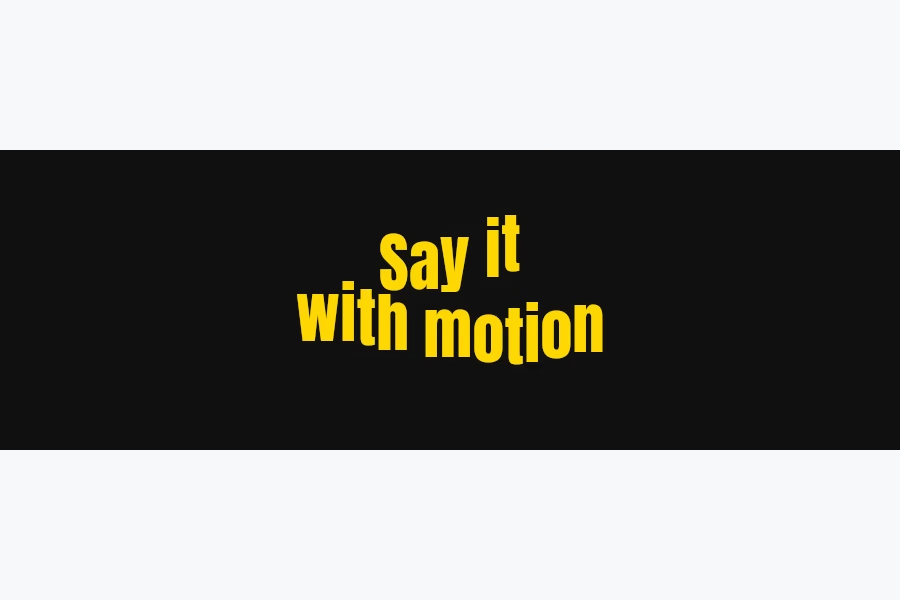
Give your words motion
Make your own animated text GIF.
Type a name, headline, or short message and choose how it moves. Animate individual letters, whole words, or lines with wave, glitch, and reveal effects. Adjust the font, colors, and timing to create a text GIF for a website, message, or presentation.
Type a message or tell it in steps.
Create a typewriter GIF that reveals your words under a blinking cursor, or build a sequence of phrases with entrance and exit effects. Control the pauses so each line has time to be read. Save the result as a GIF, WebP, or MP4 for your chosen destination.
How to animate text
Enter your text
Write a short phrase, add a sequence of messages, or choose Typing mode.
Choose an effect
Pick how the text enters, moves, and leaves. Adjust its timing and direction.
Style the text
Set the font, colors, and size. Check the animation in the live preview.
Download your animation
Choose GIF, WebP, or MP4, generate your file, and save it to your device.
Common questions
What does this animated text generator do?
It turns the words you enter into a text animation. You can animate a single phrase, show a sequence of messages, or create a typing effect, then export the result as GIF, WebP, or MP4.
Is this a text-to-GIF tool or an AI GIF generator?
It creates a GIF of your actual words, styled with fonts and motion effects. It does not turn a written prompt into a generated scene or video.
Is the animated text maker free?
Yes. You can create and download text animations without paying or creating an account.
How do I make a typing text GIF?
Choose Typing mode, enter your phrases, and set the typing speed and pause. Select a cursor style and adjust how quickly characters are erased before the next phrase. Export the result as a GIF.
Can I animate letters separately?
Yes. Choose letters as the animation unit to apply an effect across individual characters. You can also work with words, lines, or the whole text, depending on the effect.
Can I animate several phrases?
Use Sequence mode to show phrases one after another with entrance and exit effects. Typing mode also supports multiple phrases, with pauses and erasing between them.
Which format should I download?
Use GIF for places that accept animated images, WebP when your destination supports it, or MP4 for video uploads. Format support varies by app, so check the downloaded file where you plan to use it.
Can I use animated text in an email?
You can insert a GIF as an image in an email editor. Some email apps or settings show only a still frame, so repeat essential information as ordinary text and test the email before sending.
How do I make the animation easier to read?
Keep phrases short, use strong contrast, and allow a pause after the text appears. Check it at the size where it will be displayed; fast effects and thin lettering can be difficult to read on a phone.
How do I add text to a GIF I already have?
Use Add text to GIF to place captions over an uploaded GIF, image, or video. This generator creates animations from the text itself.
Where can I make a scrolling text banner?
Use the scrolling text generator for a continuous marquee or a banner with sliding messages.
How can I reduce the GIF file size?
Try smaller output dimensions, fewer frames per second, or a shorter sequence. You can also use the GIF compressor after downloading your animation.