How to add a countdown GIF to an email
Build an email timer that stays clear on mobile and when animation is off. First, understand the difference between a downloaded GIF and a live countdown.
A countdown can give an email a clear visual focus: a workshop is approaching, registration is closing, or a timed activity is about to begin. The difficult part is making sure the numbers mean what the reader thinks they mean.
This guide shows how to create and place a GIF with the Countdown Timer GIF Generator, and how to decide whether that kind of file fits your message.
Choose a fixed GIF or a live timer
Imagine you generate a GIF showing three hours remaining at noon. Someone opens your email at 2 PM. The downloaded file still begins with the value recorded at generation; it cannot turn itself into a one-hour countdown.
| What you need | Suitable approach | What to check |
|---|---|---|
| A visual introduction to a timed exercise | Fixed countdown GIF | The recorded sequence fits the activity |
| An animated illustration in an event announcement | Fixed GIF plus a written event date | The digits are not presented as a live deadline |
| Accurate time left until registration closes | Hosted live countdown service | Deadline, timezone, caching, and expiry state |
| A deadline that must remain clear without images | Ordinary text beside the visual | Date, time, timezone, and a relevant link |
TweenFrame exports the first kind: a fixed GIF. Selecting a date calculates the starting value when you generate it. The file does not subsequently contact a clock service. Also, the displayed starting value and the length of the animation are different things: choosing hours or days does not mean the exported file contains hours or days of playback.
Hosted countdown products generate their images around a stored deadline. Litmus describes this distinction in its guide to email timers. If a sale depends on an accurate remaining-time display, choose that workflow before designing the email.
Set the message before styling the clock
Decide what the email asks the reader to do. “Join the workshop” needs a start time and registration link. “Order before the cutoff” needs an exact deadline and any relevant conditions. A large clock cannot replace those details.
For an announcement, use a stable title such as “Studio workshop” rather than a relative promise like “Exactly three hours left.” Write the actual date and time beneath the image as ordinary email text. If your audience spans timezones, state the timezone explicitly and let the event page provide additional context.
Keep the surrounding message short enough that the timer and its explanation appear together on mobile. A deadline in the footer does little to clarify a large, ambiguous clock at the top.
Create the countdown GIF
Open the Countdown Timer GIF Generator. Choose a duration or date, then select the units appropriate to the visual. Minutes and seconds are easier to scan for a short exercise; days, hours, and minutes make sense for an announcement graphic.
Start with a preset, then adjust the font, colors, and title to match the email. Choose digits with clearly different shapes: ornate lettering that works in a headline can make a timer harder to read. Leave space between the digit groups and their labels.
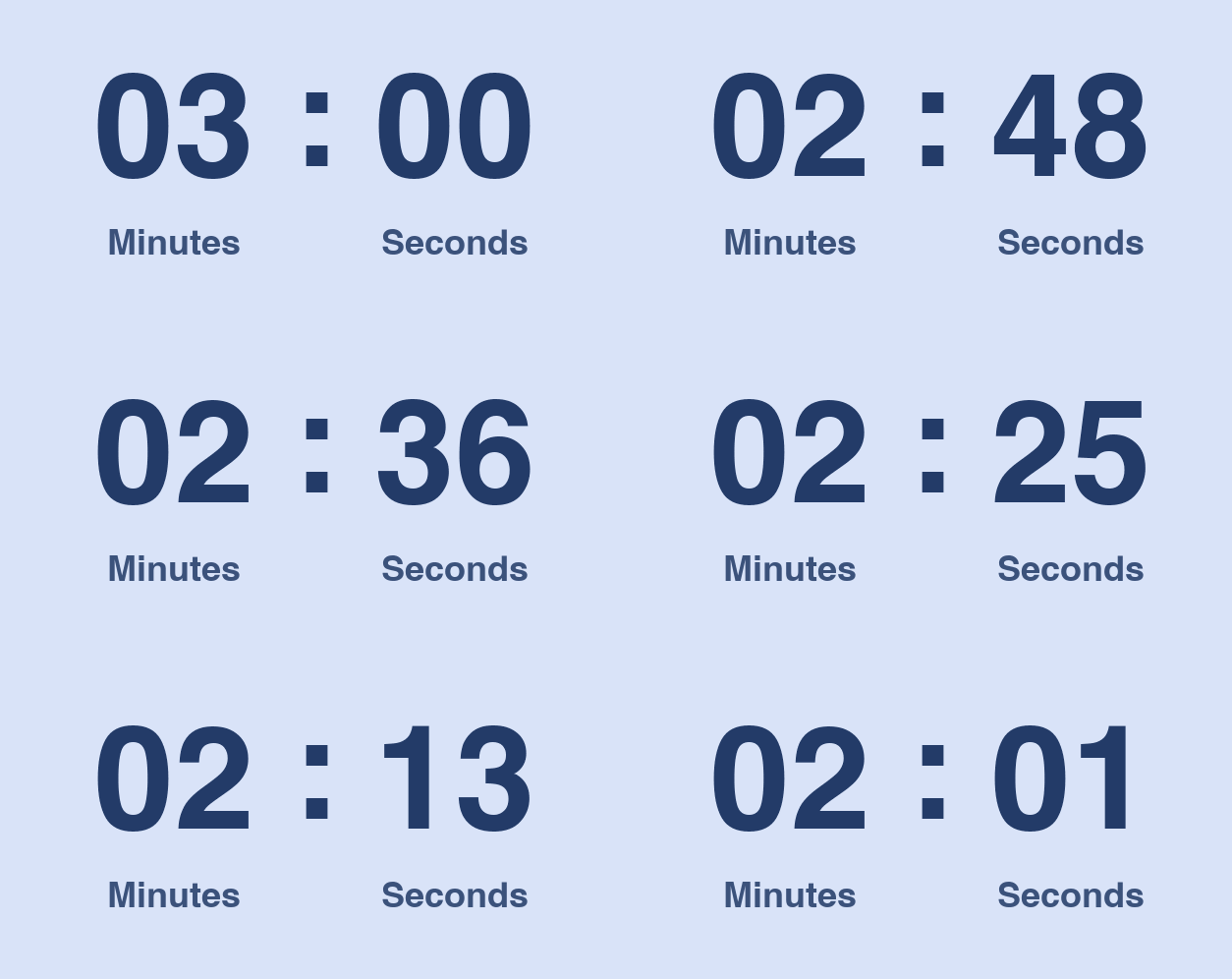
Preview the animation before downloading. Check the starting frame, the progression, and the ending or restart. For a time-sensitive announcement, include the real event date outside the GIF regardless of how convincing the animated numbers look.
Our countdown duration guide compares short activities and longer announcement scenarios. Choose the duration for the message, then verify that the exported playback does what you intend.
Design for a narrow email column
Make a compact version before adding ornament. Four groups of digits, a headline, and small labels can become cramped when a desktop email scales down on a phone. Remove unnecessary units or reduce the amount of surrounding text before shrinking the digits.
Use a background that works with the email section containing the timer. A deliberately opaque light panel can keep dark digits readable when an email app changes surrounding colors. Test the delivered message in dark mode rather than assuming the editor preview will match it.
Keep one main call to action near the timer. A separate button such as “View workshop details” is easier to identify than an image whose click behavior is not obvious. You can link the timer to the same destination, but do not make the animation the only route there.
Insert it inline, then send a real test
In an email marketing editor, add an image block and upload the GIF. Set its display width, add alternative text, and assign the destination link if useful. In a personal email client, use its inline image insertion option rather than sending the file only as an attachment.
Alternative text should preserve the message, not narrate every changing digit. For example: “Studio workshop — see the date and registration link below.” Put that date in selectable text immediately nearby.
For client-specific placement steps, follow our guide to adding a GIF to an email. Microsoft also documents inserting animated GIFs in Outlook.
Send the message through the actual platform you will use. Check the received email on a phone and a desktop: image processing, display width, and surrounding spacing may differ from the composer.
Make the first frame useful
Do not hide the title or important context until several seconds into the animation. A person may glance at the message briefly, or their app may display a static frame. Microsoft notes that animation settings can cause Outlook to show only a static image.
The first frame should look intentional. The ordinary text should still explain the event if all images are blocked. If the clock is purely decorative, removing it should leave a complete message with a date and working call to action.
Keep the download weight proportionate
An email timer usually has simpler motion than a video clip, but oversized dimensions and decorative backgrounds can still create a heavy asset. Export for its intended placement and inspect the resulting file size.
If it loads slowly, use the GIF Compressor, then compare the digits and labels at the actual email width. Small pale labels are often the first thing to suffer. Simplifying the design is preferable to compressing until the numbers look broken.
A short excerpt can illustrate a timer, but trimming changes the recorded sequence. After any edit, check the starting value, ending, and restart again. See our target-file-size guide for a systematic approach to compression.
Test delayed opens and expiry
Open the test message later, not just immediately after sending. With a fixed GIF, the original values remain. That simple check often exposes wording that accidentally suggests a live deadline.
Live services also need testing. Apple explains that Mail Privacy Protection can download remote content in the background, independently of when the reader engages with the email. Image fetching is therefore not always equivalent to a person opening a message. Follow the countdown provider's guidance on caching and privacy features, and configure an appropriate expired state.
Use this final review before sending:
| Check | A clear result |
|---|---|
| Open immediately | The timer, explanation, and button are readable together |
| Open later | The wording remains true even if the GIF values are unchanged |
| Disable animation | The first frame still looks complete |
| Block images | The date and call to action remain available as text |
| View on mobile | Digits and unit labels are readable without zooming |
| Visit after the deadline | The destination explains the current status |
A countdown works best when it supports information the reader can trust. Use a fixed GIF for the visual job it can do, and a live service when the clock itself must stay current.
For a campaign that needs an animated headline rather than a timer, see our animated text GIF examples. A short Shine or a three-slide launch message can introduce the offer while the deadline stays in ordinary email text.
Frequently asked questions
Does a downloaded countdown GIF update when the email is opened?
No. A downloaded GIF contains a fixed sequence of frames. It does not recalculate the time remaining when a recipient opens the email later.
What does selecting a date in TweenFrame do?
It calculates the starting countdown value when you generate the file. The exported GIF is still a fixed animation, not a hosted live timer.
Can I use a countdown GIF in Gmail or Outlook?
You can insert it inline as an image. Playback depends on the recipient’s app and settings, so include the event date and timezone in ordinary text and test the delivered email.
How do I make a timer count down to a real deadline?
Use a hosted live countdown service that generates an image for a deadline, and follow its email embedding instructions. Remote image caching and preloading still need testing.
What happens when someone opens the email after the deadline?
A downloaded GIF still shows its original animation. A live service needs a configured expiry state. In either case, the landing page should show the current event or offer status.