From property listing to campaign with an AI agent
Your listing already contains the facts. Let an agent turn them into a coordinated set of banners, then regenerate the right files when the offer changes.
You have the listing, the photos and a deadline. What you do not have is an afternoon to turn them into a social post, an open house invitation, an email graphic and three more versions after the price changes.
An AI agent can take that production work off your hands: read the listing, select the facts that matter to buyers, write concise copy and use TweenFrame to turn the photos and message into finished banners.
You get a coordinated set for the places you want to advertise, plus the editable designs for future updates. Approve the first campaign, then reuse that direction when the price changes or the next property arrives.
This guide follows a fictional property campaign, using stock photographs and sample details, from its brief to seven banner formats. For the strategy behind the creative, start with our real estate banner advertising guide.
Turn property information into a design brief
A listing page may have a long description and twenty photos. A PDF may mix useful facts with agency boilerplate. A spreadsheet may contain the price in one column, the availability date in another and a photo-folder link somewhere else.
Turning that material into a design brief is the first useful task to delegate. The agent can find the asking price, select the strongest features and connect each message to the right photographs before building the layout.
You provide the approved property information and photographs, explain the campaign’s goal and identify where the materials will run. The agent turns that source into concise copy, chooses what deserves emphasis and prepares the design. TweenFrame renders the supplied text, images and layout into a media file, which the agent can inspect and refine.
Share an accessible listing, an exported document or the relevant text, together with the original photo files. This gives the agent both the details to write from and the image quality needed for clear, attractive banners.
Start with one source of truth
| Field | Sample value |
|---|---|
| Property reference | Brookside-24 |
| Campaign | Home for sale, with an open house invitation |
| Address | 24 Oak Lane, Brookside |
| Asking price | $825,000 |
| Main facts | Three bedrooms, two bathrooms, private pool, garden |
| Open house | October 25, 2026, 12–3 PM, local property time |
| Brand | Brookside Homes; calm green and warm neutral colors |
| Main action | View the listing or arrange a tour |
| Example destination | brookside.example |
| Example contacts | hello@brookside.example; 555-010-2020 |
| Photography | Three approved views of the same home and pool |
The downloadable sample brief includes all three photographs. Replace its demonstration details and images with your own to use it as the starting point for a campaign.
The exact information matters more than the file format. A readable document can be enough. For several properties, a table with a stable property reference makes it much easier to keep images and facts together.
Keep property facts and design preferences distinct. “Three bedrooms” stays fixed; “give it an editorial feel” leaves room for the agent to choose type, spacing and image treatment. Ask it to flag missing facts before rendering.
Connect the agent to TweenFrame
Open the real estate banner maker, choose Make with your agent, then Copy prompt. Give it to an agent that can use the required tools, together with your brief or listing and photographs.
An agent that can run commands can follow the TweenFrame skill. In a chat app that supports custom connectors, add TweenFrame's remote MCP connection at https://tweenframe.com/mcp and complete the sign-in. This connection lets the agent call the rendering tools from the conversation. The connector guide explains that route; the HTTP API guide covers direct integrations.
Describe the result you want to receive: an animated listing banner, an open house invitation and downloadable files. Give the agent room to choose the composition and refine the copy around your supplied facts.
Continue in the same conversation with the requests below, so the agent can use the approved brief and designs. In a new conversation, include the connection instructions again and attach the saved brief and design files.
Turn the brief into the first banner
Start with a single design before asking for a large batch. It establishes whether the photography, typography, hierarchy and tone fit the property.
For the sample listing, the exterior establishes the property while the asking price stays in a fixed position. The features form a separate group, leaving the listing status easy to recognize as the photographs change.
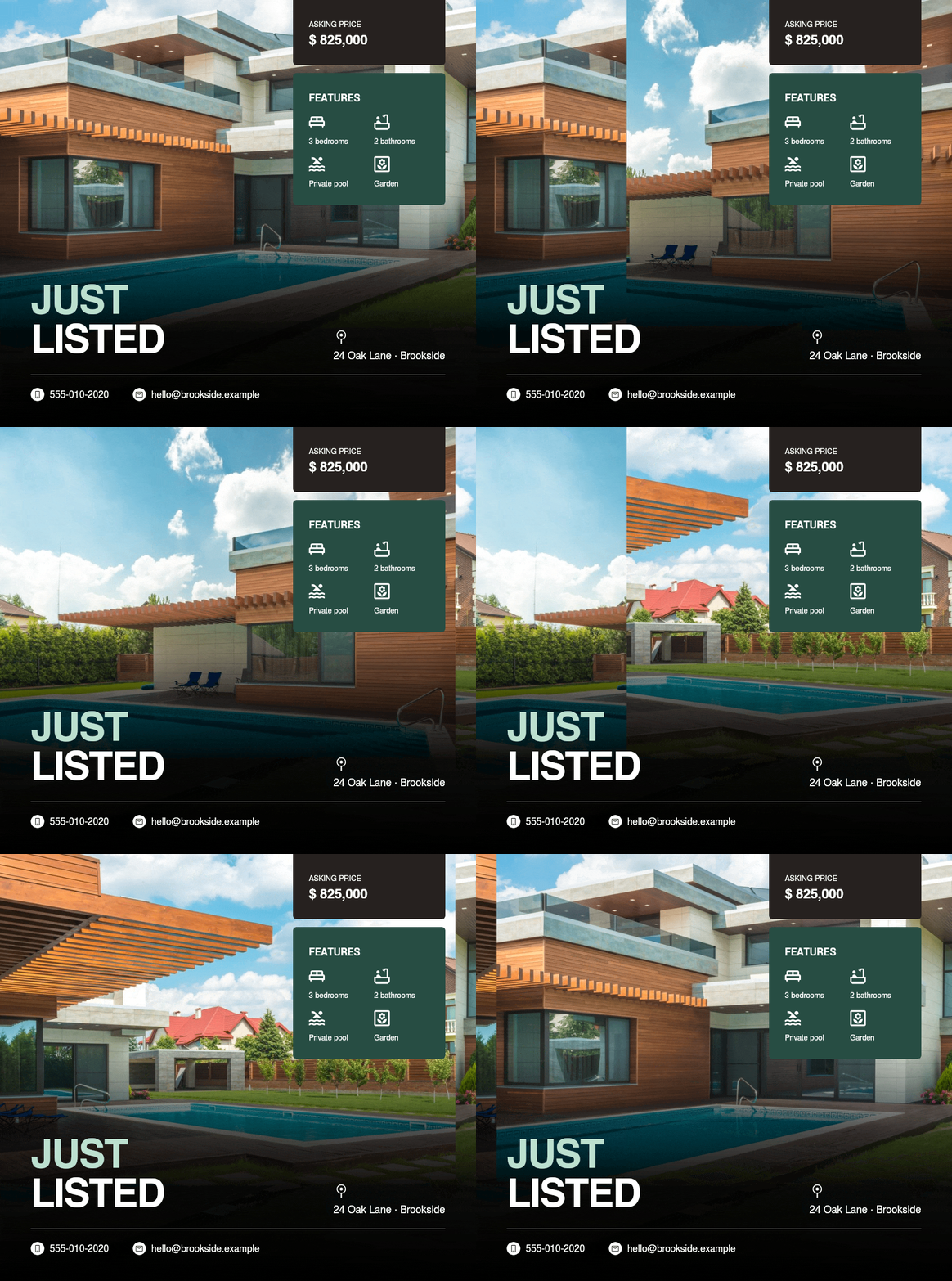
Review the first banner as a buyer would see it: a recognizable home, an unmistakable price and a clear reason to open the listing. Then give the agent specific feedback on what deserves more attention.
The agent translates that request into the relevant text, typography, spacing or layout changes and renders again.
Make the next version serve a different purpose
Once the visual direction works, extend it to the other moments in the campaign. A launch introduces the home; a viewing reminder gives interested people a reason to return.
For the open house version, give the date and viewing hours the prominence the asking price had in the launch banner. The invitation should be easy to recognize even before someone reads the caption.
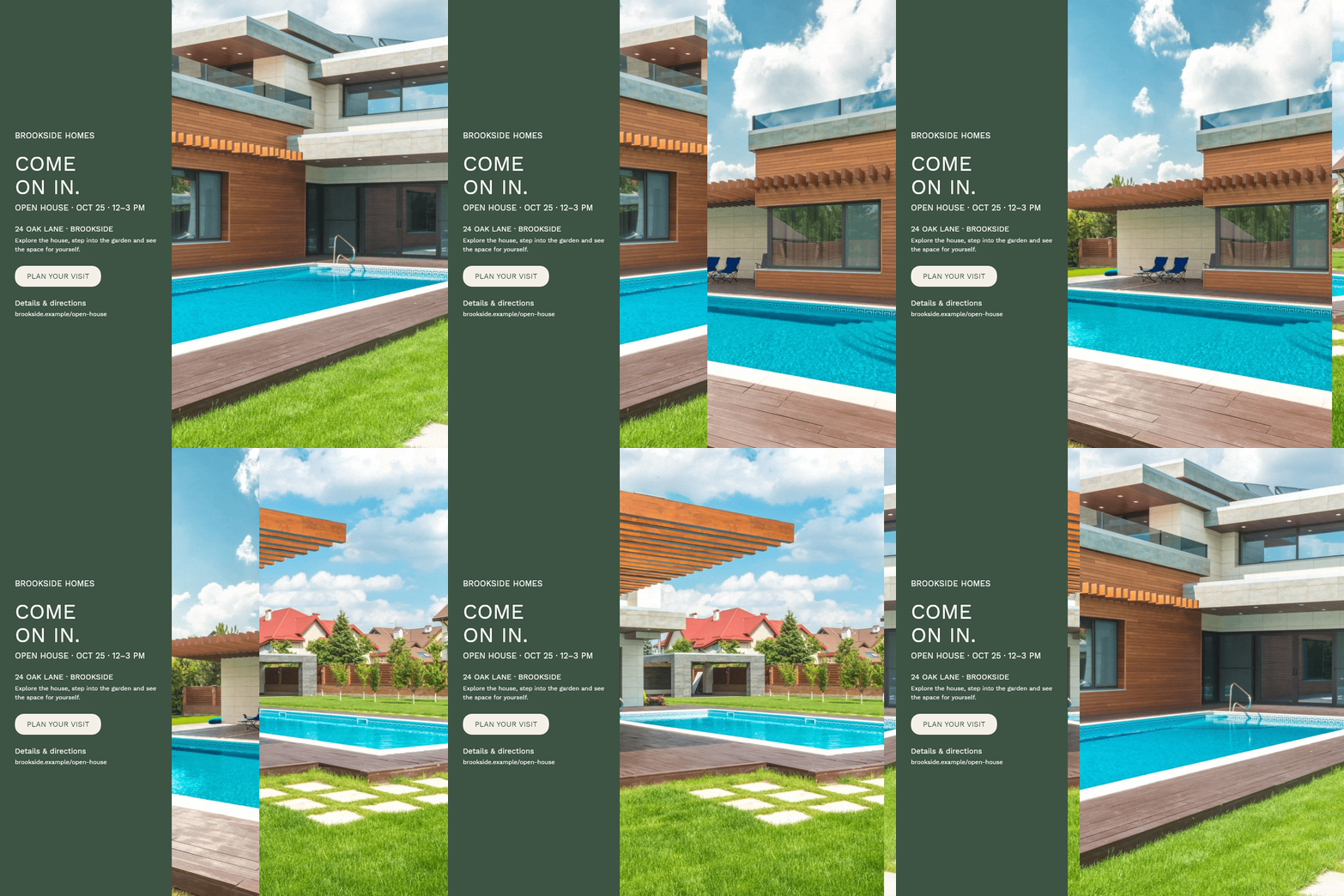
The shared photographs and colors connect the invitation to the original listing. The new emphasis turns that familiarity into a practical next step: planning a visit.
You can follow the same pattern for a viewing reminder, a new price, a rental availability announcement or a commercial floor-plan request.
Shape the design around the property
Some jobs fit a catalog recipe exactly. The agent supplies the text and photos, selects colors and timing, and renders. That is the shortest route to a consistent result.
Other jobs need a different arrangement. Two property photos might need a separate floor-plan area; a bilingual invitation might need more space for the date and address. The composition should accommodate those requirements without shrinking essential text.
Through TweenFrame’s API, the agent can adapt an existing design document or create its own composition with text, images and supported design elements. That gives it room to build around the brief, including arrangements beyond the fields in an editor template.
This makes the goal clear without asking you to specify every coordinate. See the recipe authoring guide for the underlying workflow.
Adapt the composition for each placement
A square post, a tall Story and a wide email banner give the same home different opportunities to be noticed. Ask the agent to compose each version for its space: a taller photo in the feed, a sequence of views in a Story, and a photo beside a concise offer in email.
The Brookside campaign uses the same three photographs, $825,000 asking price and viewing invitation across seven formats. The agent rearranges the photo and information panel for each shape while preserving the property facts and visual identity. These are GIF previews; the final file can be a still image, GIF or video to suit its destination.
Square, 1:1 — Instagram, Facebook and Google Display
Use the square version for an Instagram feed post, a Facebook listing announcement or the starting composition for a Google Display ad. The wide photograph draws attention to the home; the price and features below help viewers assess the offer. Have the agent prepare the export for your chosen placement, with the ad linking to the full listing.
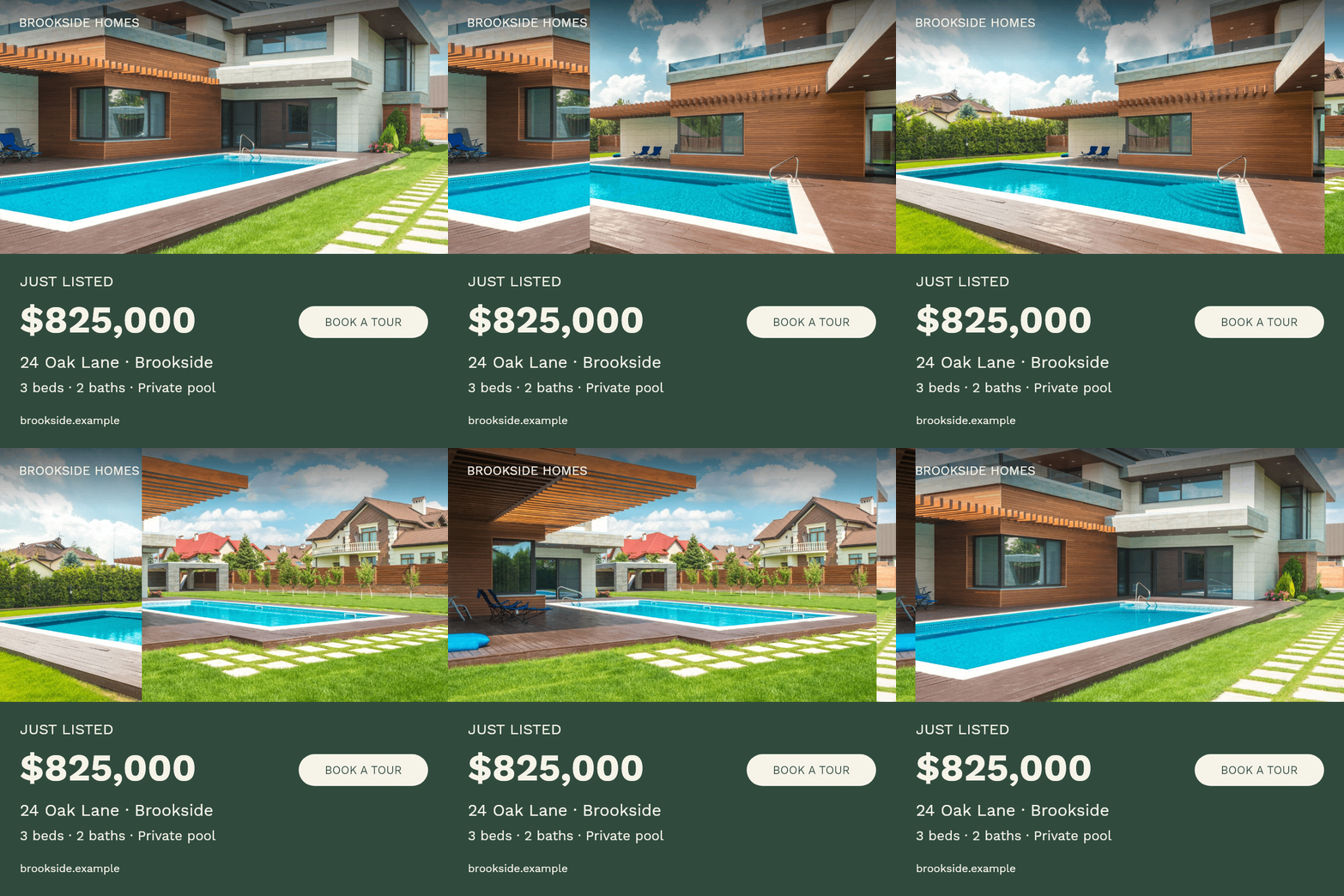
Feed portrait, 4:5 — Instagram and Facebook feeds
The taller feed version gives the house and pool more room while keeping the price, address and features together below. It works well for a new-listing post or price update where the photography deserves a larger share of the feed.
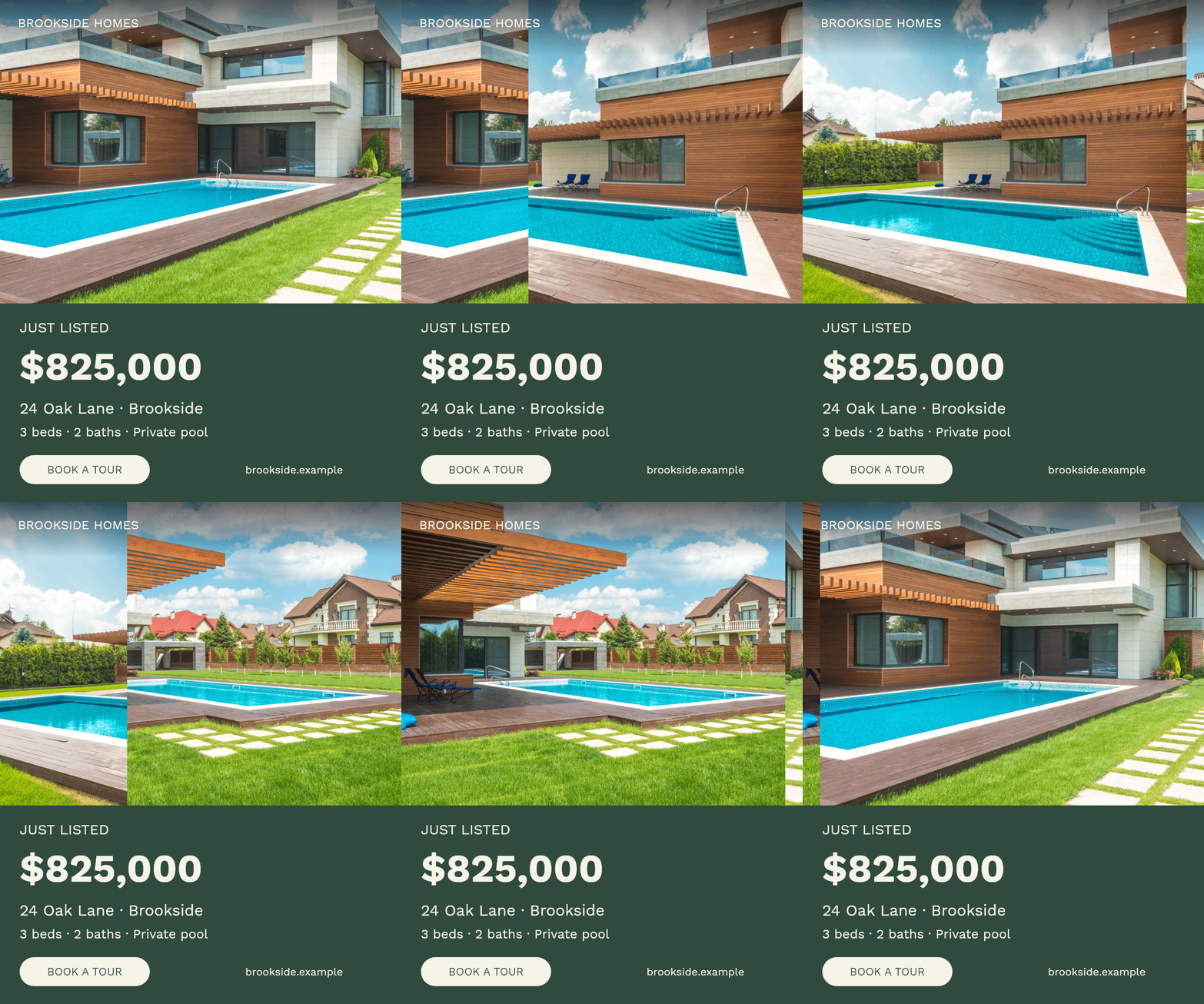
Portrait, 3:4 — property cards and buyer presentations
This portrait card can introduce the home on your own mobile website or in a digital presentation sent to a buyer. The agent gives the photograph more height without stretching the whole design into a full-screen Story. Include a separate clickable listing link when sending the image.
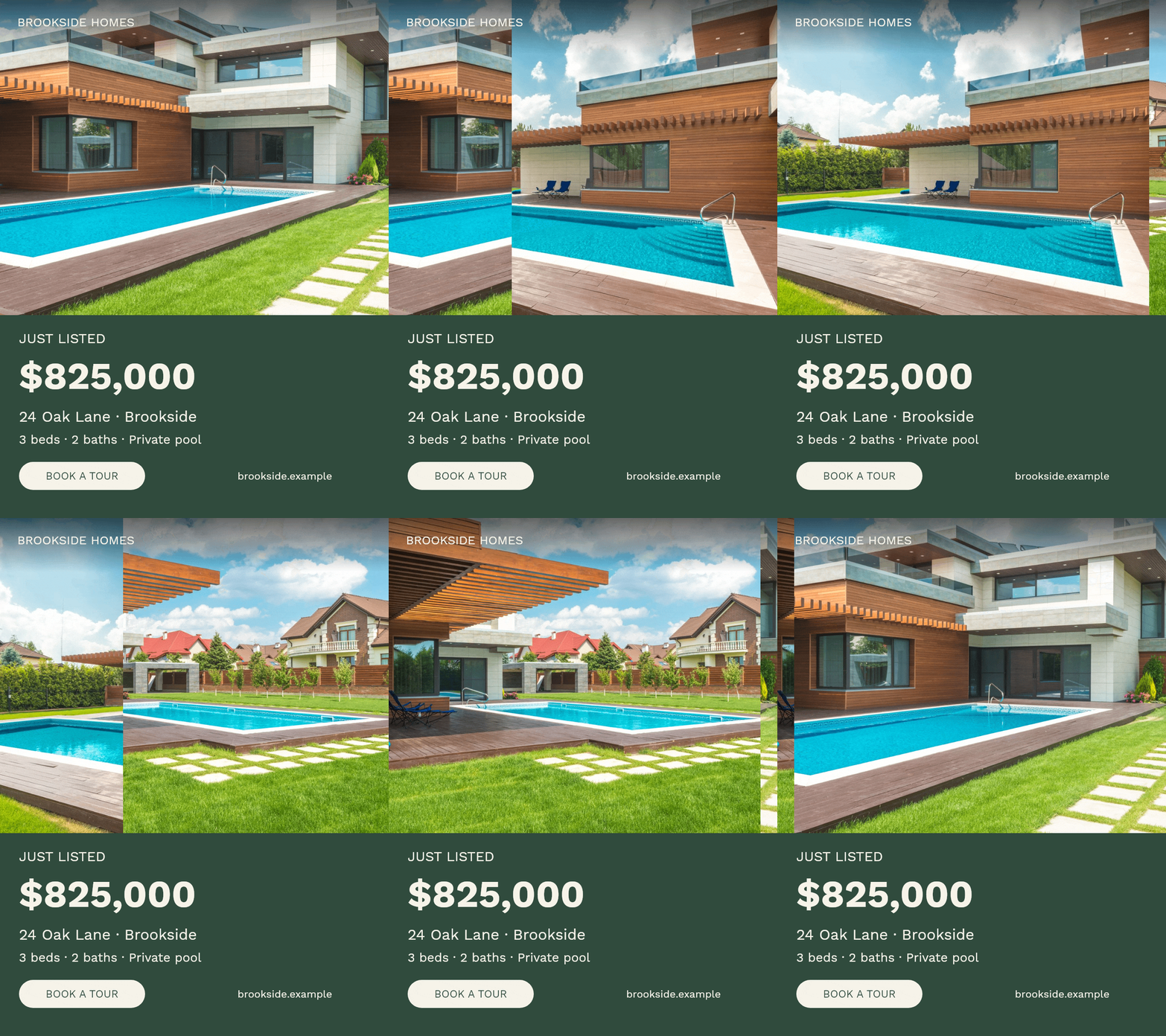
Full-height vertical, 9:16 — Stories and Reels
For Instagram or Facebook Stories and Reels, ask the agent to arrange the photo sequence vertically and keep the offer clear of platform controls and captions. Export an MP4 for Reels; a Story can use a listing-link sticker in the space left around the creative. Review the version in its destination before publishing.
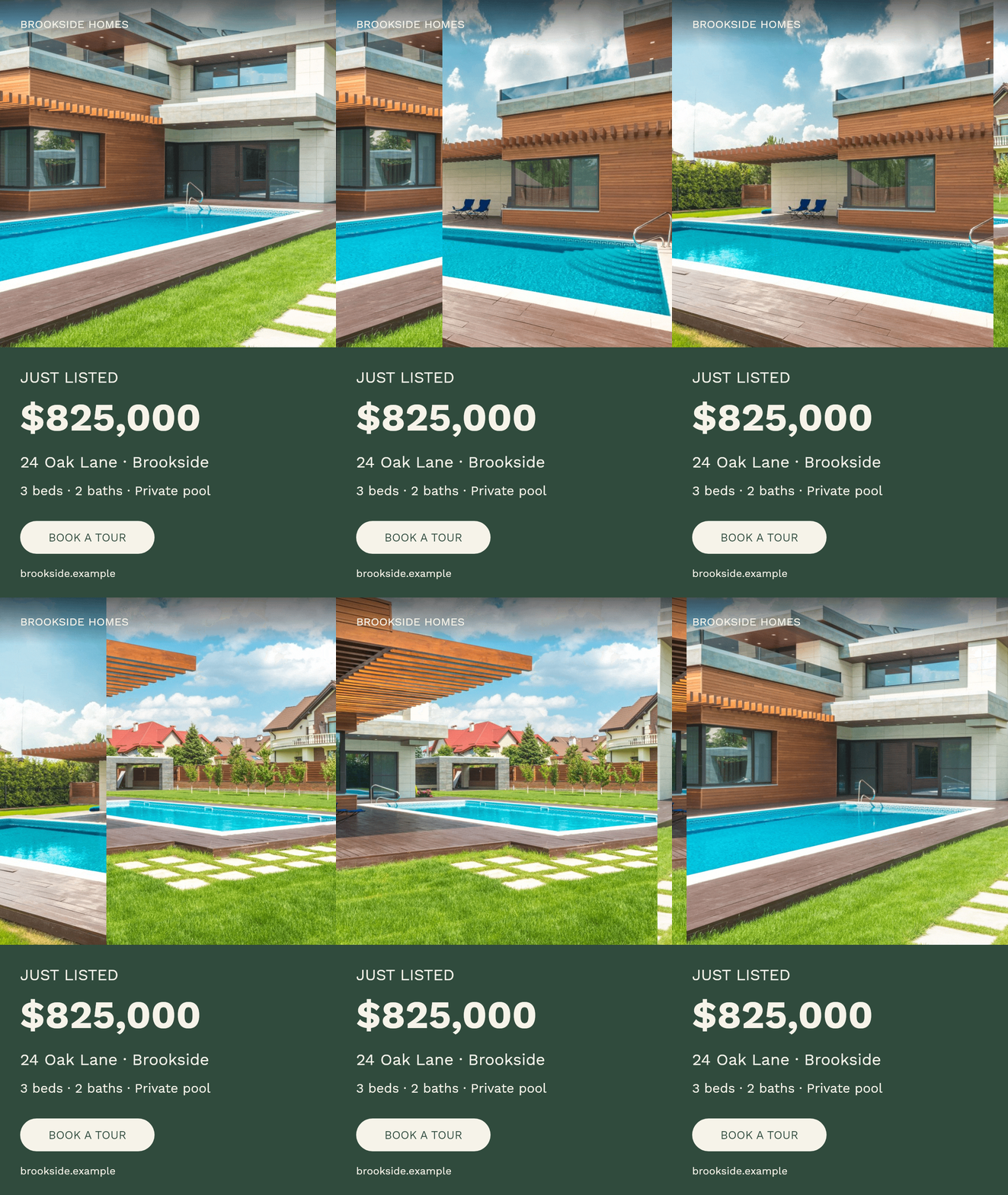
Email landscape, 3:2 — newsletters and listing alerts
The email version moves the information into a sidebar beside the changing photographs. Ask the agent to prepare it for the featured-property block in a newsletter or a buyer alert. Link the image to the listing and add a real viewing button in the email; use the GIF compressor if the animation needs a lighter file.
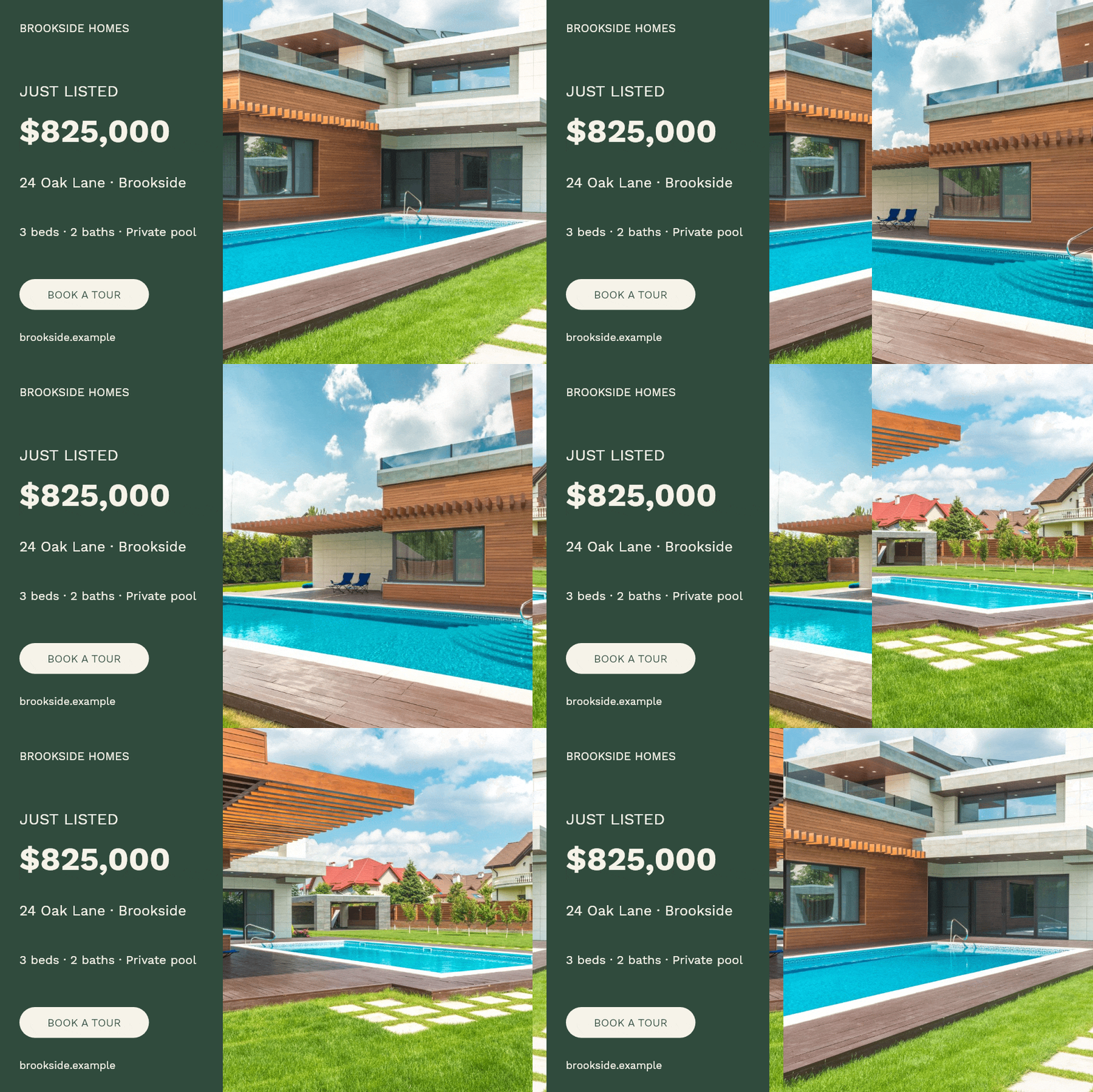
Classic landscape, 4:3 — property pages and local features
A classic landscape card fits a property introduction on your agency website or inside a local property feature. The photo and separate facts panel give readers a compact summary before they open the full listing or viewing form.
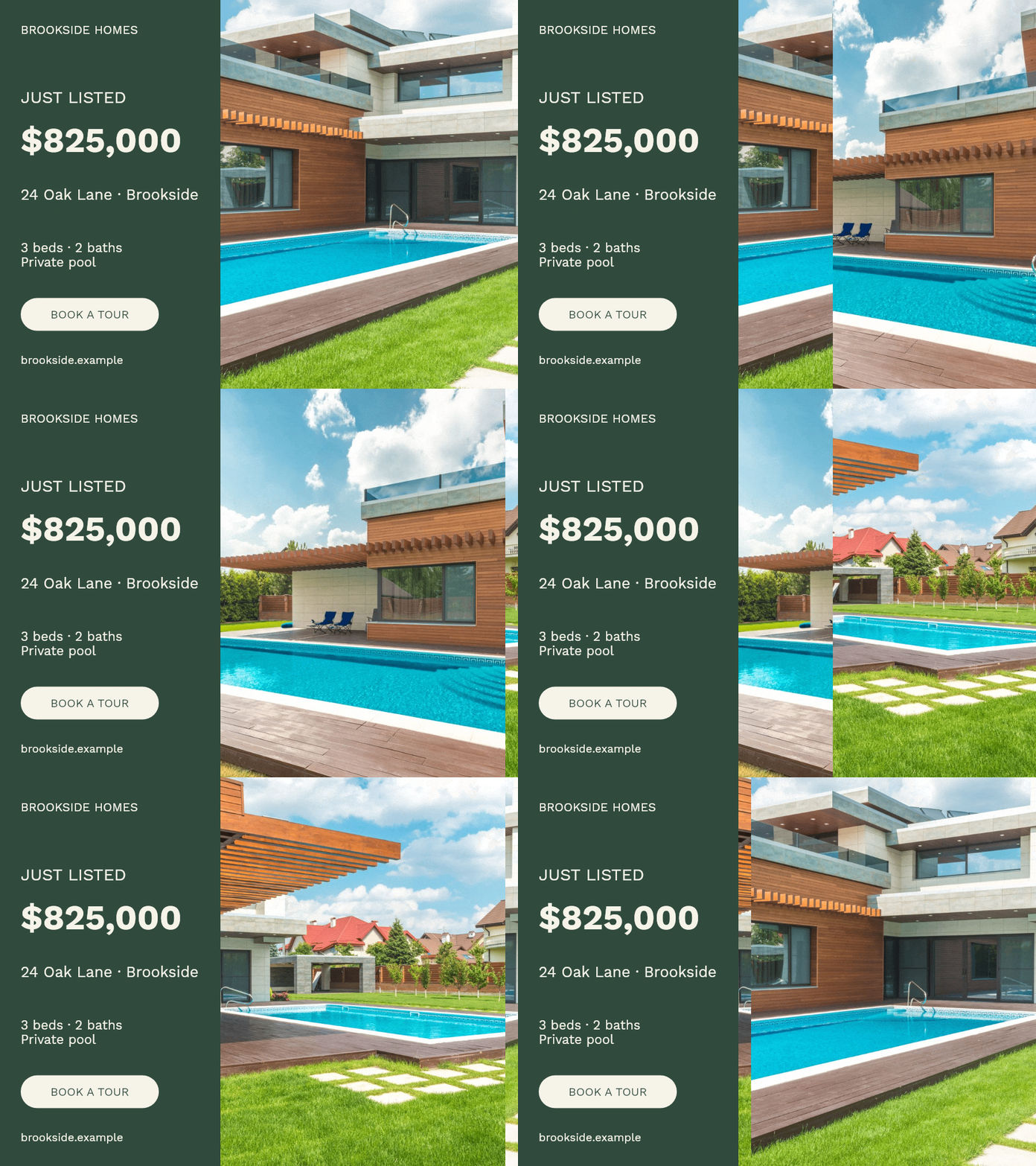
Wide landscape, 16:9 — websites and horizontal video
The wide version keeps the offer in a sidebar and gives the house a larger horizontal photo area. Ask the agent for this layout for a property landing page or a horizontal video presentation. When the same page also needs a mobile version, reuse the approved facts in a square or portrait composition.
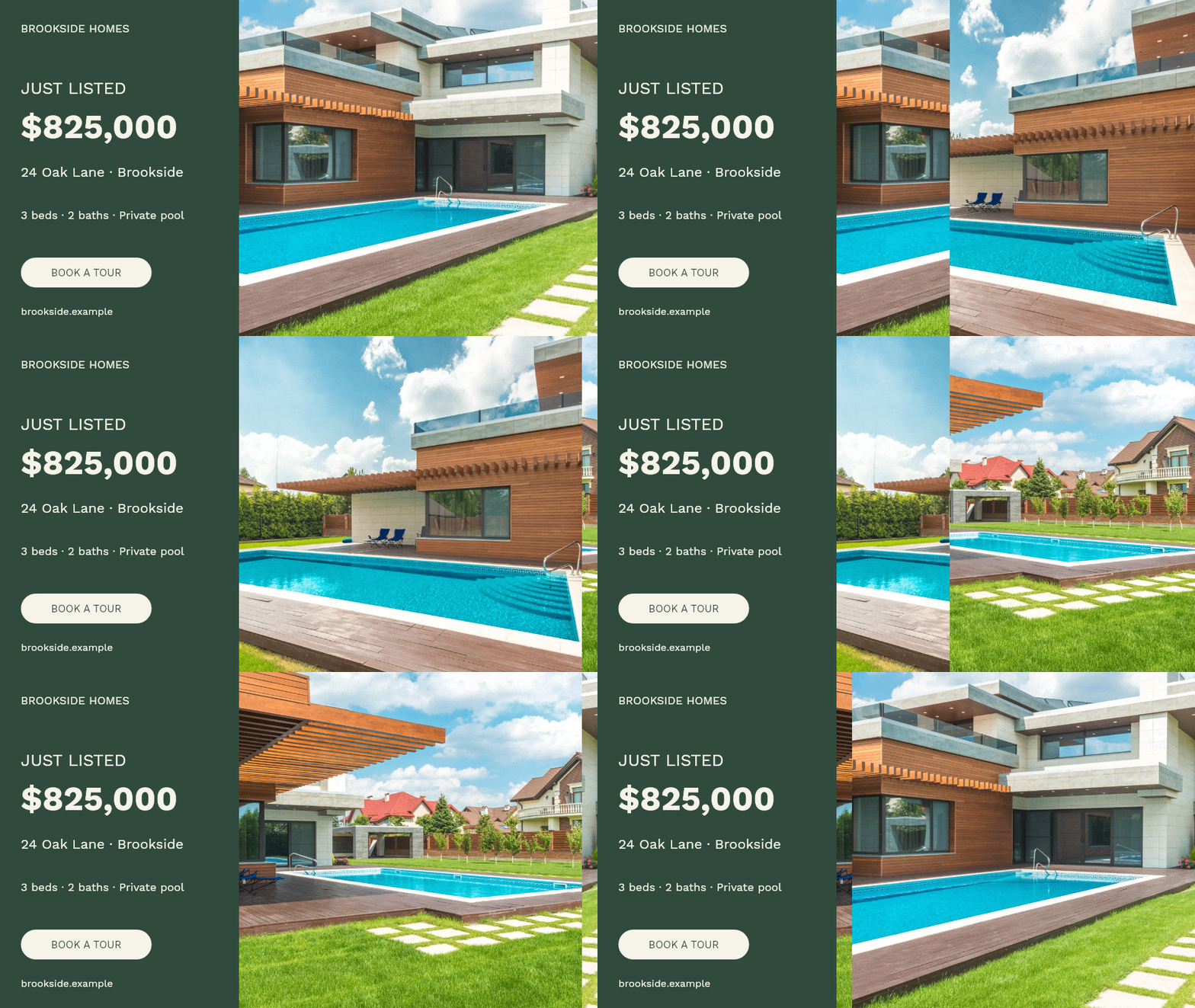
Bring the property to life with a photo sequence
A short animation lets a buyer explore several views in one placement. The exterior establishes the home; the next photograph can reveal its outdoor space or a room worth a closer look. A steady price and invitation keep the offer in view throughout.
The Brookside set moves from the house to the pool and terrace, building a picture of outdoor life at the property. With an interior photo set, the agent could follow the exterior with the living room and kitchen. Give each frame a distinct role in the sequence.
A storyboard—a sheet of representative frames—lets the agent review the sequence and refine crops, spacing and transitions before the final render.
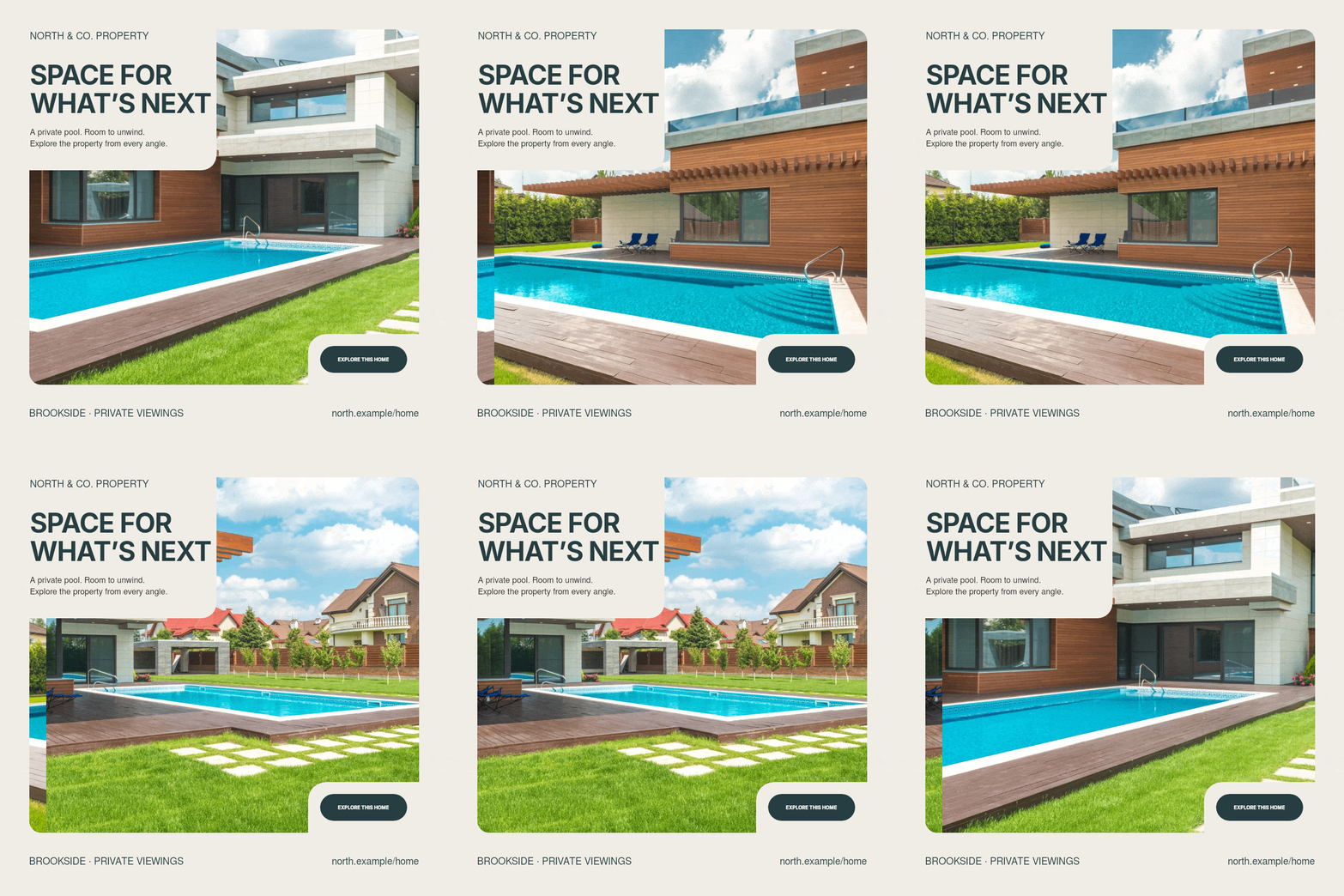
The NORTH & CO example takes a more photographic approach: the fixed headline and viewing invitation leave the changing views to tell the property’s story.
Update the facts without rebuilding the campaign
Saving the facts separately from the composition makes campaign updates much simpler. The agent can reuse the approved photos, colors and layout while changing the parts affected by a new offer.
Suppose the approved asking price becomes $799,000. The agent should update the relevant brief, regenerate the price-bearing materials and identify which previous files are now obsolete.
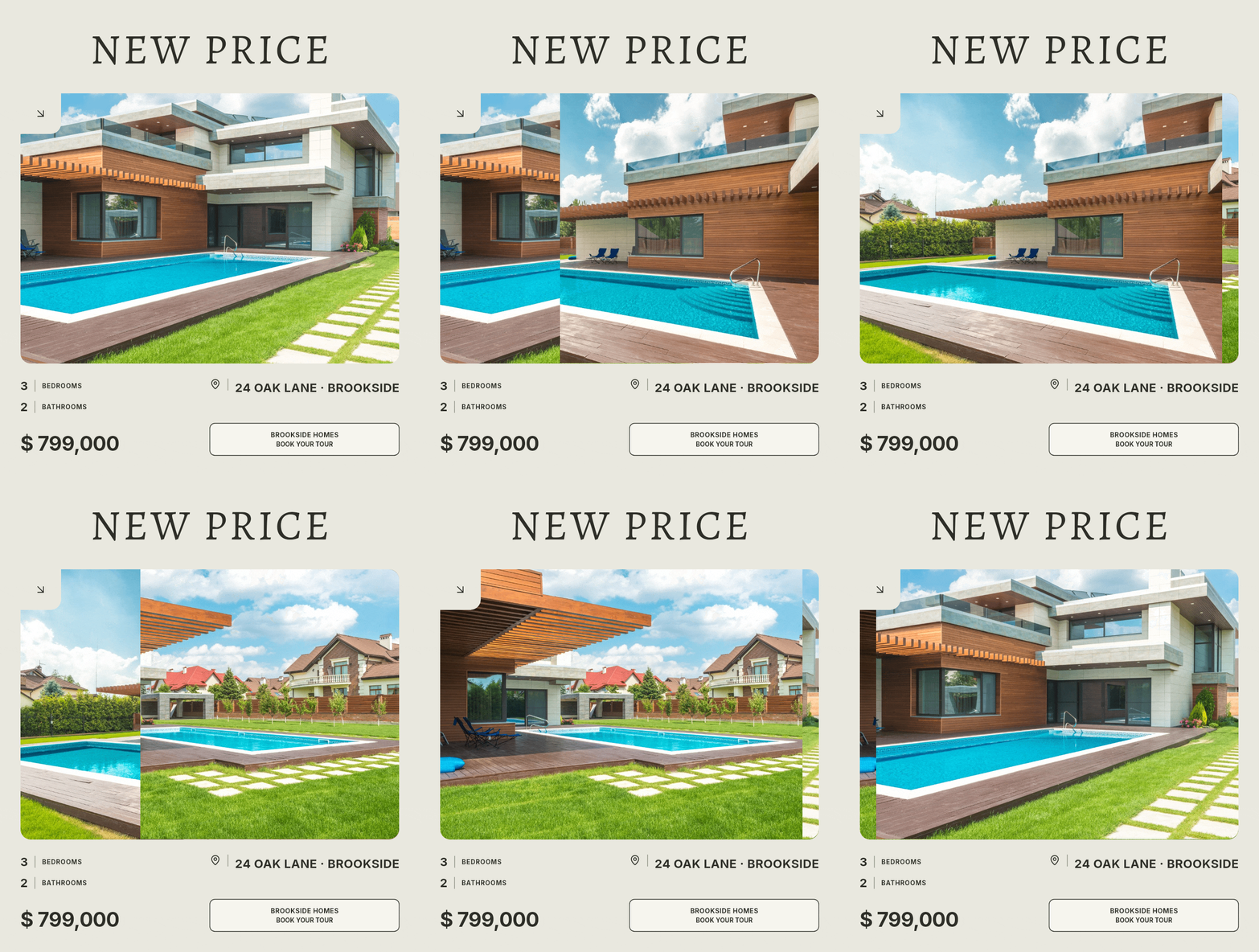
Keep a list of active placements with the regenerated files so you can replace each published version. If the agent also has an authorized publishing connection, you can delegate that step separately.
Scale from one property to a spreadsheet
For several listings, use one row per property and a stable identifier. Keep separate fields for price, currency, pricing period, status, address, key features, availability, destination and image references. Store an approved version of the source rather than relying on a changing conversation alone.
Approve the design on one representative property, then let the agent apply it to the remaining rows. It can adjust long addresses and feature labels for each layout and return any incomplete briefs for your attention.
For an agency, this makes weekly listing announcements a repeatable task. A developer can generate a family of banners for different unit types; a property manager can refresh available rentals from the same table. Each new batch builds on the approved design and brand choices.
What happens through the API?
The public API separates preparation, rendering and retrieval. An agent can validate the brief before requesting a render, wait for the file to finish and inspect the result before moving on to the next property.
| Step | What the agent does |
|---|---|
| Discover | Reads the catalog and chooses a relevant recipe |
| Prepare | Reads its input schema and maps the approved brief into the expected fields |
| Upload | Uploads approved photos and uses the returned asset references |
| Check | Validates inputs or a custom design document |
| Preview | Renders a storyboard and checks representative animation frames |
| Render | Requests the chosen output format and dimensions |
| Retrieve | Waits for completion and downloads the result |
| Review | Inspects the image or animation and corrects issues |
The API supports catalog recipes and custom design documents. The CLI can upload local photographs during rendering, and the connector provides an upload tool. The agent uses those uploaded images in its designs, so the same photo set can support multiple layouts.
The API documentation and output guide cover the requests and available options for integrations.
For a website or newsletter, upload the finished files to your media hosting or use the documented publishing workflow to obtain lasting links.
Review the result like an advertiser
Compare the price, address, status, features and event details with the source brief, including any contacts carried over from a template. This is the point to approve both the offer and its presentation.
Review the banner on a phone. The headline should read naturally, the crop should show the right property and the action should be clear. Give each animation frame enough time for people to read the information it carries.
Preview the export in its intended placement and check the listing link or viewing button. The file format, size and duration should match that destination.
Ask for a compact delivery report with filenames, dimensions, formats and any open questions. It gives you a clear handoff for publishing and helps the next person find the right version.
Keep the campaign ready for its next change
Save the approved brief and editable designs with the final exports. Name the files by property, purpose, placement and version, so a price change can be traced to the materials it affects. Keep a short record of where each approved version was published.
That is what makes the workflow useful beyond the first banner. The next request can be “update Brookside-24 to $799,000” because the agent has a maintained source and a design to reuse. Start with one property in the real estate banner maker, approve the result, then expand the set.
Photo credits
Photos are used under the Pexels license. The house series by Max Vakhtbovych shows the same poolside property from the garden, across the pool and under the terrace.


Creating property banners with an agent
What should I give the agent?
Provide an accessible listing, document or table with the approved price, location, status, key features and relevant dates, plus authorized photographs and the destination for the ad. Add brand preferences and the placements you need.
Does TweenFrame read the listing automatically?
The connected agent reads the listing or file you share, selects the relevant facts and supplies them to TweenFrame. TweenFrame renders the design; the agent can then inspect and refine it in the same workflow.
Will this work in any AI chat?
Use an agent with command execution, a supported remote MCP connector or a direct API integration. Copy the connection prompt from the editor to get started; the guide explains how to connect the rendering tools to your conversation.
Is the agent limited to existing templates?
No. It can use a catalog template, edit a recipe document or author a custom composition within the supported design system, then validate and render it. The catalog is a starting point.
Can one spreadsheet produce a batch of property banners?
Yes, an agent or integration can map each row into recipe inputs and render separate files. Use stable property IDs, keep image references matched to each row, approve a sample first and review exceptions such as missing data or long text.
Can the agent update every banner after a price change?
Yes. Update the source price and ask the agent to regenerate the affected versions with the approved photos and design. Replace the files in your active placements, or delegate that publishing step separately through an authorized platform connection.
What should I check before publishing?
Verify the facts, image rights, text legibility, crops, file dimensions and receiving platform requirements. Confirm that the destination matches the banner and that the actual ad or webpage supplies a working link.