A swimwear sale
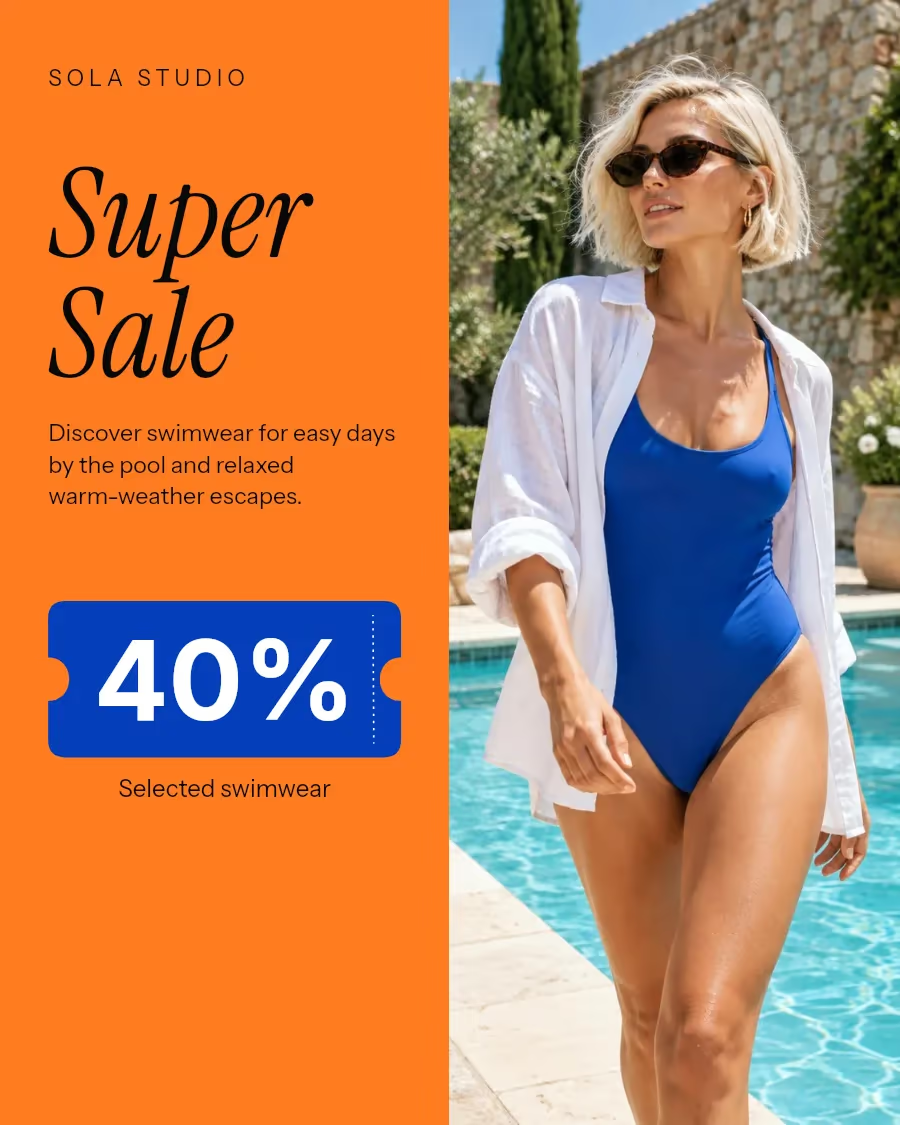
Bright orange, a blue discount ticket and poolside photos put the summer offer in focus.
Turn product photos into animated banners for clothing sales, new collections and promo codes. Choose a template, add your offer and download a GIF, MP4 or WebP.
A coat looks different on a hanger and on a person. Open with the full outfit, then show the collar, fabric or back in the next photo. The headline stays in place as the pictures change, so shoppers can connect each detail with the collection it belongs to.
Put the saving where shoppers look first, then use the smaller type to explain which pieces qualify. A price tag can carry a percentage, while a dedicated code field gives the checkout code its own space. Use the same wording on the banner and the page it links to.
Explore three bold templates for a clothing store: a poolside swimwear sale, a black-and-white weekend special and a neon-lit denim campaign.
Bright orange, a blue discount ticket and poolside photos put the summer offer in focus.
Black-and-white street photos meet a red discount label, giving a weekend boot offer a bold editorial feel.
An orange frame and blue vertical headline surround a denim shoot lit by purple arcade lights.
The orange panel keeps the headline and saving visible while the photos change. Blue ties the discount ticket to the swimsuit.
Four poses show the front, side and back of the same swimsuit. Keep the product clearly in view in every photo.
The discount ticket and Selected swimwear read as one offer. Leave delivery and returns details for the product page.
The tilted red label draws attention to 35% against the quiet gray background. Keep the saving short and easy to read.
Use full-length street photos alongside closer poses. The changing views show how the boots work with the coat and skirt.
Weekend Special fits beside the discount without crowding the photo. The smaller offer line identifies the selected boots.
Use several poses from one location. The arcade lights tie the sequence together as the angle of the jacket changes.
The vertical Fashion Sale title leaves a large window for the outfit. Keep longer offer details in the horizontal area above.
Pair 50% with Selected denim and link the published banner to those styles. Shoppers can see what the offer applies to before they click.
Pick a layout for your collection, sale or promo code. Choose an aspect ratio for your placement.
Upload photos of the looks you want to feature. Put your strongest shot first, then arrange the rest.
Edit the headline and offer details. Choose colors, then preview the banner to check the crop and timing.
Export your GIF, MP4 or WebP. Link the published banner or post to your featured products.
| Placement | Starting format | What to check |
|---|---|---|
| Shop homepage | Landscape | Open with a recognizable look. On a narrow storefront, check that visitors can still read the headline and reach the collection link. |
| Product collection page | Square | Try a square next to the product grid. Show the same colors or styles that shoppers will find immediately below the banner. |
| Social feed | Portrait 4:5 | Use a full outfit in the opening frame. Check the hem and neckline on every slide after switching to portrait. |
| Stories | Vertical 9:16 | Preview the banner on a phone. Leave room around the offer where the app adds its account name and reply controls. |
| Sale email | Landscape 3:2 | Use a GIF with the offer visible in frame one. Put the code and shop link in the email text so readers can copy the code directly. |
Yes. Choose a template and upload your shoot in Photos. Put the strongest look first. Some templates also have a separate image field for a detail shot that stays in place.
Choose a layout with a large discount badge or price tag. Enter the saving in the discount field and use the offer line for wording such as “selected jackets.” A template with a campaign period also gives the dates their own place.
Choose a collection layout and replace the sample headline with the name of your edit. Add a full look followed by a detail or another color. Keep the collection name visible while the photos change.
Choose a template with a promo code field, such as the Flash Sale layout. Enter the exact checkout code there, then put any minimum spend or product restrictions in the offer details or on the linked sale page.
Yes. Export one version, change the aspect and preview the next. Look at each photo after switching formats, especially full-length outfits and details close to an edge.
Increase Delay in Animation to hold each photo longer. Duration controls how long the transition itself takes. Watch a full loop to check that both the clothing and the offer are easy to see.
Use GIF for an animated email image and put the offer in the opening frame. Choose MP4 for placements that accept video. Animated WebP is another option for a storefront that supports it.
The address is part of the exported image or video. In an email or on your site, set the banner’s link to the collection or sale page when you publish it.