How to add text to a GIF
A familiar reaction becomes your joke with a few words. Explore real captioned GIFs, learn what the text adds, and try the same approach with your own clip.
You already have the GIF: a face, a pet, a film scene, or a moment from a game. What it needs is a few words that make it yours. “Me” over one character can change the entire joke. A name turns a generic greeting into a message for one person. A subtitle gives a silent clip its reply.
Below are eight published examples, followed by a practical guide to adding text to your own GIF. These are existing uploads from Imgflip and Tenor, not examples made with TweenFrame. We show the captioned results; we do not have verified uncaptioned originals for these particular edits.
What people put on GIFs
The useful distinction is what the words contribute. Do they explain the situation, name the characters, supply dialogue, or address the recipient?
| What you want to say | Words to start with | Where they usually work |
|---|---|---|
| This is how I feel | “When the meeting runs over” | Above the GIF or in a clear corner |
| This character represents me | “Me” / “My responsibilities” | Beside the relevant people or objects |
| This is what the pet is thinking | “You gonna eat that?” | Above the animal or below its face |
| This is the spoken reply | “Hello there” | A subtitle near the bottom |
| This is for a particular person | “Happy birthday, Alex” | One persistent line |
| This happens at a particular moment | “One more try” | A timed overlay before the action |
The suggested wording in this table is a starting point. The examples below show what uploaders actually put in their GIFs.
Give a reaction a situation
A meeting that could be an email
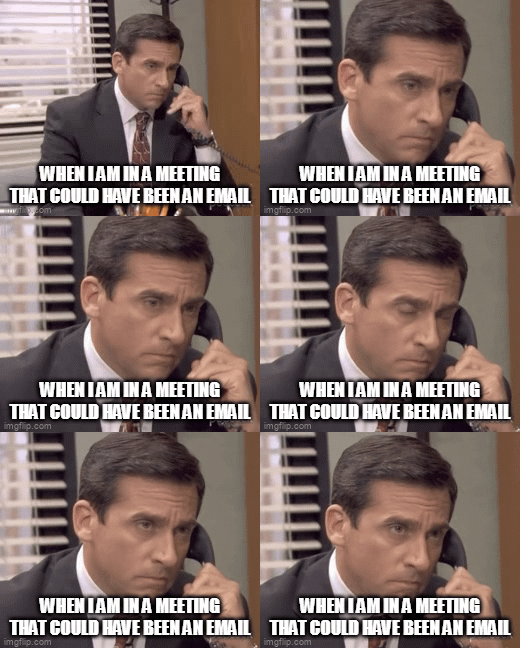
The office footage supplies the reaction; the text identifies the reason for sharing it. You do not need to know the episode to understand the complaint. One situation is enough—there is no second paragraph explaining the meeting.
For your version, write the setup before opening the editor. “When…” works well when the action provides the response. Put the line above the GIF if an overlay would cover an expression. This upload uses the bottom of the image; watch the whole loop before choosing the same placement for different footage.
Two words: “My brain”
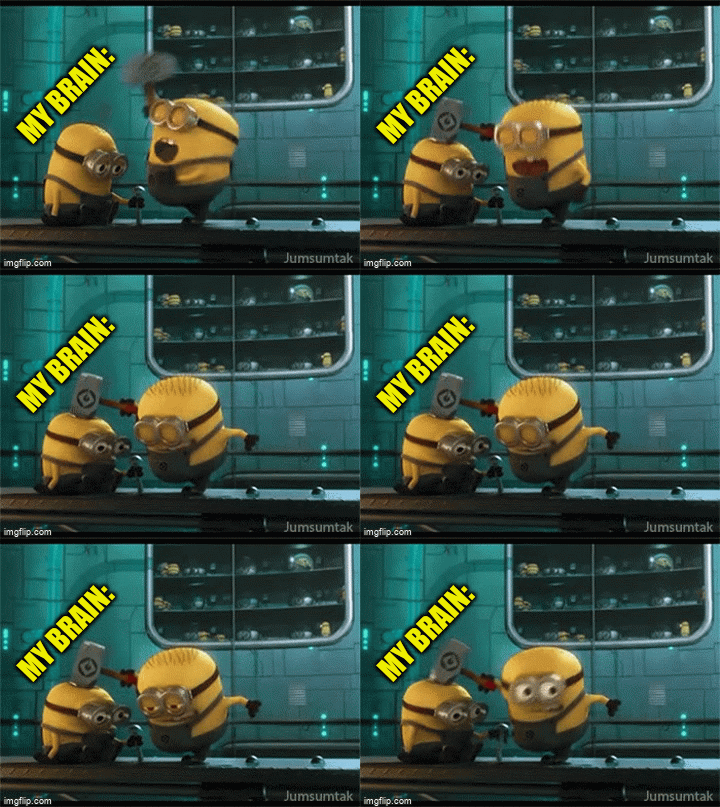
The caption invites you to read the Minions’ behavior as the sender’s thought process. It leaves the action to deliver the joke. This is a useful approach when the surrounding conversation already explains the situation: the GIF does not need to repeat it.
A stationary label in an open corner is a simple place to begin. If you need a long sentence to explain why the clip fits, try a different clip or move that explanation into the accompanying message.
Label the characters
Me, responsibilities, and distraction
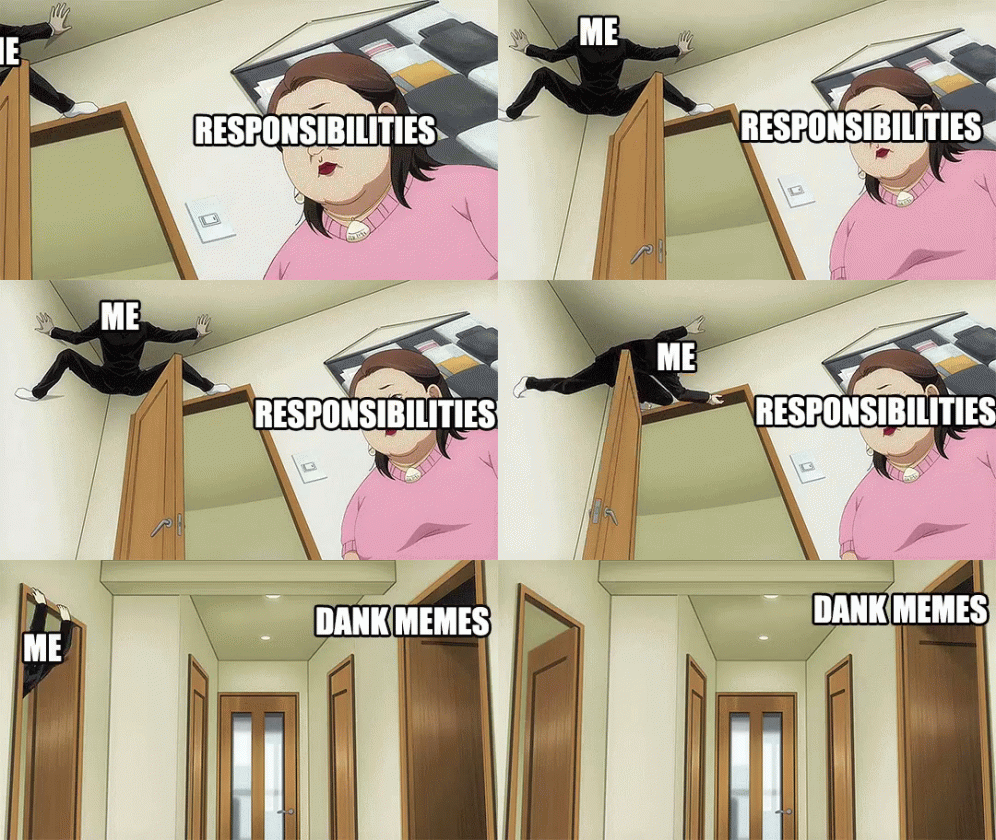
Three short labels turn an anime scene into a story about avoidance. The viewer follows relationships between objects instead of reading a sentence that describes the entire scene.
Notice the tradeoff: the “Me” label is partly outside the image at the beginning. A caption can make sense at one moment and become awkward as the subject moves. Check the beginning, middle, and end—not just the frame where you placed the words.
In TweenFrame, you can position inline text and control its start time and duration. This is not automatic object tracking. For a moving subject, choose a position that remains understandable during a short time window, or show the label only while that subject is nearby. Do not expect a stationary caption to follow someone across the frame.
Homework versus anime
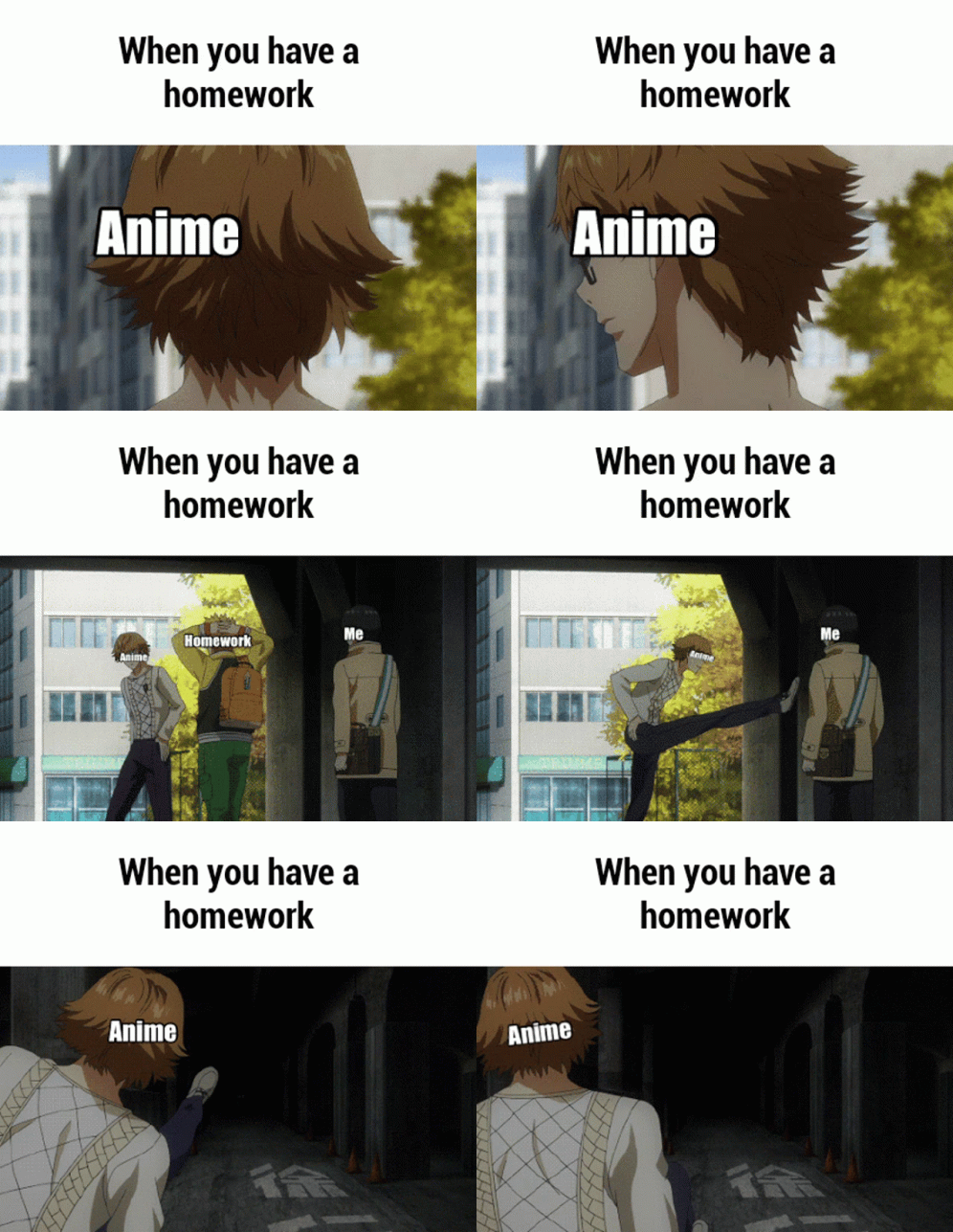
This combines two techniques: a setup above the footage and role labels inside it. The top band stays readable against white while the labels belong to the action. Each piece has a different job.
If you try this format, keep the heading short enough that the picture still dominates. Start with just the heading; add character labels only if viewers would otherwise misunderstand who represents what. The source also illustrates why a small preview matters: several labels compete for space as the scene develops.
Give an animal a voice
A dog sends a reply
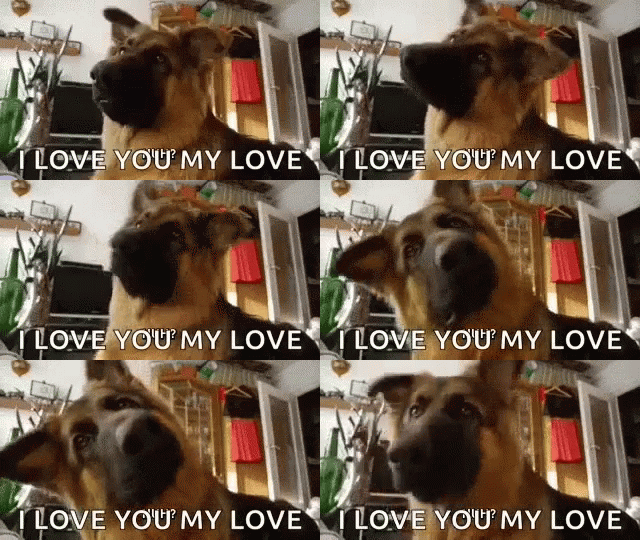
The subtitle gives a silent dog clip a human-readable reply. The mouth movement helps sell the line, but the words remain brief enough to take in while watching the animal.
With your own pet footage, choose a line that fits a visible gesture: a glance at food, a paw on your arm, a refusal to move. You can invent a thought or use the clip as a greeting. Keep this separate from factual subtitles: an imagined animal voice is part of the joke.
For a two-part exchange, use two timed inline captions. Let the first appear with the first gesture and the second with the reaction. Avoid leaving both on screen when the viewer needs to understand the order.
“You gonna eat that”

The cat’s stare becomes a question about your food. Placing it above the image preserves the eyes and expression—the part doing most of the work.
This is also a useful imperfect example. The published loop includes black frames. If a viewer sees only its opening, neither the cat nor the line explains the message. For your own version, trim an empty opening before adding text and check the exported first frame.
To keep the caption outside the footage, choose Top in the editor for a band above it, or Bottom for a band underneath.
Preserve a spoken line
“Hello there”
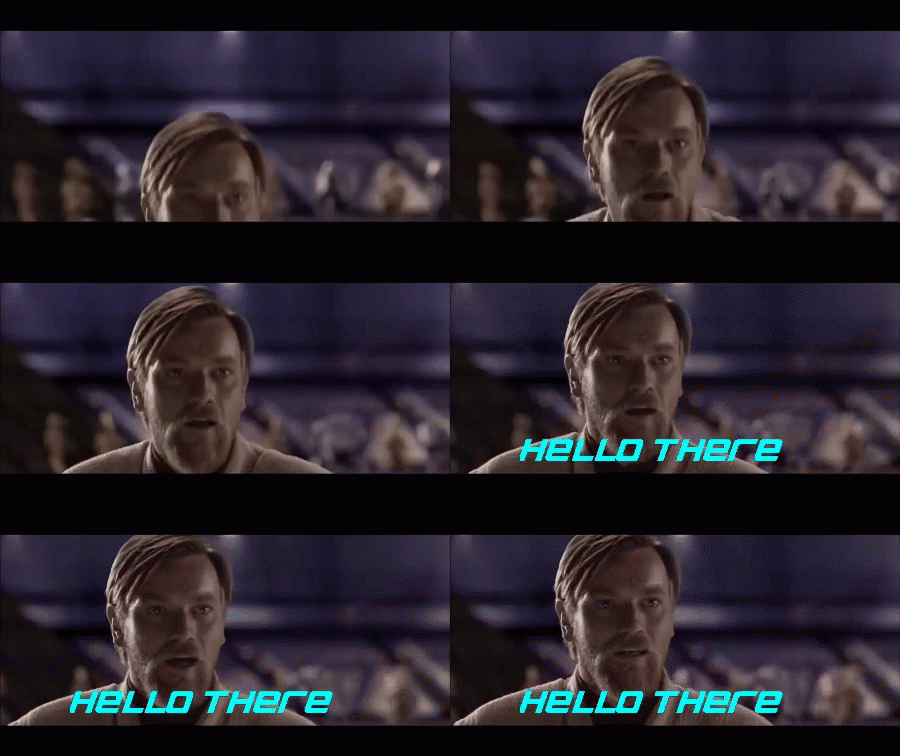
A GIF has no soundtrack. Adding the line lets the clip function as a greeting even when the recipient does not remember the scene. Here, the words arrive during the clip instead of appearing from its first instant.
For dialogue, use an inline caption and set its start time and duration around the delivery. If the clip contains two speakers, separate their lines so the next reply does not reveal itself too early. Keep placement consistent between lines so the viewer does not have to search for the next sentence.
TweenFrame does not automatically transcribe speech. Enter and check the wording yourself. A subtitle that reproduces a line and an invented meme caption are different things; choose deliberately which you are making.
Make it personal
A birthday greeting with a name
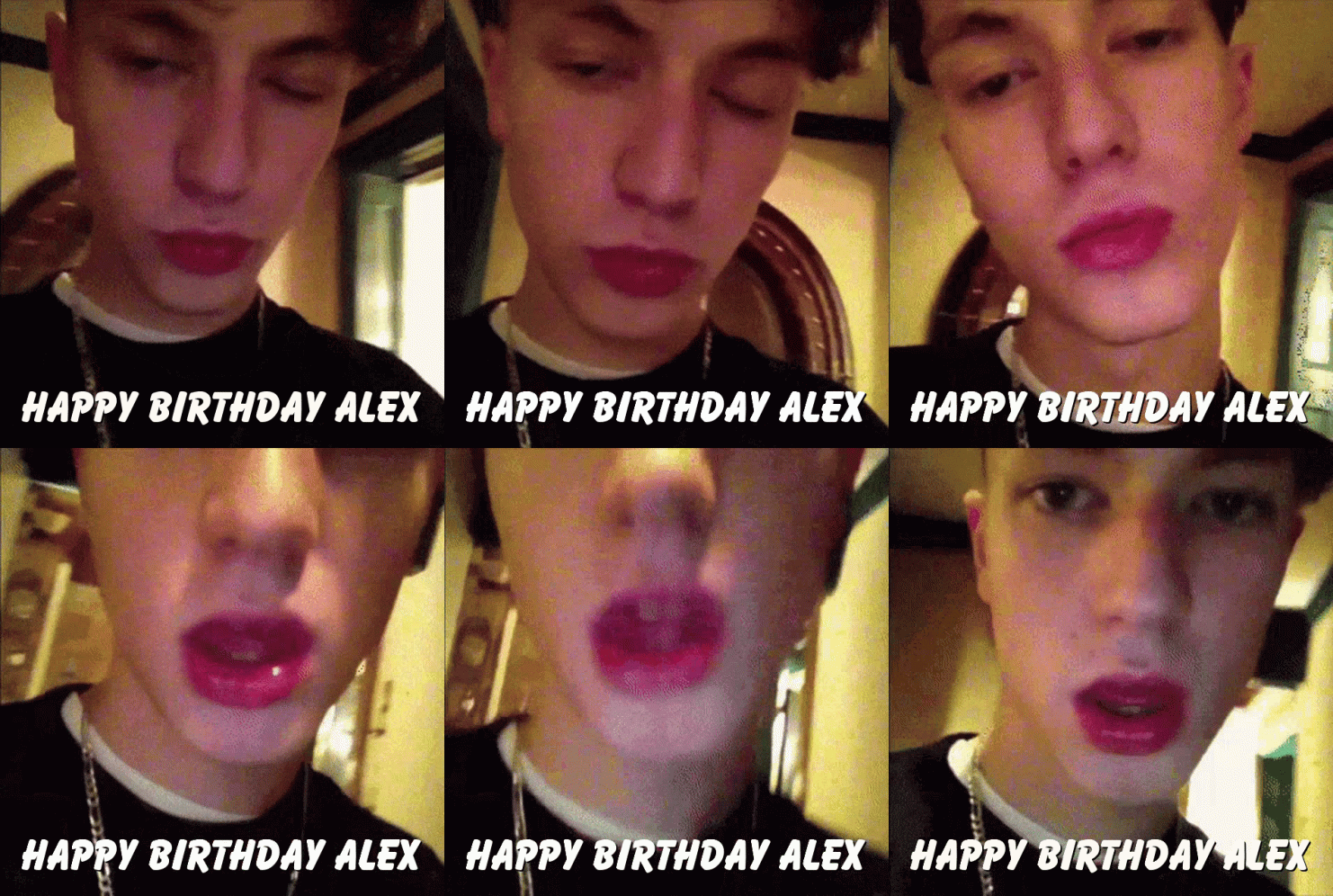
This is a short clip with a name added, rather than a complete animated birthday card. That is enough when the recipient recognizes the person or enjoys the reference.
Try the same approach with a shared joke, a pet clip, or a celebration you filmed yourself. Keep the greeting visible throughout a short loop. If the image is crowded, use a bottom band rather than shrinking the name to fit between details.
Use a clean source when making another version. The text in a downloaded, already-captioned GIF is part of its pixels; it is not a text field you can select and rename. Covering the old caption may work in a plain band, but it will not recover the picture underneath.
Choose where the text belongs
Your source should determine the layout. A face needs room for its expression; a screen recording needs its buttons visible. You can combine caption types, but most short GIFs only need one or two.
| Caption type | Use it when | Watch out for |
|---|---|---|
| Top band | The viewer needs the setup before watching | A long heading can dwarf the footage |
| Bottom band | One line should remain separate from the action | Extra height makes the GIF taller in chat |
| Inline text | A label or subtitle belongs inside the scene | The background and subject may move beneath it |
| Start card | A brief introduction needs its own moment | It delays the action on every loop |
| End card | You need a final reply or next step after the clip | Viewers have to reach the end to see it |
A start card might introduce a short demonstration with “How to pin a message.” The actual screen recording can then stay mostly clear, with a timed “Choose Pin” beside the relevant action. An end card can hold “Done” or the next step. These are suggested applications, not additional published examples.
For a reaction GIF, an opening and closing card often add unnecessary waiting. For a brief tutorial, that extra moment can be useful. Start with the source and the message, then choose the features that help.
Add your own caption in four steps
1. Upload the source
Open Add Text to GIF and upload your GIF, image, or video. Watch the complete clip before placing text. Find the moment you want to explain and check whether the source already contains captions.
2. Choose the placement
Select Add caption and choose inline text, a top or bottom band, or a start or end card. Write the shortest version that still communicates the idea. Place it away from faces, hands, and important details.
3. Set the style and timing
Adjust the font, size, colors, and alignment. For inline text, set its start time and duration. Preview the full loop: a readable first frame does not guarantee that the caption remains clear later.
4. Export and check
Download the result and view it near the size it will appear in a message. Check the opening frame, the last caption, and the jump back to the start. Use the GIF compressor if the file is too large to share comfortably.
Fix the common problems
| Problem | What to change |
|---|---|
| The caption covers the reaction | Move it into a top or bottom band |
| The words disappear against the background | Add a contrasting background or stroke; check the brightest and darkest moments |
| The line needs a second loop to read | Shorten it or increase its display duration |
| A label points to the wrong character later | Shorten its time window or use a clearer fixed position |
| The joke is revealed before the action | Delay the punchline with an inline caption |
| Text is tiny in a chat preview | Increase text size and reduce wording; exporting more pixels alone will not help |
| An old caption is underneath the new one | Find an uncaptioned source or use a clean existing caption band |
| The GIF opens on black | Trim the empty opening and inspect the exported first frame |
| The file is unnecessarily heavy | Trim unused footage, reduce dimensions, or compress the result |
Keep a line of dialogue together where possible. Put line breaks between phrases, rather than leaving one word on its own. Choose a simple style first; text animation is useful when the entrance matters, but a stationary caption is usually easier to follow alongside an already-moving image.
If you plan to use the GIF in email, keep essential information in the email text too. Our guide to adding a GIF to an email covers placement and practical checks. For a recorded instruction, prepare a short screen-recording GIF before adding the caption.
The best final check is simple: cover the words, watch the GIF, then uncover them. The caption should add a situation, a voice, a role, or a recipient. If it merely describes what everyone can already see, try a more specific line.
Frequently asked questions
How do I add text to an animated GIF?
Open Add Text to GIF, upload your file, and choose a caption type. Enter the text, adjust its appearance and timing where available, then preview the loop and download. The original animation remains the background for your captions.
Can I put text above or below a GIF?
Yes. Top and bottom captions create a separate band outside the media, so the text does not cover the action. Use an inline caption when you want words over the image itself.
Can different captions appear at different times?
Yes. Add inline captions and set their start and end times. Top and bottom bands remain alongside the media while it plays. Start and end cards are separate scenes before and after it.
Can I animate the text?
Yes. The editor offers text animation settings. Keep important instructions readable long enough after an entrance effect, and use None when movement would distract from the original GIF.
Does the tool automatically transcribe speech?
No. Enter your own captions. GIF has no audio, and this editor does not automatically turn a soundtrack into subtitles.
Can I change text already inside a GIF?
Text baked into the source frames is not an editable text layer. You can add a new caption or cover an area with a background, but that does not restore the original image hidden beneath the old text.
Can I start with a photo or video?
Yes. Upload a supported image or video as well as a GIF. For a still image, set its display duration. Download options include GIF, MP4, and animated WebP.
Why does my text look small after sharing?
The receiving app may display the GIF at a smaller width. Preview it near that size, shorten the caption, and increase the text size. A larger export alone does not make small lettering easier to read.