12 GIF ideas from images
What can you make from a set of pictures? Compare photo sequences, animations, tutorials, comparisons, and designed banners—with visual examples.
A set of pictures can do more than cycle through a slideshow. Product photos can show the same object from several sides. Consecutive poses can create a reaction. Step-by-step photos can explain a task. Several photos can also share a moving layout, or sit behind a persistent offer in a commercial banner.
This is a guide to what to make and when to use each approach. For the actual upload, timing, and download steps, use the Image to GIF Maker walkthrough, which shows source images beside their animated results.
Choose the approach by what you want to show
| Your goal | Approach | Useful source images |
|---|---|---|
| Show one subject from several angles | One photo after another | Product shots with matching framing |
| Share expressions or moments | A short photo sequence | Candid portraits, group photos, or photo-booth shots |
| Make an object appear to move | Frame-by-frame animation | Successive poses or positions from a fixed viewpoint |
| Explain a change | Comparison or progress sequence | Matched before-and-after photos or intermediate stages |
| Teach a short task | Step-by-step photo sequence | One clear action per picture, followed by the result |
| Show a range or portfolio | Lookbook, carousel, or paired layout | Outfits, rooms, products, or related image pairs |
| Advertise an offer | Designed banner | Photos plus a price, benefit, and next action |
| Explain an idea | Diagram sequence | Exported diagrams or charts with one change per image |
| Invite people to an event | Photo-card sequence | Matching cards with photos, event details, and a reminder |
| Show how artwork develops | Sketch-to-finish sequence | Exports of the outline, colors, and finished details |
The first five approaches work with ordinary full-frame sequences. More elaborate layouts make sense when viewers need to see several pictures together or read a message that stays in place.
Choosing images for different GIF types
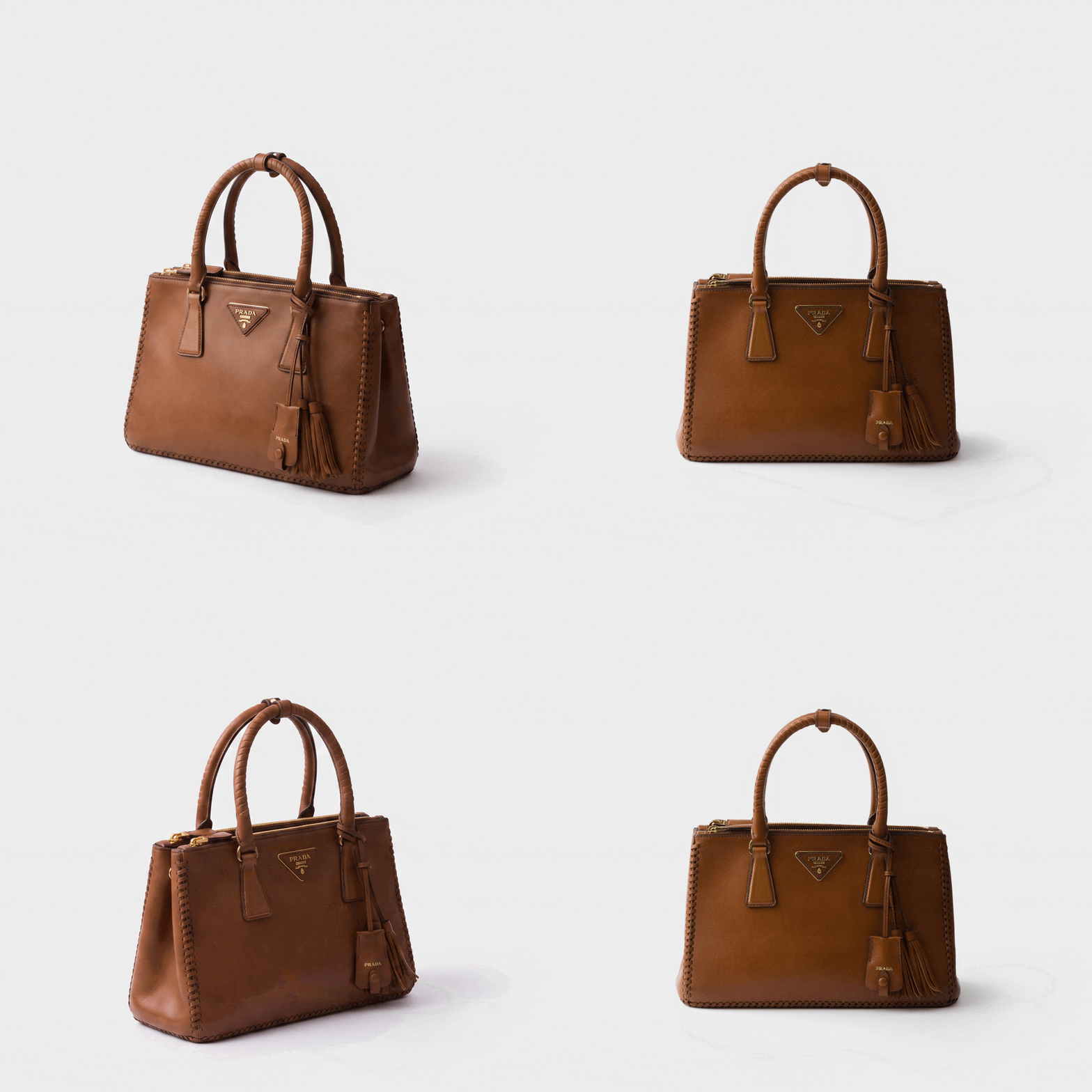
Product photos from different angles
A sequence of product views answers a simple question: what does this object look like from another side? Combine front, angled, side, and back views in that order. Keep the object at a similar size and position so viewers notice the product rather than the crop.
Use Image to GIF Maker to show one photograph after another. Delay determines how long each view remains visible. A direct change works well for inspection; an optional transition can soften the change, with Motion controlling its duration. Color variants can use the same approach, provided the pose and lighting stay consistent.
Photos of friends and shared moments
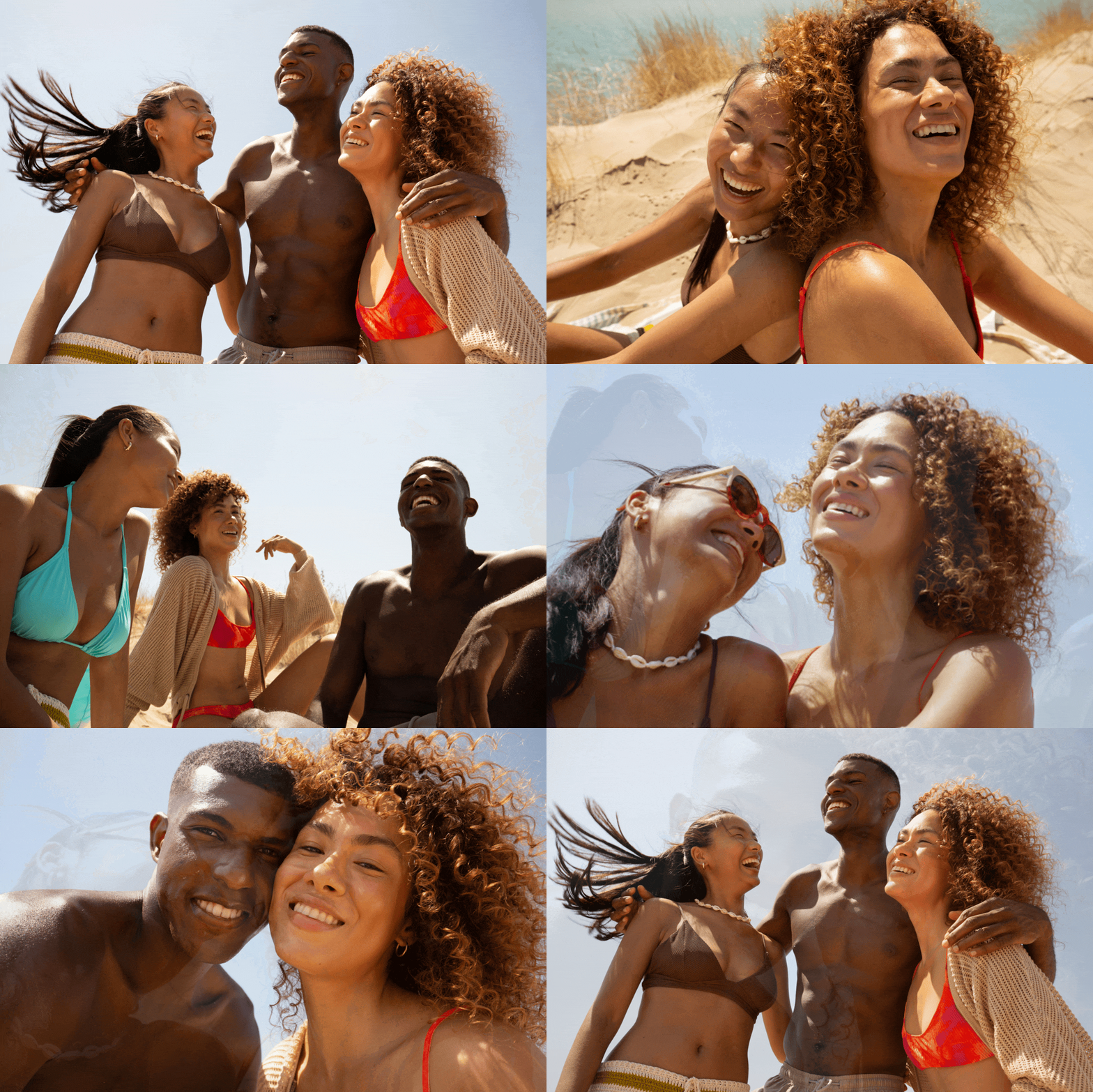
A handful of candid photos can become a greeting, a weekend recap, or a playful reaction for a group chat. A photo-booth sequence might move from a straight face to a surprised expression and then a laugh. A day at the beach might move from the whole group to close-ups of friends.
The approach is still simple: join the pictures into one sequence and choose the viewing time. Use direct changes for a quick comic beat, or a gentle transition for a more relaxed recap. A collection of different moments does not need a moving grid or a decorative layout to work.
Frame-by-frame art and stop motion
Small changes between still images can create the impression of motion: a bag fills, a paper character waves, letters assemble into a word, or ingredients appear on a plate. This works because the source images contain successive positions of the same subject.
Keep the camera fixed and use direct frame changes. A fast sequence needs small changes between poses; a slower one makes each stage visible. The packing example shows the difference between animating a process and simply presenting unrelated product photos.

Before-and-after GIFs and progress sequences
Two matched photographs can show a restoration, retouch, room makeover, or design revision. Alternating complete images is useful when the viewer should judge the whole result. A moving divider reveals the second photo across the first, making it easier to compare the same details.
Use the Before and After GIF Maker for a moving divider. For a process with intermediate stages—an empty room, work in progress, and the finished interior—use an ordinary image sequence instead. Keep the viewpoint consistent; a different camera position can hide the change you want to demonstrate.

For framing, alignment, and reveal options, see the before-and-after GIF guide.
Step-by-step photo instructions
A short photo sequence can show how to prepare a drink, fold paper, assemble an object, or repot a plant. Choose one clear action per picture and finish with the result. Hands, tools, and the part being worked on should stay large enough to recognize.
This example uses four photographs from the Starbucks pour-over guide: rinsing the filter, adding coffee, pouring water, and serving. The GIF gives a quick visual overview; keep quantities, waiting times, and the full instructions in the accompanying guide.

Use Image to GIF Maker to arrange the steps and set how long each one stays visible. This example uses a brief dissolve between steps, with a 0.8-second pause and a 0.25-second transition. The playback speed is for viewing the photographs, not a timer for performing the task.
If you already have a video or screen recording, use Video to GIF Converter to turn it into a GIF. Video is useful when the movement between the steps matters too.
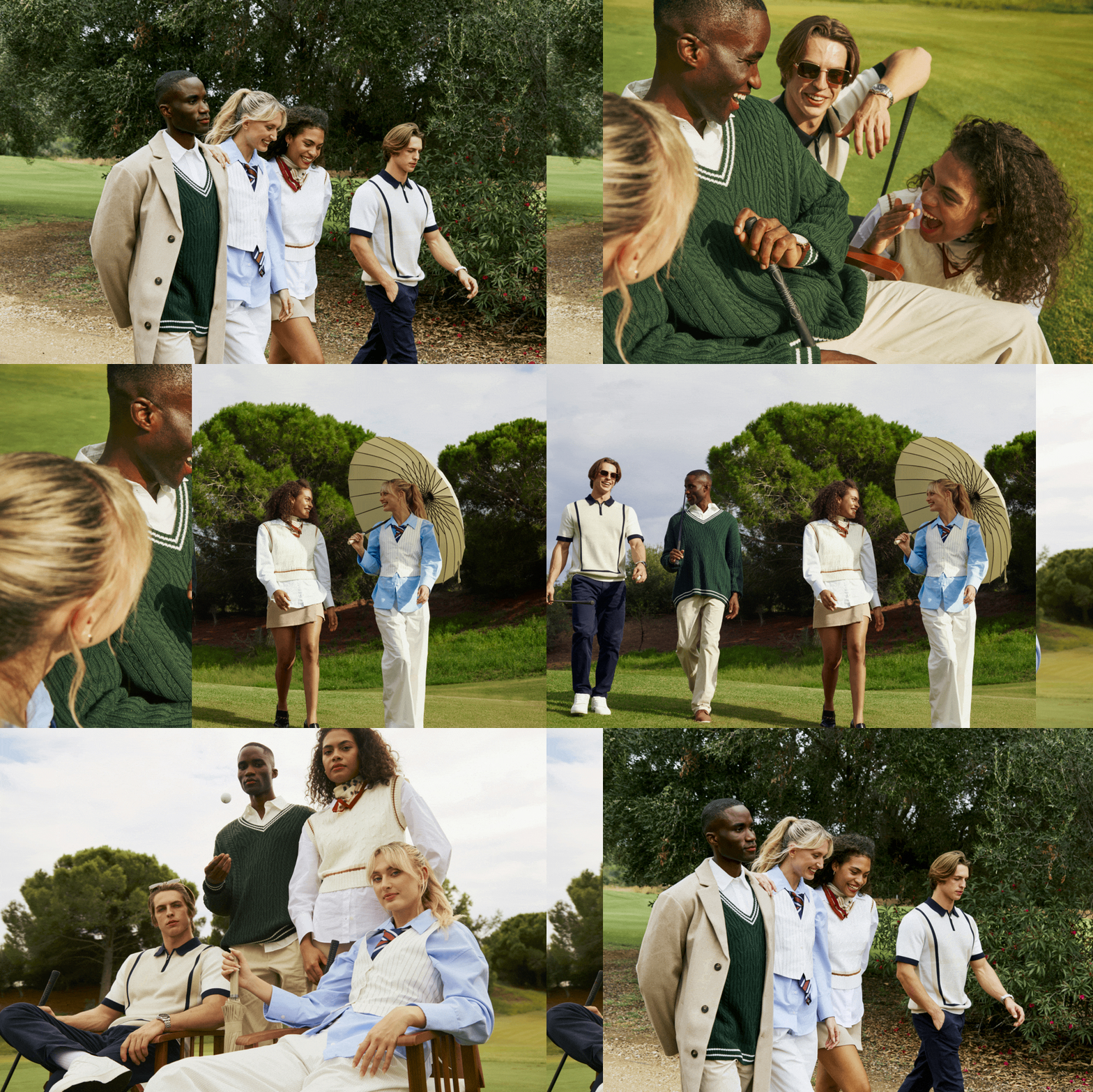
Outfit changes and lookbooks
One person photographed in different outfits can show styling options without making the viewer open a separate picture for each one. The same method works for a haircut preview, accessories, or combinations within a collection.
Match the pose, camera height, and background when the change of outfit is the main point. Use a slower sequence when viewers need to inspect details. A full-frame sequence keeps each outfit large; multiple simultaneous cards trade detail for an overview of the range.
A moving collection of spaces
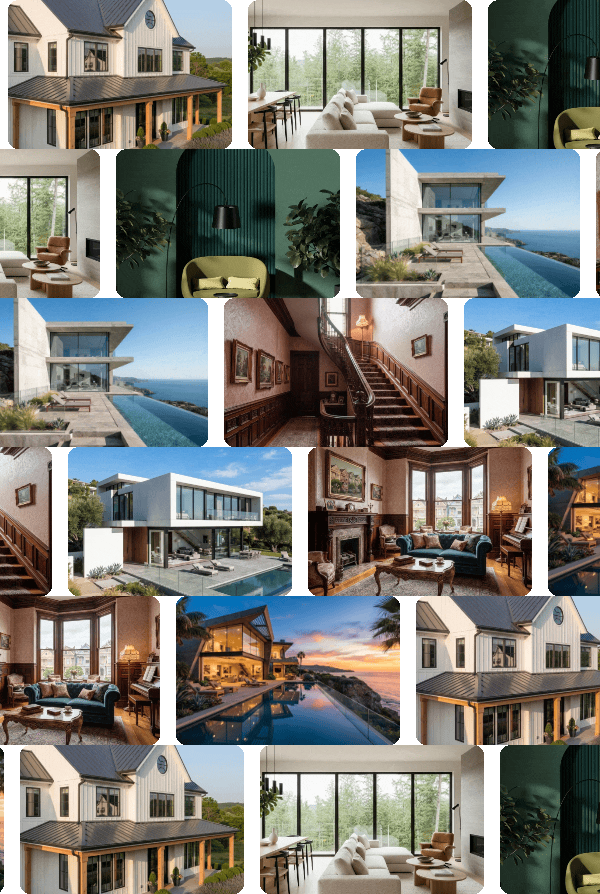
A designer, photographer, or rental host may need to show the breadth of a portfolio rather than explain one transformation. A moving row lets several rooms, products, or projects remain visible together, which works well in a compact website or email banner.
Carousel in GIF Slideshow Maker creates this kind of collection. Use visibly different subjects and leave enough separation to recognize each card. This is a different composition from simply replacing one full-frame photo with the next. The product carousel guide explains how to select complementary views and keep each item readable.
Paired views for a portfolio or lookbook
A building and its interior, a complete outfit and a detail, or a product and its packaging can make more sense as a pair. Viewers can inspect the relationship without waiting for one image to return.
Diptych in GIF Slideshow Maker keeps two photographs on screen and changes them in turn. Choose pairs deliberately: unrelated pictures may fill the space, but they do not explain one another. For other ways to arrange a collection, see the slideshow preset examples.

Commercial banners for property listings
A property advertisement needs to communicate an offer while showing the home. Keep the price, key features, and next action readable as exterior and interior photographs change. This solves a different problem from a photo sequence: the viewer should not have to wait for the listing information to reappear.
Use Real Estate Banner Maker for a designed listing layout. The example below uses sample copy and a sample price. Select photos that add useful information about the property rather than repeating similar views. See the real estate banner examples for listing, open-house, and rental use cases.

Diagrams, illustrations, and visual explainers
Export successive states of a diagram to explain how something works: a route gains its next stop, a process highlights one stage at a time, or a chart reveals a series. A drawn character can also move through a few poses. These are image sequences even though their sources are not photographs.
Keep the canvas, labels, and reference points fixed. Change only what the viewer should notice. A chart with a changing axis can imply a trend that is not in the data; a diagram that moves around between frames makes the sequence harder to follow. For an explainer, understanding each stage matters more than smooth motion.
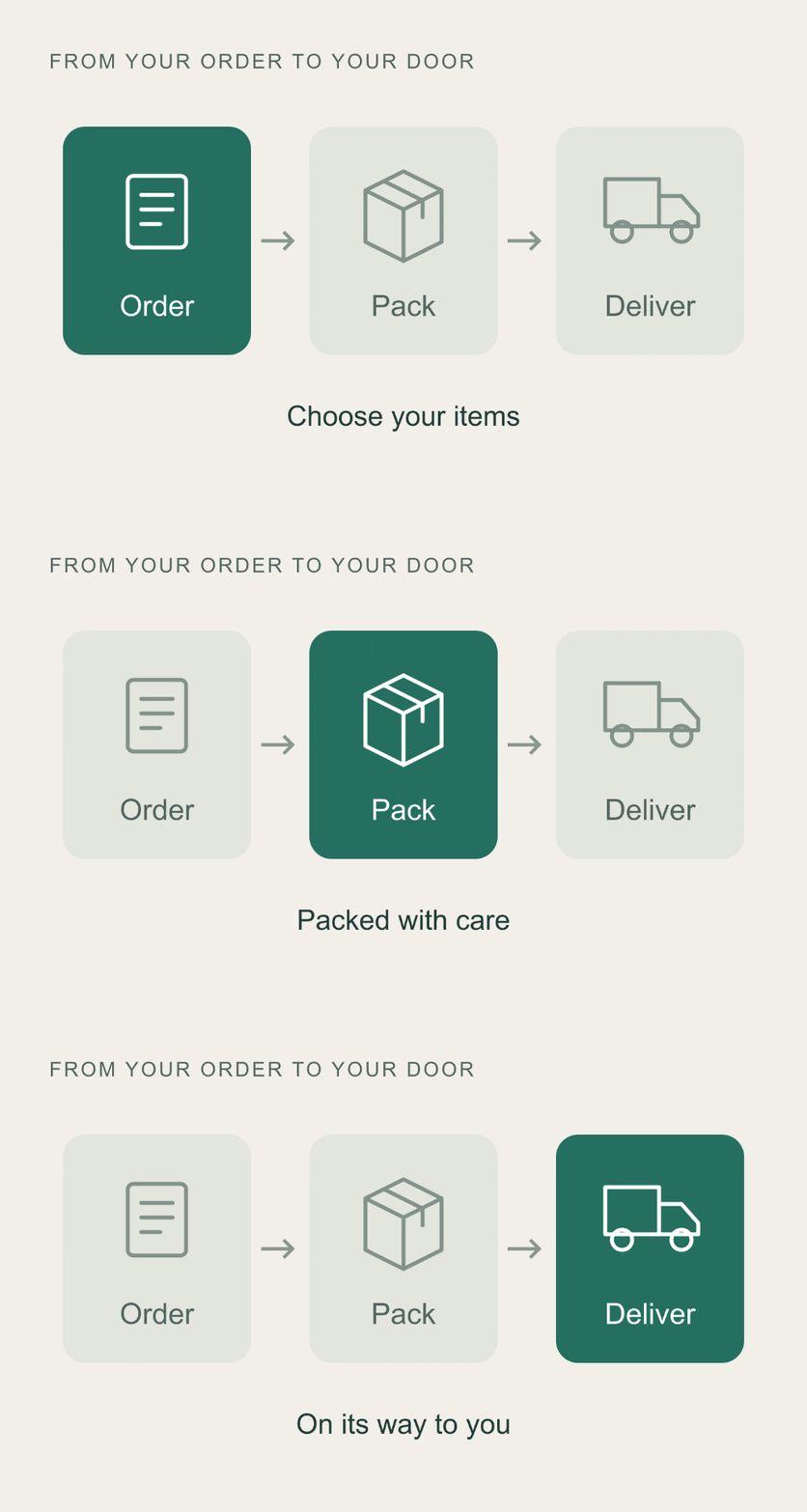
The example below uses three exported images of the same order process. Each image highlights a different stage while the labels and arrows stay in place. Show each for 1.4 seconds with no transition, so the active step changes clearly.
Invitations made from photo cards
An invitation can share a photograph, the event details, and a short reminder in one file. Prepare three cards as images: an opening photo with the event name, a card with the date and place, and a final message. This works for a birthday, a picnic, or a family get-together. Keep the full date and address in the accompanying message too, so guests do not have to wait for the GIF to repeat.
These sample beach-day cards use matching colors and type, with a different photograph on each. Export the cards at the same size, then join them in Image to GIF Maker. A 1.8-second delay gives this short wording time to be read; use longer pauses for more detailed invitations. The text is already part of each source image.

An illustration from sketch to finished artwork
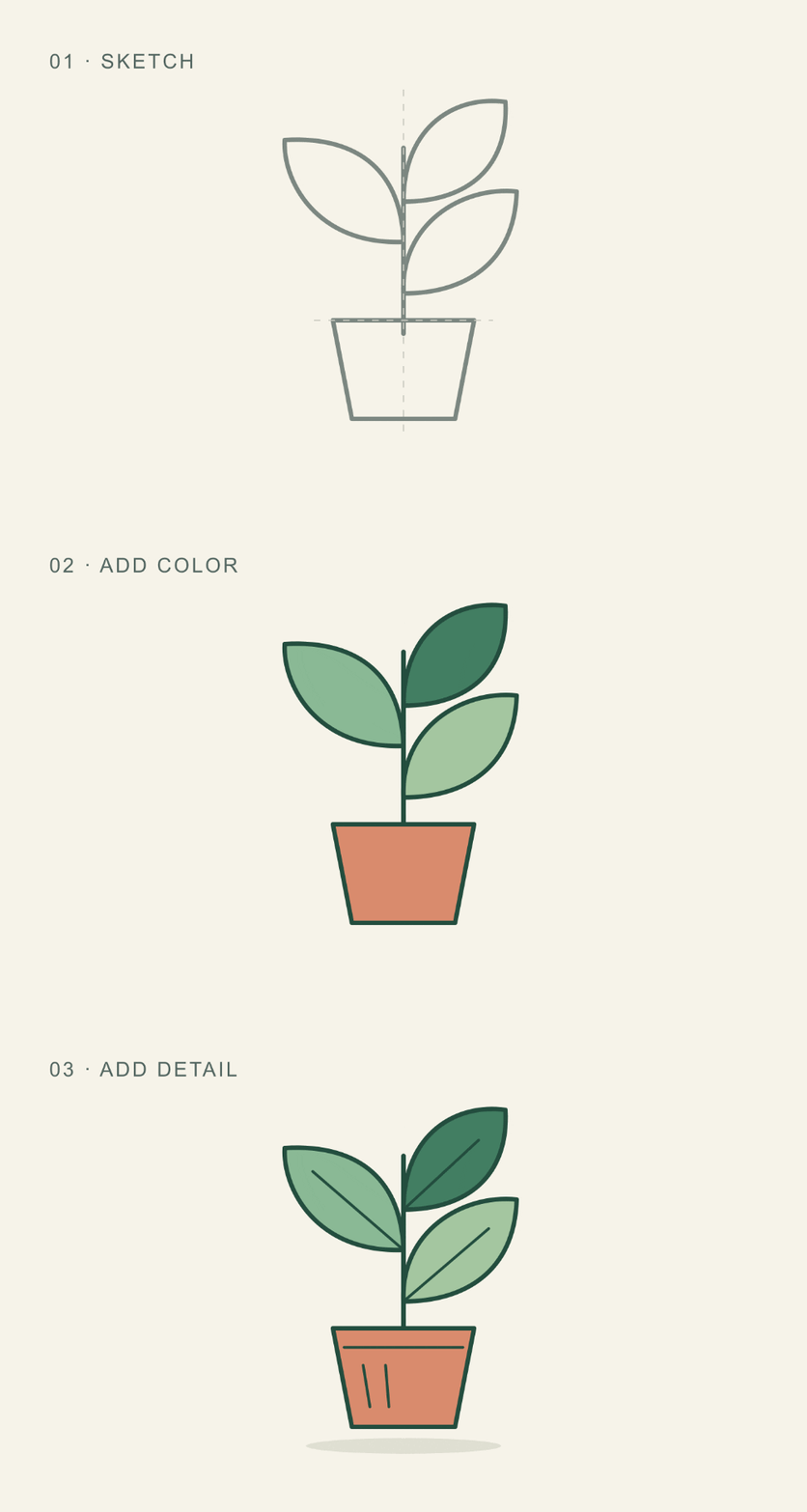
Save a few images while you work on an illustration: the outline, the main colors, and the finished details. Playing them in order shows how the picture develops. An artist can use this in a portfolio or a social post to show work that would be hidden by the finished image alone.
The plant example uses three exported images with the drawing in exactly the same position. The sequence adds color and then leaf veins, pot details, and a shadow. Use direct changes and give each stage a brief pause; this example uses 1.4 seconds. Keep the canvas and crop consistent so the viewer sees the drawing develop without it jumping around.
Match the format to the job
Choose a direct sequence when each image deserves the full frame. Choose stop motion when the pictures capture successive positions. Choose a comparison when the change itself matters. Choose a multi-image layout when the relationship or the size of a collection matters. Choose a commercial banner when a persistent message must accompany the pictures.
A GIF has no audio or interactive controls. Keep its meaning visible, make the opening frame useful on its own, and avoid putting a whole lesson into one loop. Photos, screenshots, and diagrams need different viewing times, even when they use the same file format.
Ready to build a straightforward sequence? The step-by-step image-to-GIF tutorial shows the source pictures first, then the exact settings and finished animation. For designed compositions, use the slideshow guide.
FAQ about GIF ideas and use cases
What kinds of GIFs can I make from photos?
A set of photos can show product angles, a friend-group reaction, a short recap, a stop-motion sequence, a before-and-after comparison, a lookbook, an invitation, or a commercial banner. The best approach depends on what changes between the pictures and what the viewer needs to notice.
What is the difference between a photo sequence and a carousel GIF?
A photo sequence shows one full image after another. A carousel moves several visible cards through a shared frame. Use a sequence to inspect each picture separately and a carousel to give an impression of a collection.
Can unrelated photographs create realistic movement?
They can form a montage, but they do not become continuous physical movement. For stop motion, use successive positions of the same subject with a fixed camera. Transitions connect pictures visually; they do not supply missing real-world action.
Which approach works for product photographs?
Use a direct sequence for angles or color variants, paired views for a product and its detail, and a carousel for a collection. Use a designed banner when an offer or call to action must stay visible while the photographs change.
When should I use photos rather than a video for a tutorial?
Photos work well when each step has a clear visible result. Use video when the movement itself matters, such as a hand technique that is difficult to explain with separate still pictures.
Where can I find the steps for making a GIF from images?
Follow the Image to GIF Maker walkthrough. It shows source pictures, exact timing settings, and the resulting GIFs for products, friends, simple animation, and a photo tutorial.